On match day, the next match is the one that kicks off next
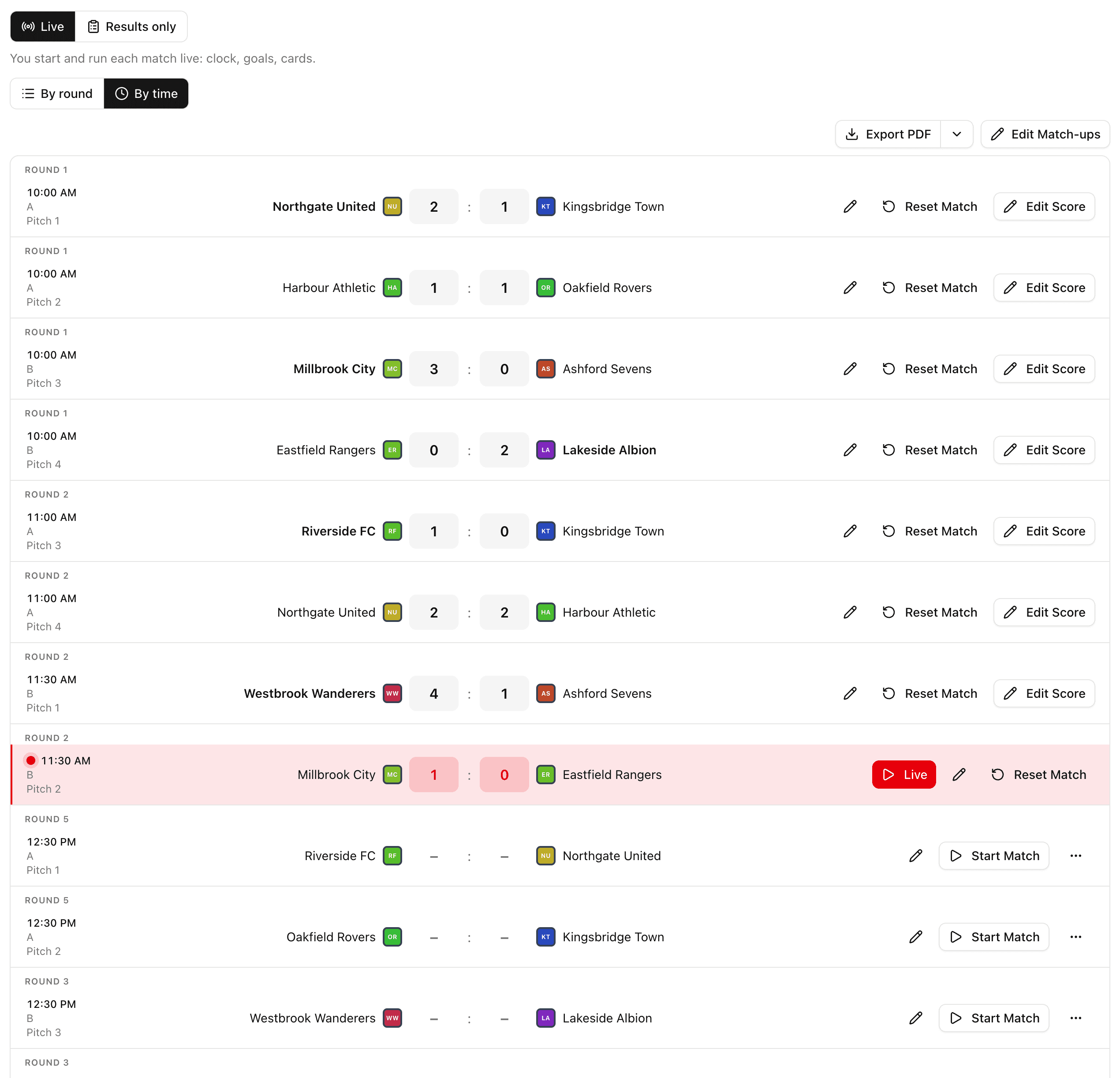
The match list can now follow the clock instead of the rounds, with the pitch on every row. Find the match that just finished without scrolling.
Picture a two-day 7-a-side football cup with two categories, Seniors and Veterans, on four pitches. The organiser rearranged the schedule in the pitch planner so that matches fit the pitches and the referees. Then match day came. The person entering scores opened the list, and it was still grouped by round, with no pitch numbers. A match had just finished on Pitch 3, and finding it meant scrolling through rounds that did not follow the clock anymore. The event overview showed only the next few matches. This update fixes both.
What changed
- A "By round" / "By time" switch on the match list in the operator panel. "By time" is one list in kickoff order, with the pitch on every row.
- The list switches to "By time" on its own when your schedule no longer follows the rounds.
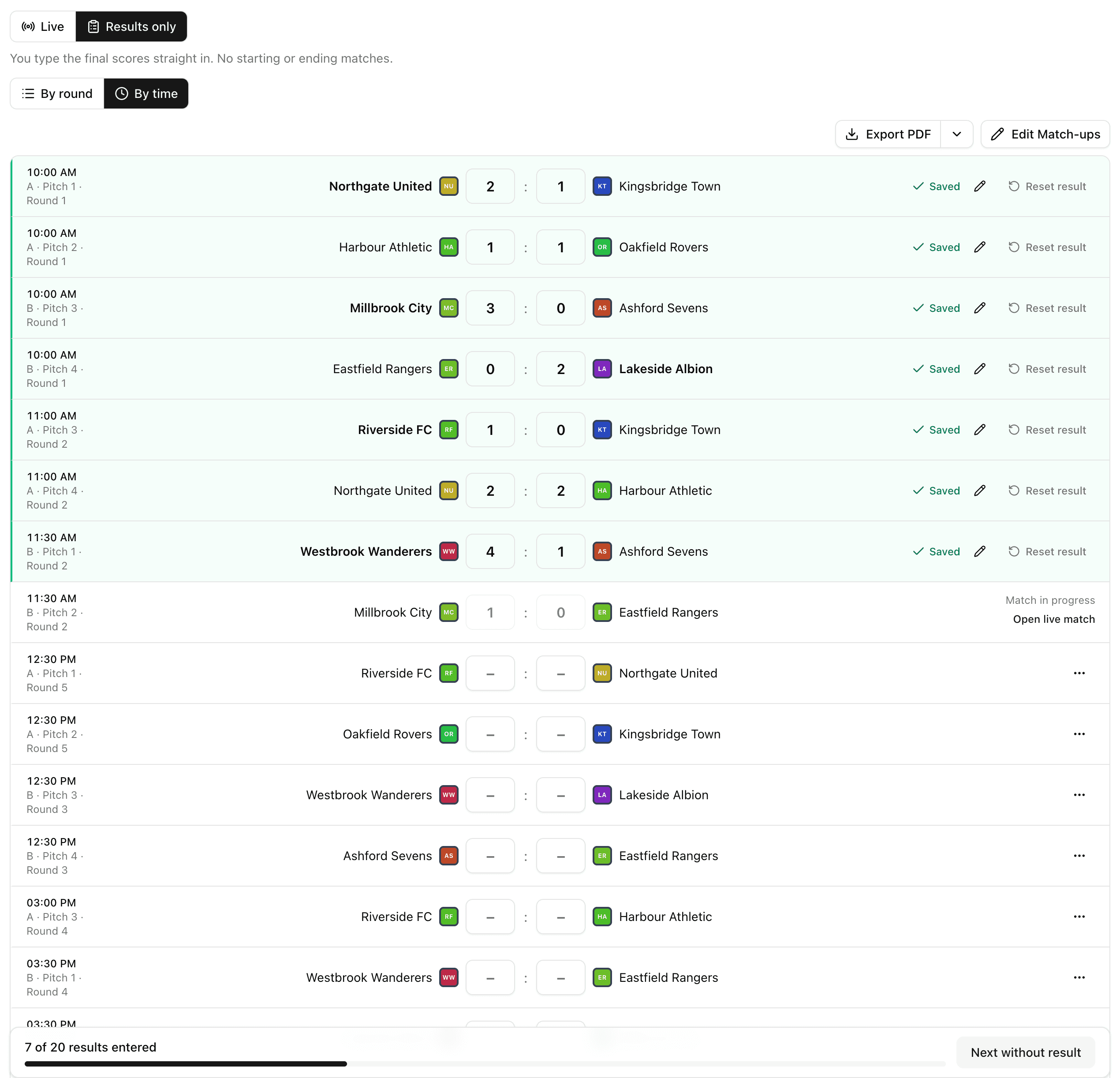
- In "Results only" mode the rows show the pitch too, and Enter jumps to the next match by kickoff.
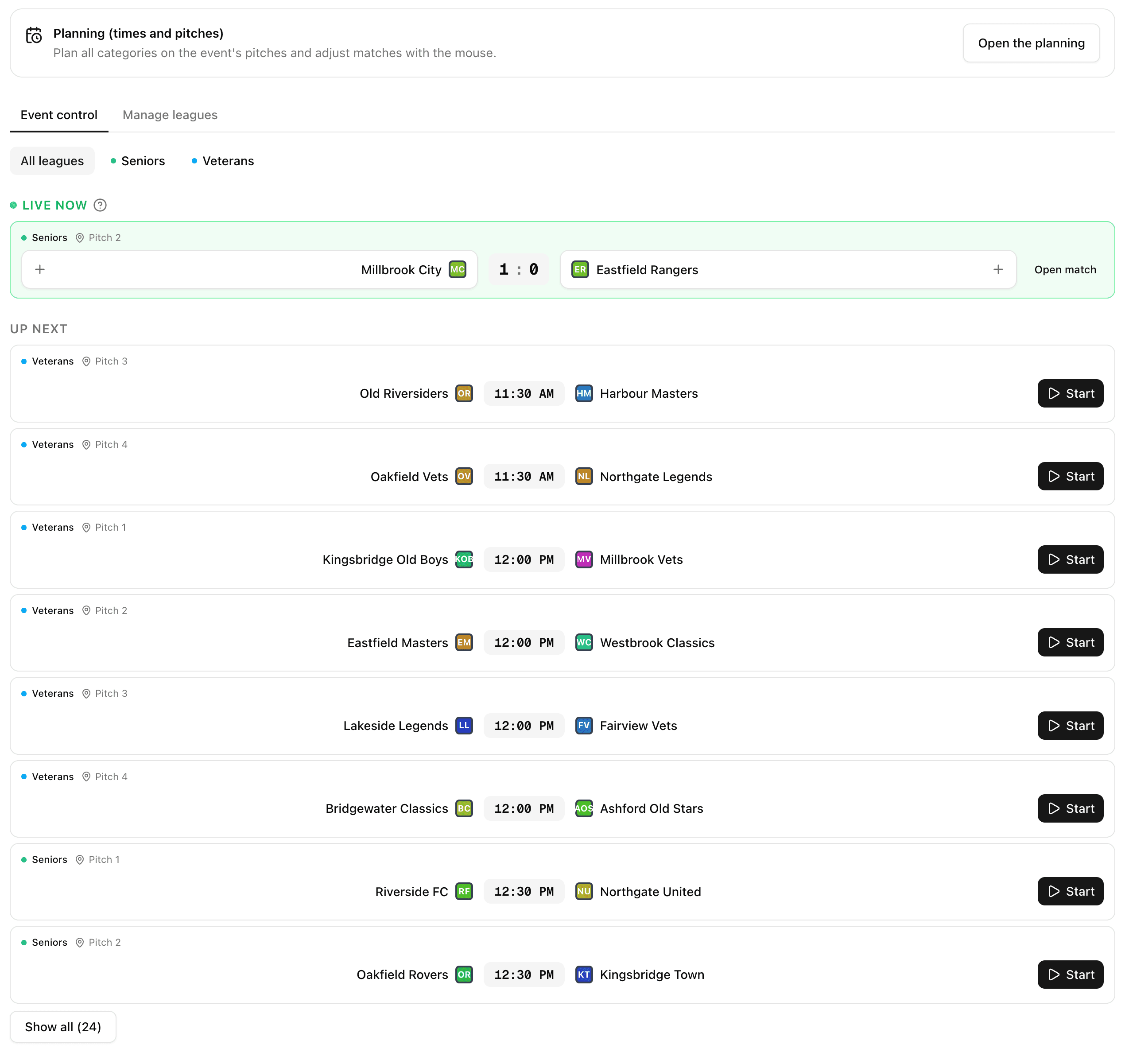
- "Event control" lists every scheduled match of the event, with a one-click filter by category.
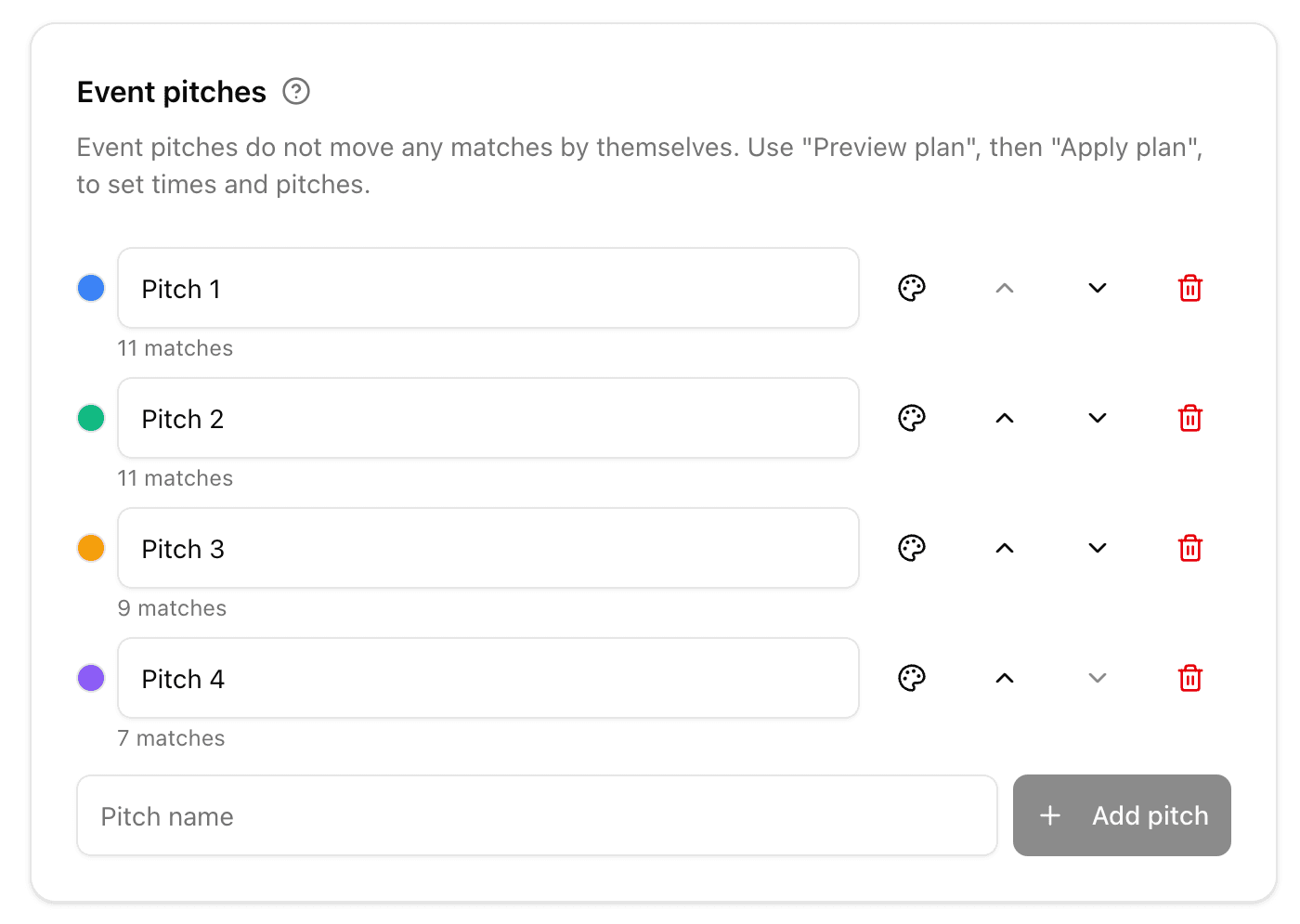
- Pitch lists show how many matches each pitch has, so an empty pitch is easy to spot and remove.
The problem: a schedule that moved, a list that did not
Grouping by round makes sense while a league runs in order. Round 1, then round 2, then round 3. It stops making sense after you move matches around the pitches. Round 4 can start before the last match of round 3, and two categories play side by side. The list in front of you says one thing and the clock says another.
On match day that costs time exactly when there is none. The referee brings the result, you need the right row at once, and you are scrolling. Without the pitch on the row you also cannot tell which of three matches at 11:00 is the one that just ended.
The match list: By round or By time
Open the tournament and go to the "Schedule" tab. Above the match list there is a switch with two options: "By round" and "By time". "By time" shows one flat list ordered by day, kickoff time and pitch. Each row carries its pitch and a small round tag, so you still know where the match belongs.
You do not have to remember to switch. When the schedule is out of round order, for example after matches were moved in the event pitch planner, the list opens in "By time" by itself. If the schedule follows the rounds, it stays grouped by round. LiveCup.app remembers your choice for each tournament.
One thing stays where it was. Changing the order of matches is done in "By round", so switch back when you want to reorder.
Entering scores fast: "Results only" follows the clock too
If you type final scores in "Results only" mode, the rows now show the pitch as well. In "By time", press Enter after the second score and the cursor jumps to the next match by kickoff, not to the next match of the round. You enter scores in the order the games were played.
Event control: the whole queue, not just the next few
"Event control" is the tab on an event page for running several categories at once. Its upcoming list used to show only the next few matches. Now it holds every scheduled match of the event, ordered by kickoff and then by pitch.
- It shows the first 8 matches. Click "Show all (N)" to open the rest, and "Show fewer" to collapse it again.
- A match that is running late stays on the list until it is started, so it does not vanish from view.
- Events that run over several days get a heading for each day.
- The league and category filter works on the full list in one click. Pick Veterans and you see every Veterans match still to come.
The organiser can now answer "what is coming up on the pitches in the next hour?" from one screen, for every category.
Pitch lists show how many matches each pitch has
In the event pitch planner, the "Event pitches" card now shows next to each pitch how many matches are assigned to it: "No matches", "1 match" or "5 matches". A tournament's court settings show the same numbers.
That is useful in two situations. You see at a glance whether one pitch carries far more matches than the others. And a pitch with no matches can be removed safely, because nothing in the schedule depends on it.
How to use it in three steps
- 1Open the tournament, go to the "Schedule" tab and pick "By time" above the match list. If your schedule is out of round order, it is already selected.
- 2Enter results in "Results only" mode, or run matches live, and follow the list down by kickoff. The pitch on each row tells you which match is which.
- 3Running several categories? Open "Event control", filter by category when you need to, and use "Show all (N)" to see the whole queue.
Who it helps
Anyone who enters scores while games are still being played: club volunteers with a laptop at the pitch side, a PE teacher running a sports day, the organiser of a weekend cup. The more pitches and categories you have, the more the clock matters.
The "By time" list works in the operator panel of every tournament. "Event control" and the pitch planner belong to events, and which plan includes them is described on the pricing page.
See plans and pricingFrequently asked questions
Does the list switch to "By time" by itself?
Yes, when the schedule is out of round order, for example after you moved matches in the event pitch planner. When the schedule follows the rounds, the list stays grouped by round. You can switch at any time, and LiveCup.app remembers your choice for that tournament.
How do I change the order of matches?
In "By round". The "By time" list is for reading and entering results, so switch back to "By round" when you want to reorder matches.
Does "By time" also work in "Results only" mode?
Yes. The rows show the pitch, and Enter saves the score and moves to the next match by kickoff.
How many matches does "Event control" show?
The first 8, ordered by kickoff and then by pitch. Click "Show all (N)" to see every scheduled match of the event and "Show fewer" to collapse the list.
What happens to a match that starts late?
It stays on the upcoming list until it is started, so a late match does not disappear from the queue.
Can I filter "Event control" by category?
Yes. The league and category filter works on the full list, so one click shows only the matches of that category.
Can I delete a pitch that has matches?
Yes, but LiveCup.app warns you how many matches would lose their pitch before you delete it. The pitch lists show the count for every pitch, and a pitch with "No matches" can be removed safely.
Related Articles
Two categories, four pitches, one schedule that actually works
Tell LiveCup.app when the pitches are free. It lays out every category's matches around them, and you fix the rest by dragging.
Tap the Team. That Is the Whole Interaction.
Event control shows every live and upcoming match across all the leagues in your event, and records a goal in one tap without leaving the page.
Collected the scores on paper? Type them in, one match per row
Results only mode turns the schedule into a list of score fields. Type a score, press Enter, type the next one. No starting or ending matches.
Let the match list follow the clock
Switch to By time, keep your eyes on the next kickoff and enter scores without the hunt.
Create your tournament