Two categories, four pitches, one schedule that actually works
Tell LiveCup.app when the pitches are free. It lays out every category's matches around them, and you fix the rest by dragging.
Picture a 7-a-side football cup with two categories, Seniors and Veterans, played over a weekend on four shared pitches. Each category has its own groups and its own schedule. The pitches belong to both. Until now someone had to hold the two schedules together by hand, in a spreadsheet, and redo it every time a team dropped out or a match ran long. The pitch planner does that part for you, and a drag-and-drop board lets you adjust the result in seconds.
What you get
- One list of pitches for the whole event, shared by every category.
- Time windows for each day you play, so the plan stays inside the hours you actually have.
- A preview of the full plan before anything changes, and one click to apply it to every league's schedule.
- A board where you drag a match to a free slot, drop it on another match to swap, or click it to pick a pitch and time.
- Pinning, so the matches you moved by hand stay exactly where you put them when you plan again.
The problem: shared pitches, separate schedules
Each category is its own tournament with its own fixtures. That is great for standings and results, and awkward the moment two categories need the same grass. Seniors group A wants pitch 2 at 10:00. So does Veterans group B. A player registered in both categories cannot be in two places at once. Someone has to notice.
Then the real day starts. A team withdraws, a match is moved for a referee, the organiser wants a longer break at lunch. Every change in one category can break the other, and the spreadsheet does not warn you. The planner works the other way round: it knows about every category at once, so a clash is something it avoids instead of something you find on the day.
Step 1: set up your pitches and your days
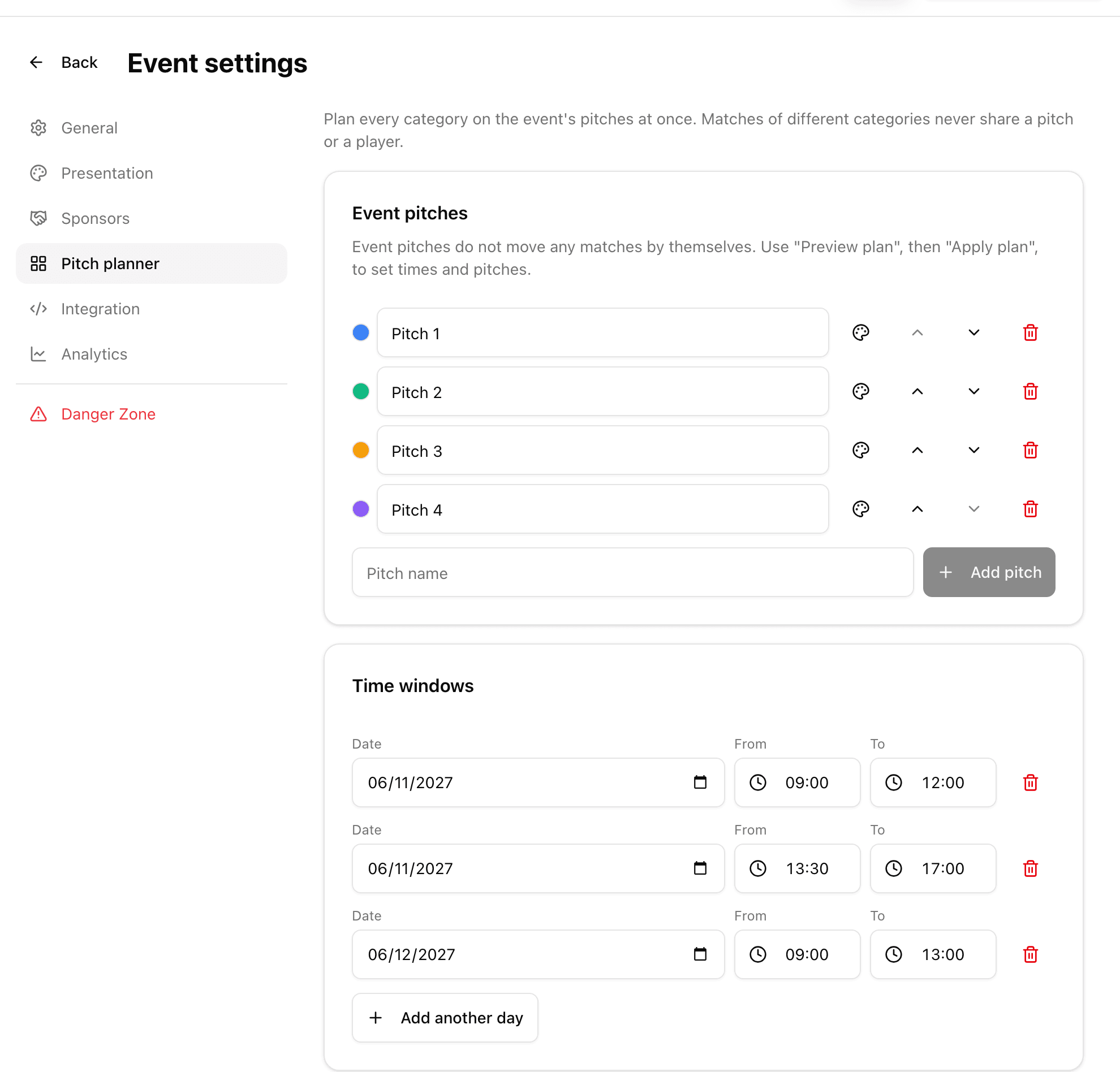
Open the event, go to Event settings and choose "Pitch planner". Under "Event pitches" add the pitches you have, give each a name and a colour, and put them in the order you like. There is one set of pitches for the whole event, and every category uses it.
Under "Time windows" enter when play is possible: the date, a start time and an end time. Use "Add another day" for each further day or window, for example Saturday morning, Saturday afternoon and Sunday. The planner never places a match outside these windows.
Step 2: tell it how each category should play
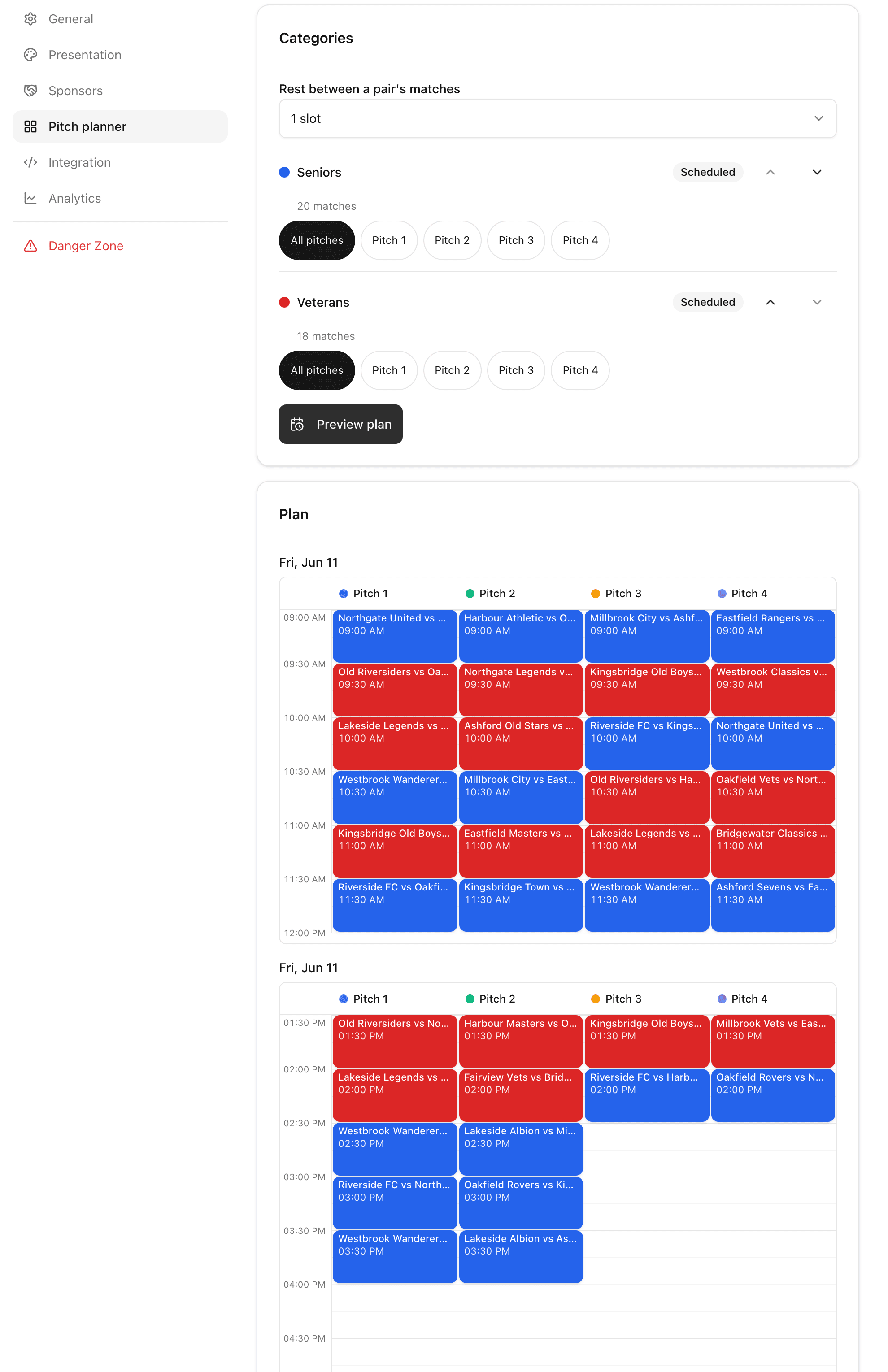
The "Categories" card lists every league of the event. Set "Rest between a pair's matches" so a team gets a breather before its next game. Order the categories by "Priority", so the one you care about most gets the best slots.
Some categories should not use every pitch. Maybe Veterans play only on the two pitches closest to the clubhouse. Pick "Selected pitches" for that category and tick the pitches it may use. Leave "All pitches" for the rest.
Click "Preview plan". Nothing in your tournaments changes yet: you just see the whole plan laid out on a grid, pitch by pitch and hour by hour, with each category in its own colour. If something does not fit, the matches that were left out appear under "Not scheduled", each with a reason, such as no time left in the windows or no pitch allowed for that category. The preview even suggests a fix, like extending the last window or allowing a category more pitches.
Step 3: apply the plan
Happy with the preview? Click "Apply plan". LiveCup.app writes the times and pitches into the schedule of every league in the event, and asks you to confirm how many matches it will set. Live and finished matches are never touched.
Leagues and groups need their schedule generated first. Without fixtures there is nothing to plan. If you add teams or rounds later, run "Apply plan" again. Knockout and final matches are planned after the group stage and are never placed in the past.
Step 4: fix it on the schedule board
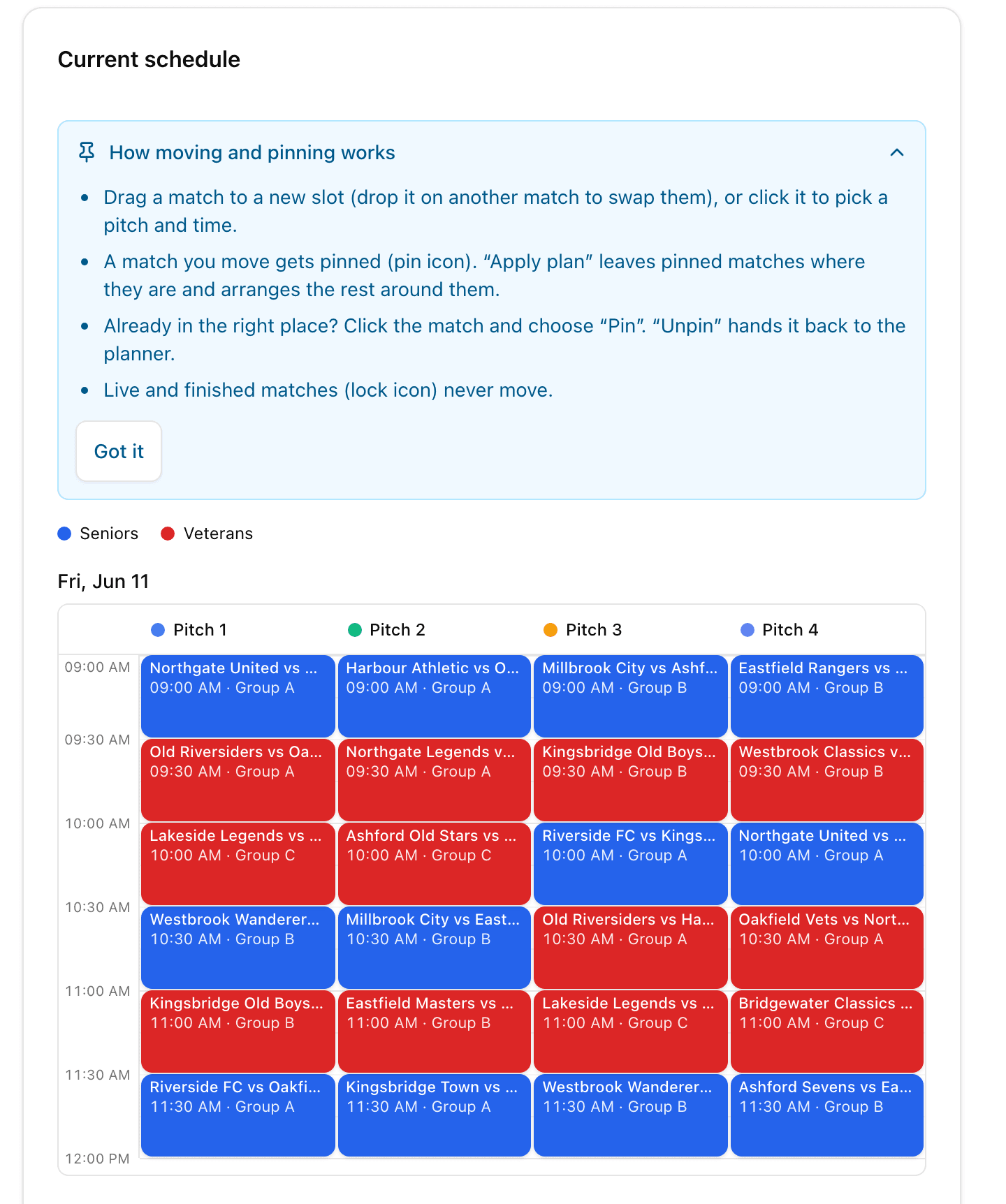
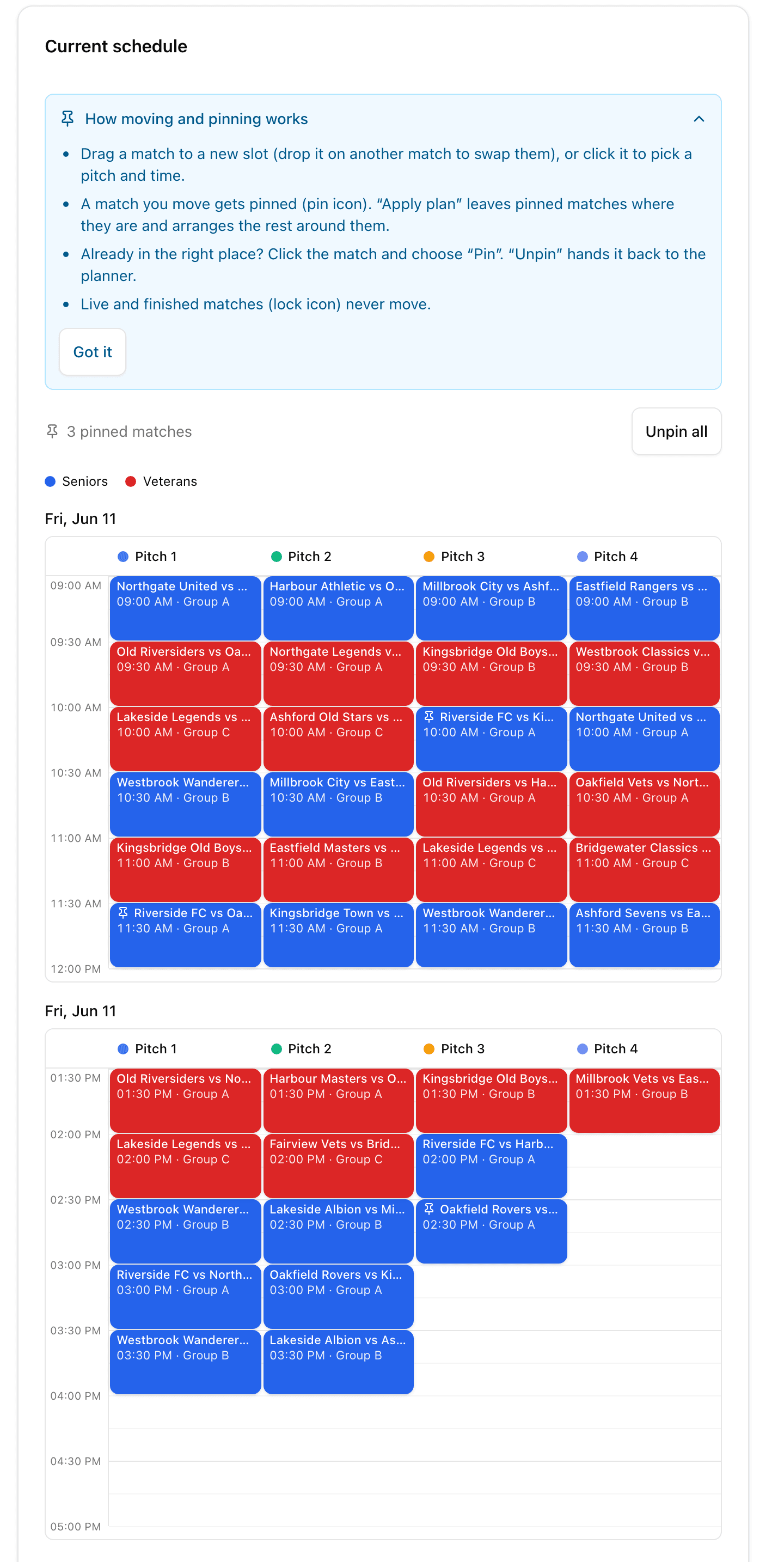
A plan is a good start, not the last word. The "Current schedule" board shows what is really booked: a column for each pitch, with every match placed at its time as a card in its category's colour. Wherever you need a change, make it directly:
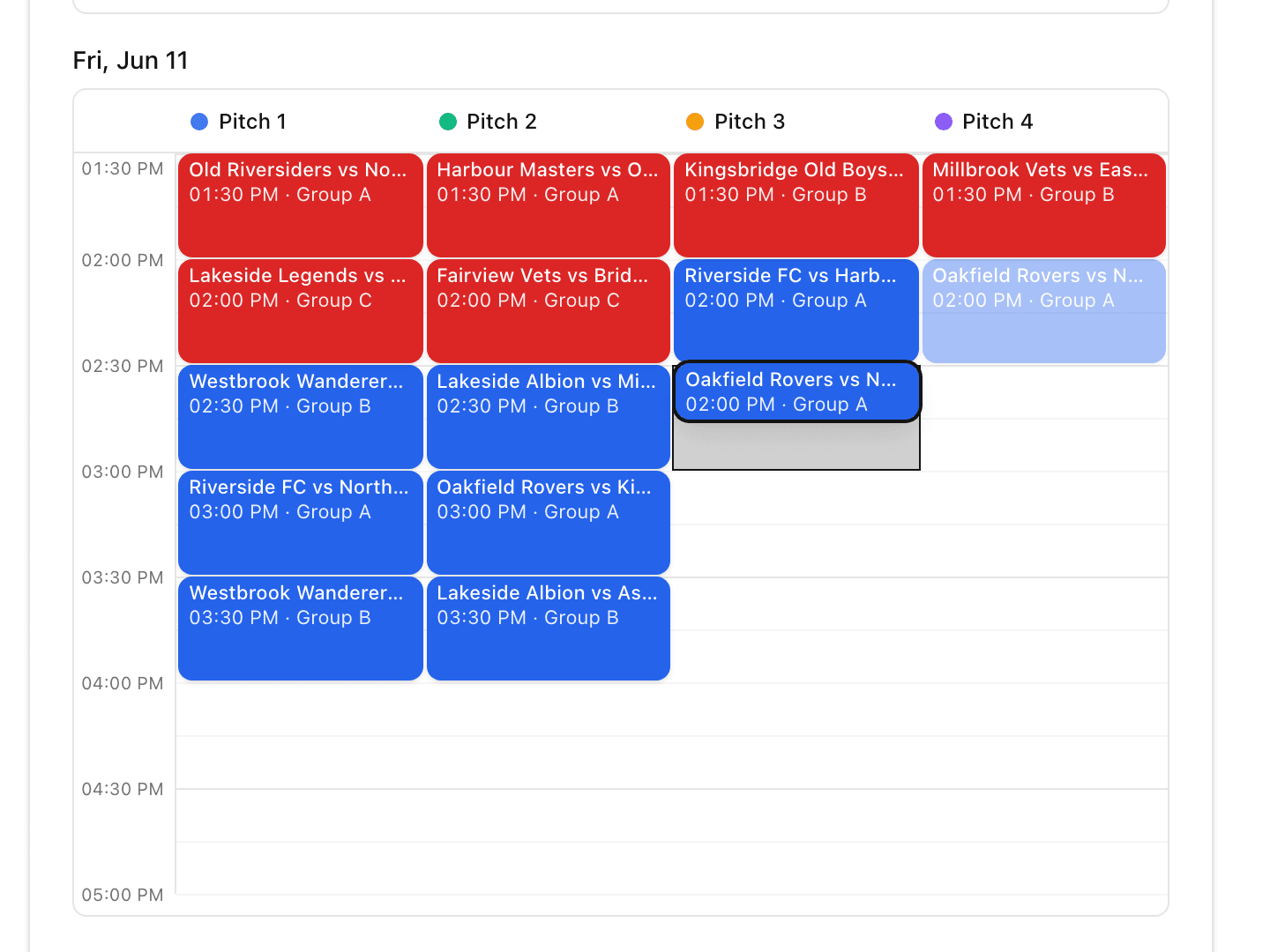
- Drag a match to a free slot. A preview shows where it will land before you let go.
- Drop it on another match and the two swap places.
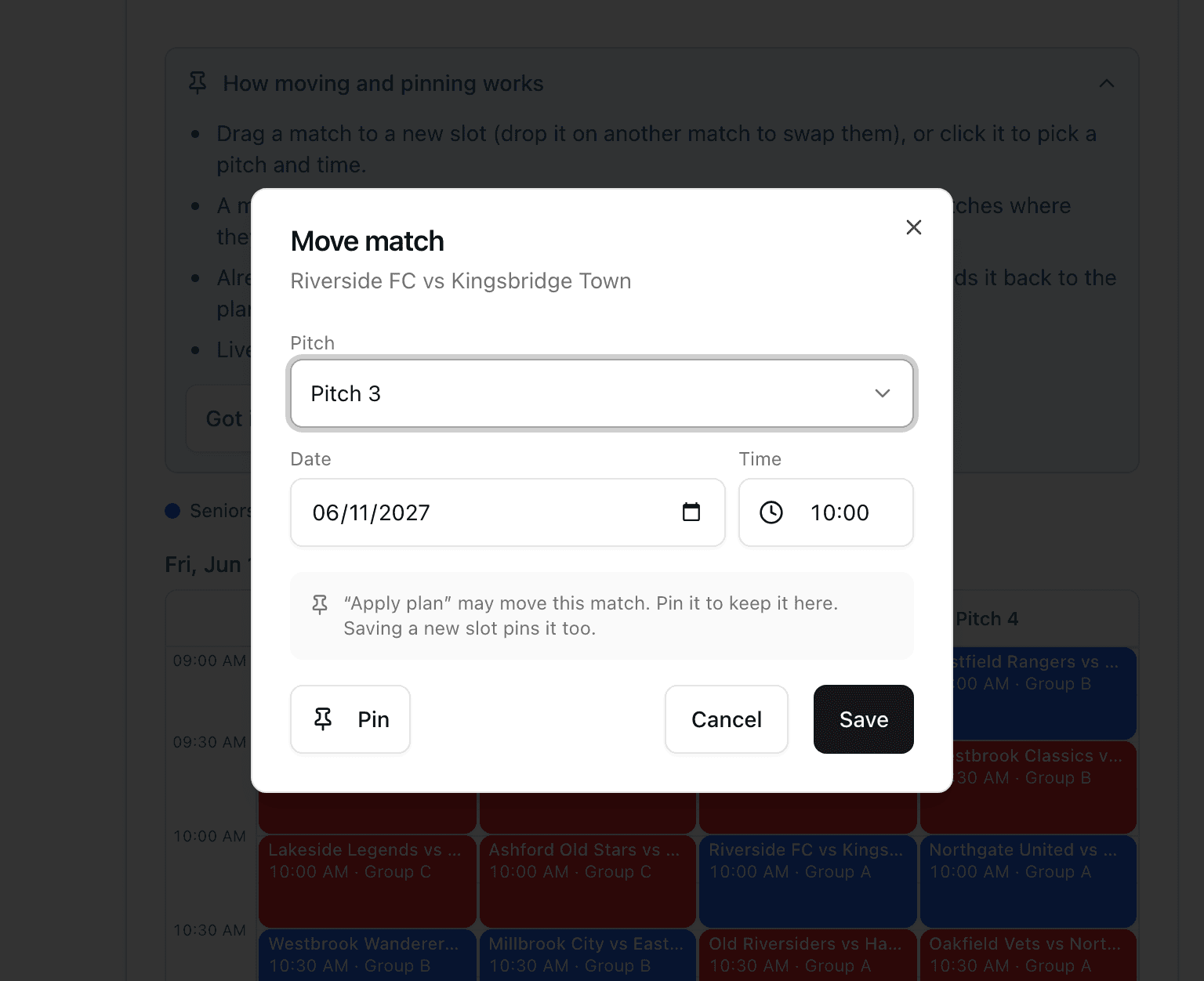
- Or click (tap on a phone) the match, choose a pitch, a date and a time in the "Move match" window and press "Save".
After a move you get an "Undo" button for a few seconds, so a slip of the mouse costs nothing. The board also lists any problems, for example two matches overlapping on one pitch or a team playing twice at the same time, and marks them with a conflict badge.
Pinning: moves that stick
Here is the catch with any automatic plan: run it again and it might undo your manual fix. Pinning solves it. A match you move is pinned automatically and shows a pin icon. When you click "Apply plan" again, pinned matches stay where they are and the planner arranges everything else around them.
A match is already in the right place and you want to keep it there? Click it and choose "Pin". Changed your mind? "Unpin" hands it back to the planner. The board shows how many matches are pinned and offers "Unpin all" to start from a clean plan.
Matches that are live or finished carry a lock icon instead. They never move, whatever you do.
What the planner guarantees
Whatever the plan looks like, these rules hold:
- No pitch is booked for two matches at the same time.
- No team plays in two places at once, in the same category or across categories.
- A player who is registered in several categories with the same email address is kept apart too.
- The rest you set between a team's matches is respected.
- The final stage starts after the group stage, and its matches are never planned in the past.
- Live and finished matches never move.
- A match that does not fit is never dropped silently. It is listed with the reason.
One limit to know: the planner recognises a shared player by email address. If the same person was entered in two categories with different emails, it cannot tell. The planner also does not assign referees and does not re-plan on its own while matches are being played. You decide when to apply, and the live matches stay put.
Who it is for
Any event with several categories on shared pitches or courts: a football cup with Seniors and Veterans, a volleyball weekend with men's and women's leagues, a padel club night with several divisions on the same courts. If a single tournament has the pitches to itself, you do not need it.
The pitch planner is part of the PRO plan and above (PRO, Business and Enterprise), and it follows the plan of the event's owner. An Event Pass does not unlock it. Events made only of racket sports, such as padel or tennis, say "court planner" and "courts" instead of pitches.
See plans and pricingFrequently asked questions
Does "Preview plan" change my tournaments?
No. The preview only shows what the plan would look like. Times and pitches are written to the leagues only when you click "Apply plan" and confirm.
Can I plan several days and several time windows?
Yes. Use "Add another day" to add a window with its own date, start and end time. You can have up to seven windows, for example Saturday morning, Saturday afternoon and Sunday.
What if a match does not fit anywhere?
It is listed under "Not scheduled" with the reason, for example that there is no time left in the windows. Extend a window, add a pitch or allow the category more pitches, then preview again.
Will "Apply plan" undo the changes I made by hand?
Not if the matches are pinned. Any match you move is pinned, and "Apply plan" leaves pinned matches where they are and plans the rest around them. Use "Unpin" or "Unpin all" when you want the planner to take them back.
Can I move a match that is already live or finished?
No. Live and finished matches are locked and never move. The same goes for matches of formats that are planned round by round.
Can I limit a category to certain pitches?
Yes. In the Categories card choose "Selected pitches" for that category and pick the pitches it may use. By default a category can use all of them.
Do I need a paid plan?
The pitch planner is available on PRO, Business and Enterprise, based on the plan of the event's owner. An Event Pass does not include it. Everything else about running an event, such as leagues and results, is described on the pricing page.
Related Articles
Tap the Team. That Is the Whole Interaction.
Event control shows every live and upcoming match across all the leagues in your event, and records a goal in one tap without leaving the page.
A team is late? Drag its match later and keep the day moving.
Change the order of play in a schedule that is already running. Drag a match, play it next, move it to the end or swap it with another one, and undo any change.
Five Age Groups. One Event. One Link for Every Parent.
A club cup with U8 to U14, a men's and a women's draw, an A and a B tier. How to run every division on its own terms without running five separate tournaments.
Give every category its fair share of the pitches
Set up your pitches and time windows once, preview the plan and apply it to every league.
Create your event