In this article you open your club panel for the first time and work through the setup checklist until your page is ready to publish.
You need the BUSINESS plan. See what the club page is.
Open the club panel
Open the user menu in the top bar and click Club panel. You can also click Club panel on your dashboard.
The first time, LiveCup creates your club for you. It uses your account name as the club name and suggests a page address. If you have a tournament with a logo, the newest logo becomes your club logo.
The page starts as a Draft. Only you can see it for now.
Take the guided tour
The first time you open the panel, a guided tour starts by itself. It goes through the menu item by item, in the same order as the menu: Dashboard, Publication, Appearance, Sections, Info, Footer and legal, Sponsors, Documents, Offers, Inbox, Groups, Members and Dues. Each step says what the section is for.
To see it again, click Tutorial in the club panel.
Work through the checklist
The Dashboard is the first page of the panel. On a brand-new club it is titled Start with your club page and shows the Club page checklist right under the title. Once your club has some activity, the numbers come first and the checklist sits below them. After every step is done, it moves to the bottom.
The checklist shows how many steps are done, for example "3 of 6". Each open step has a button that takes you to the right page.
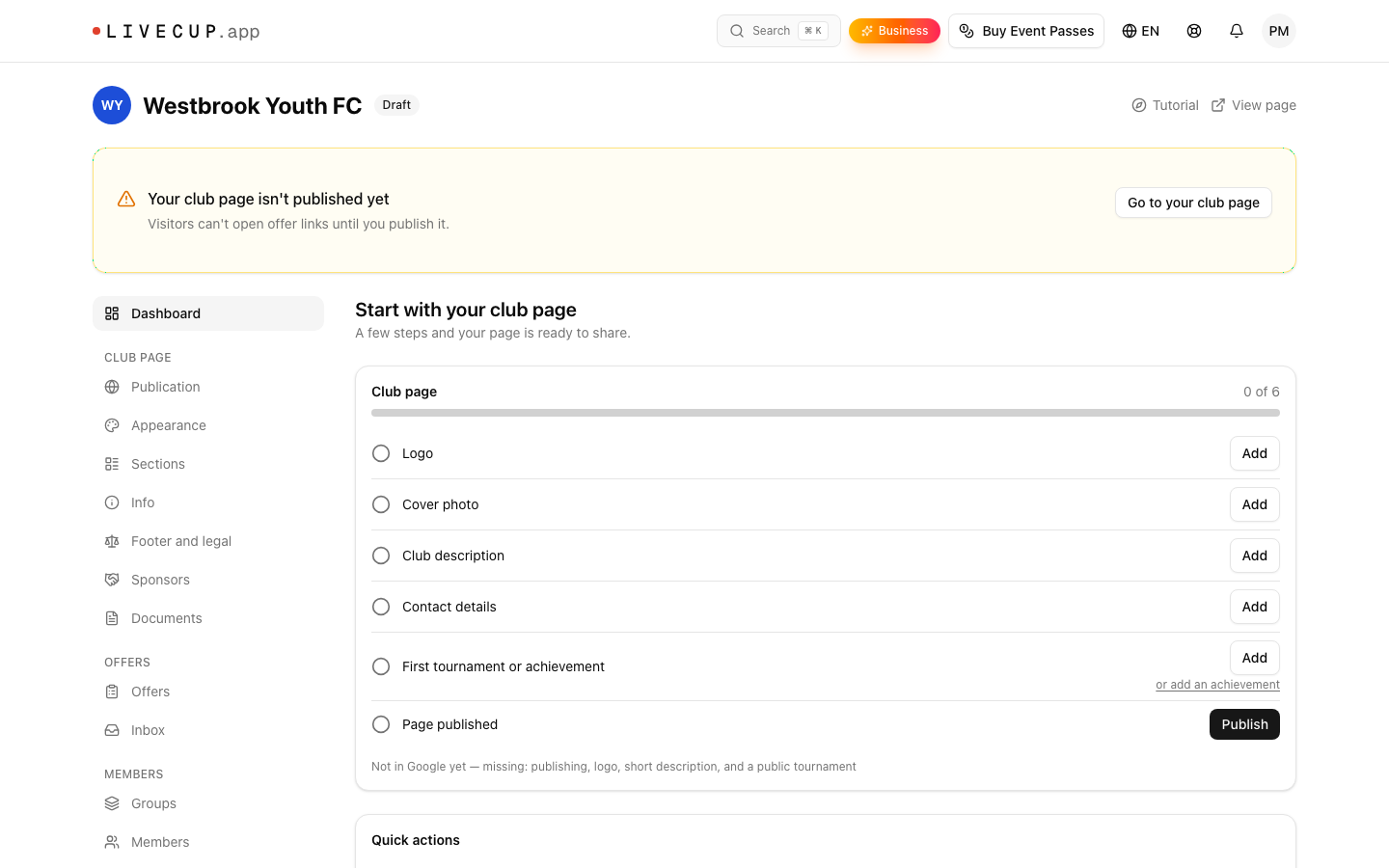
The steps are:
Logo: upload it under Appearance. See Appearance.
Cover photo: also under Appearance.
Club description: write it under Info. See Club info.
Contact details: also under Info.
First tournament or achievement: link a tournament, or add an achievement. See Tournaments on the club page and Page sections.
Page published: switch the page on under Publication. See Publish your page.
When everything is done, the checklist says "Your page is complete".
See if search engines can find you
The checklist card also tells you if your page is Visible in Google. If not, it says what is missing: logo, short description, an About text, contact details, content in two sections, publishing, an active BUSINESS plan or the Search engines switch. Details are in Publish your page.
What else is on the dashboard
New sign-ups and Awaiting a reply: people who need an answer. See Sign-ups inbox.
Open offers with places taken.
Upcoming tournaments.
Numbers for members, groups and dues.
Quick actions: New offer, Add member, New tournament and Page sections.
A bar with your public page address and a Copy link button.
A good order is: Info, Appearance, Sections, then your first Offer. Publish last.
Next: write your club info.