Stuck at the venue? The answer is one search away
The new LiveCup Help Center has step-by-step guides with screenshots, a search box that understands plain questions, and small question marks right where you need them.
Match day is not the moment to read a manual. The first game starts in ten minutes, a team shows up that nobody registered, and you hold a phone in one hand. So we wrote a Help Center for exactly that moment. It has 25 short guides in four topics: Getting started, Match day, Tournament setup, and Account and billing. Every guide is written as numbered steps, with screenshots of the real screens. It is free to read, you don't need an account, and it is available in all 8 languages of the app.
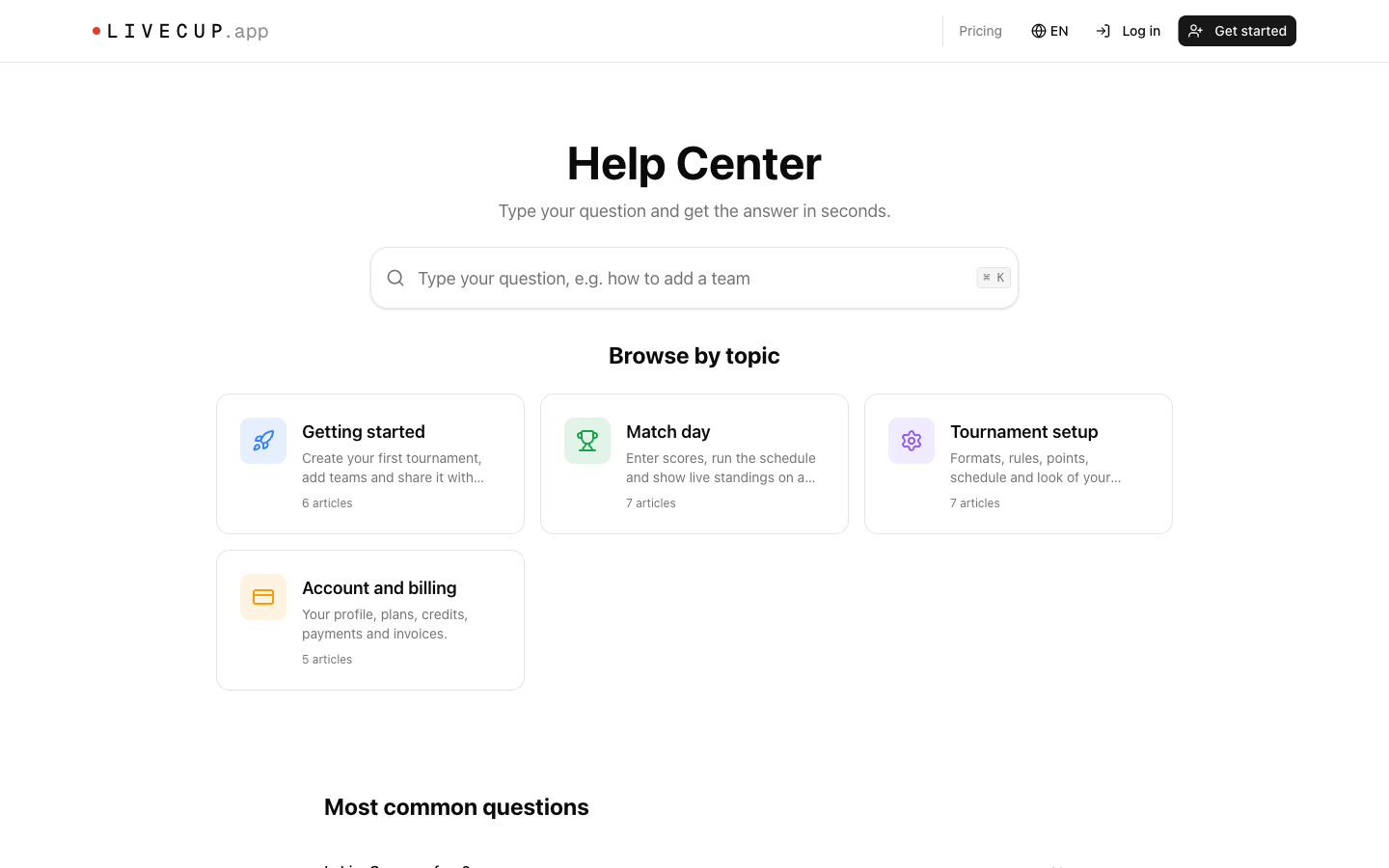
Type your question the way you'd ask a person
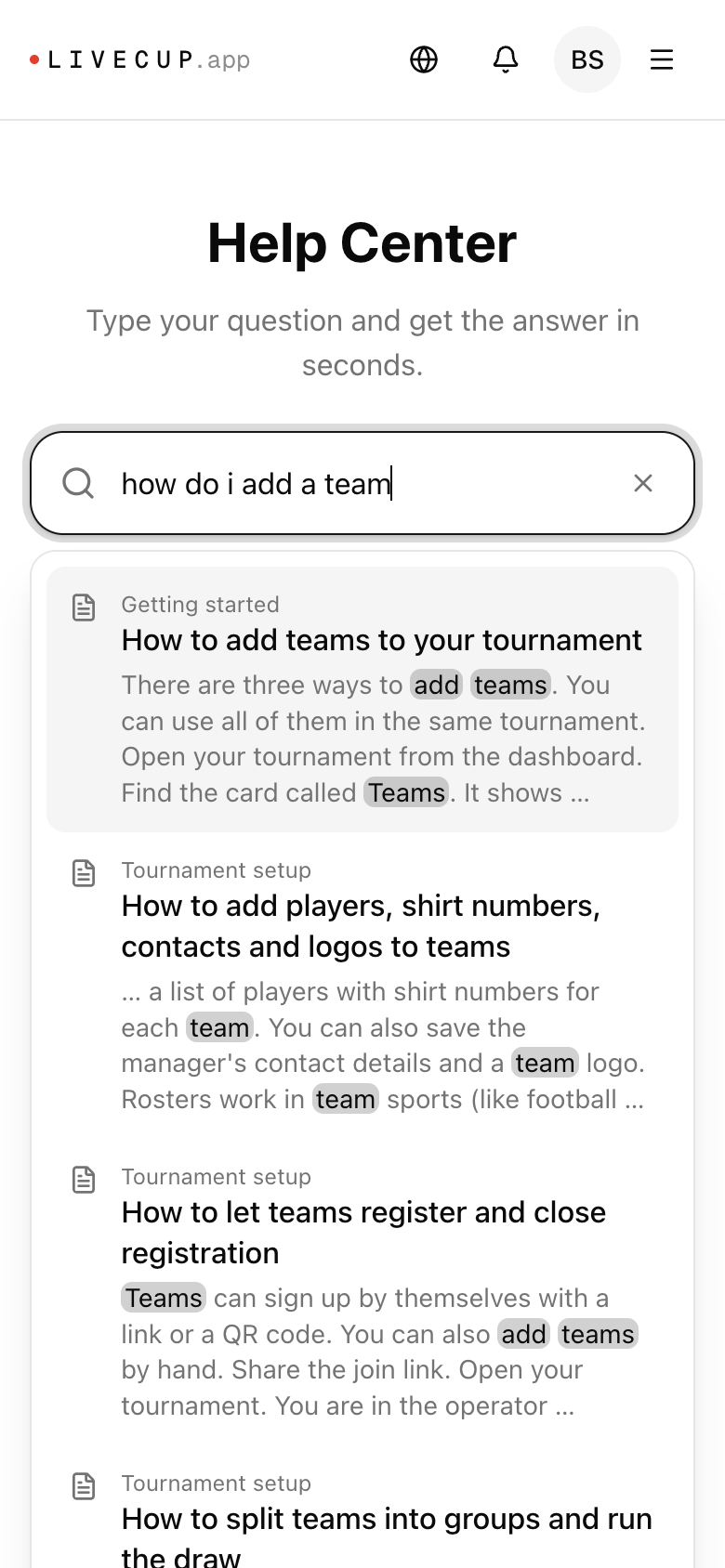
There is one big search box at the top of the Help Center. Write what you want to do, for example how do I add a team, and the best guides appear as you type. Each result shows a short snippet with your words highlighted, so you can see why it matched before you open it.
You don't need to know our words for things. Small typos are fine, and so are missing accents: jak dodac druzyne finds Jak dodać drużynę. When you open a result, you land on the right section of the guide, not at the top of a long page. On a computer, press Ctrl+K or Cmd+K to jump to the search box from any help page.
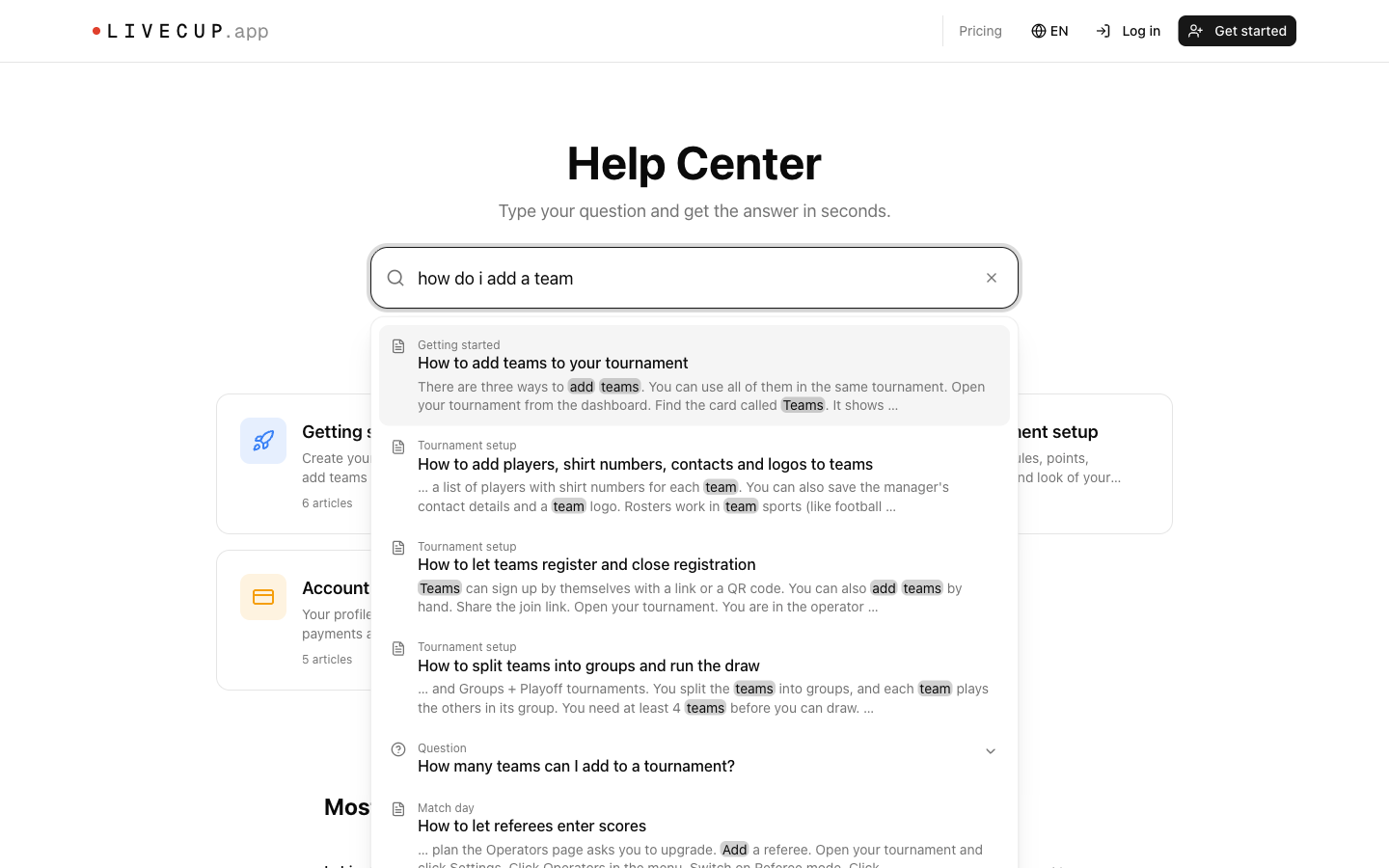
Nothing found? Ask us in one click
Some questions are not in the guides yet. When a search finds nothing, you see the most popular questions instead, and an Ask us button. It opens the support form with your question already filled in, so you don't write it twice. A real person reads it and writes back.
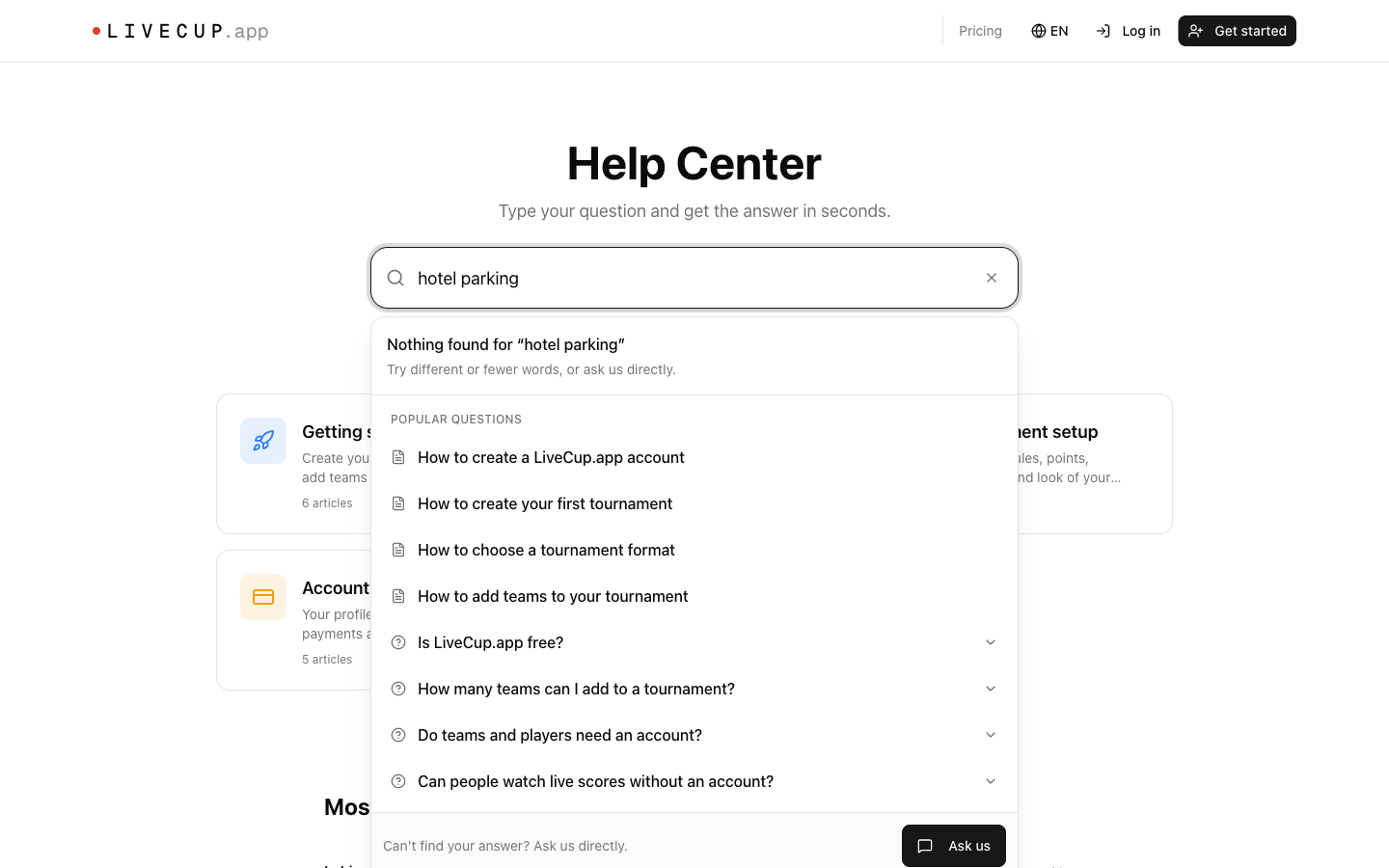
Guides you can follow with a phone in one hand
Each guide starts with the goal and goes step by step: click this, type that, press Add. The names of buttons and fields are in bold, exactly as they appear on your screen. A table of contents on the side lets you jump to the part you need, and tips and notes point out the things that usually go wrong.
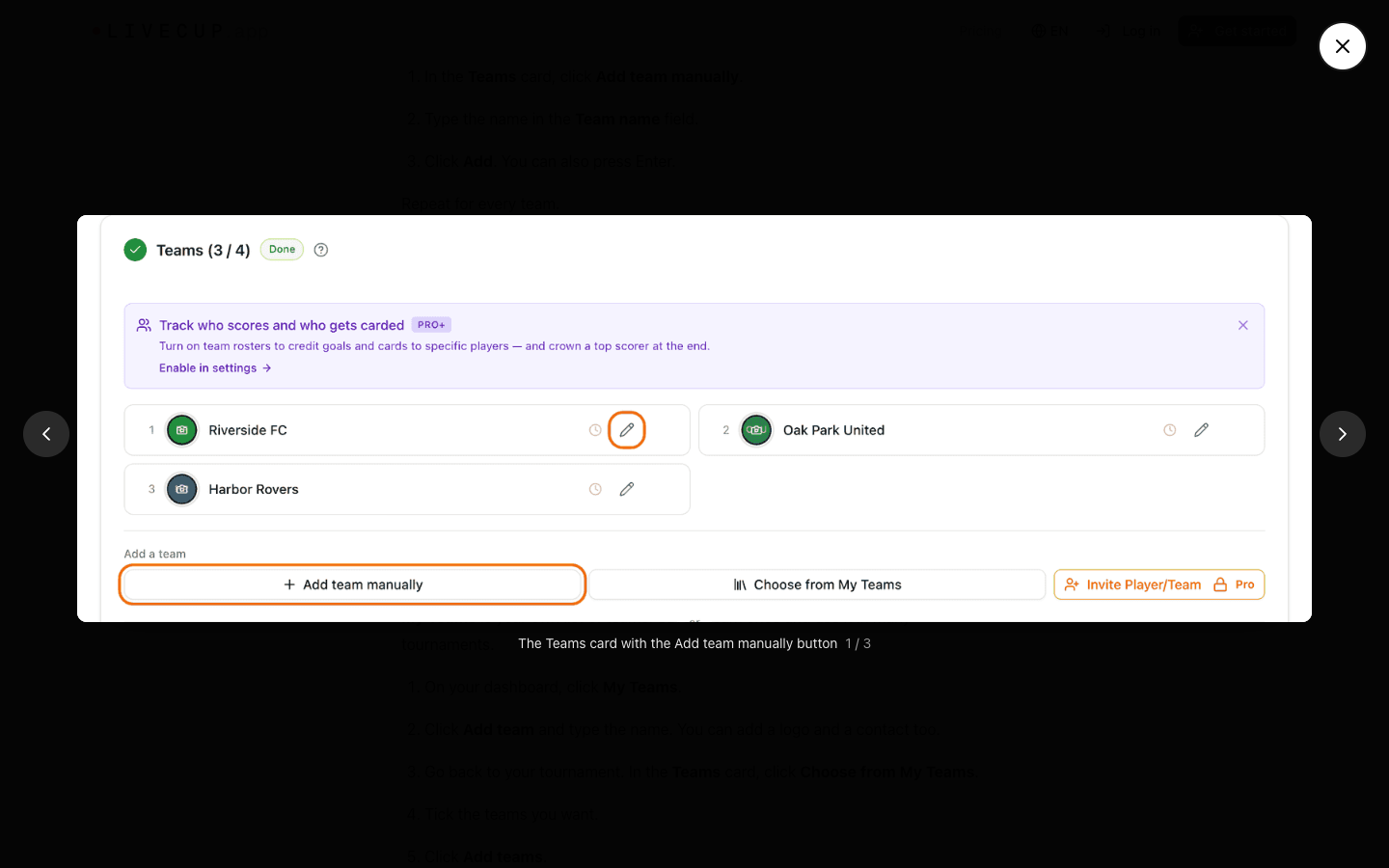
Screenshots show the real screen with the right button outlined. Tap one and it opens full screen on the same page. Use the arrows to move to the next picture, and close it with the big X or the Esc key. At the end of every guide you can tell us whether it helped, and you get links to related guides.
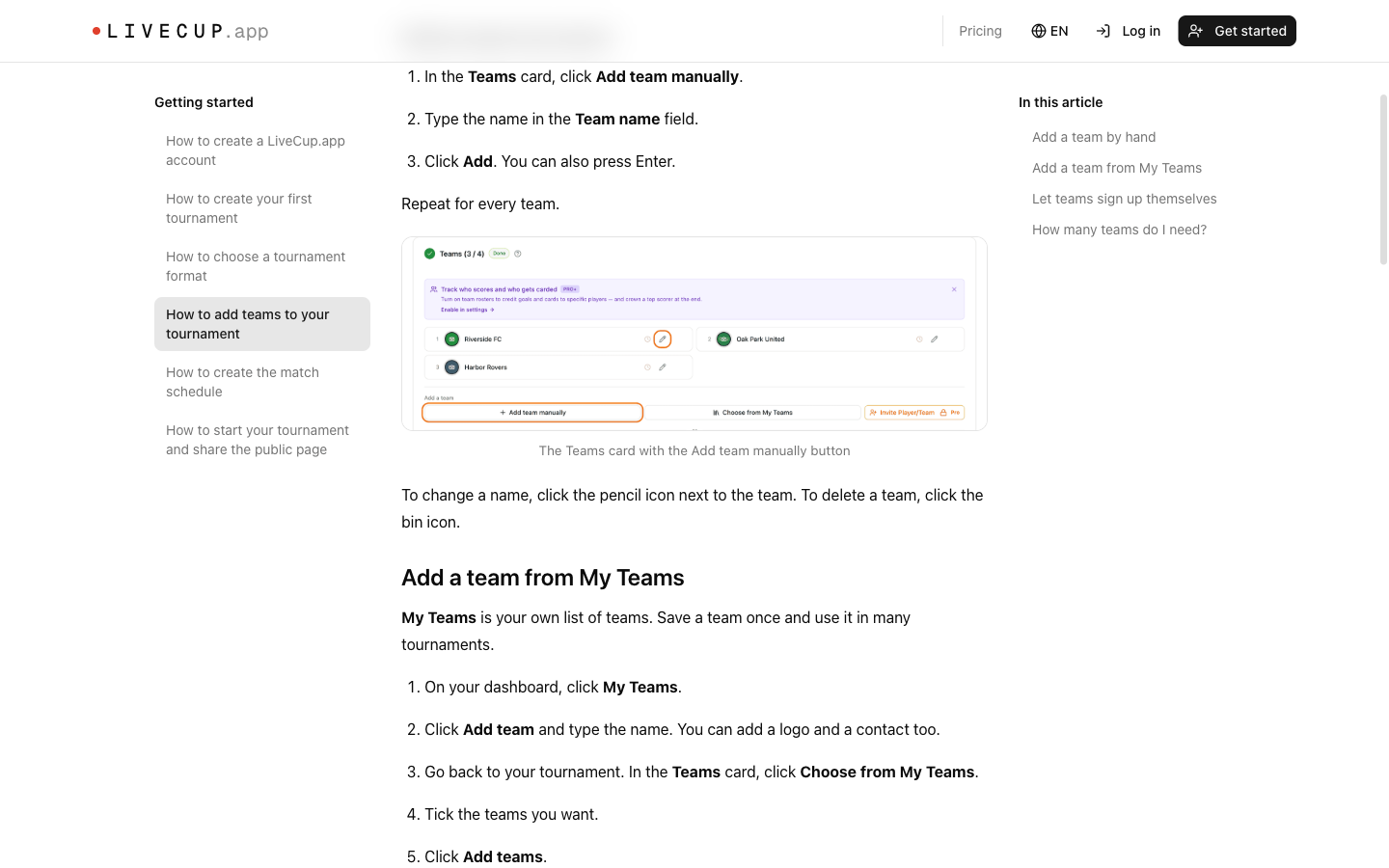
Question marks right where you need them
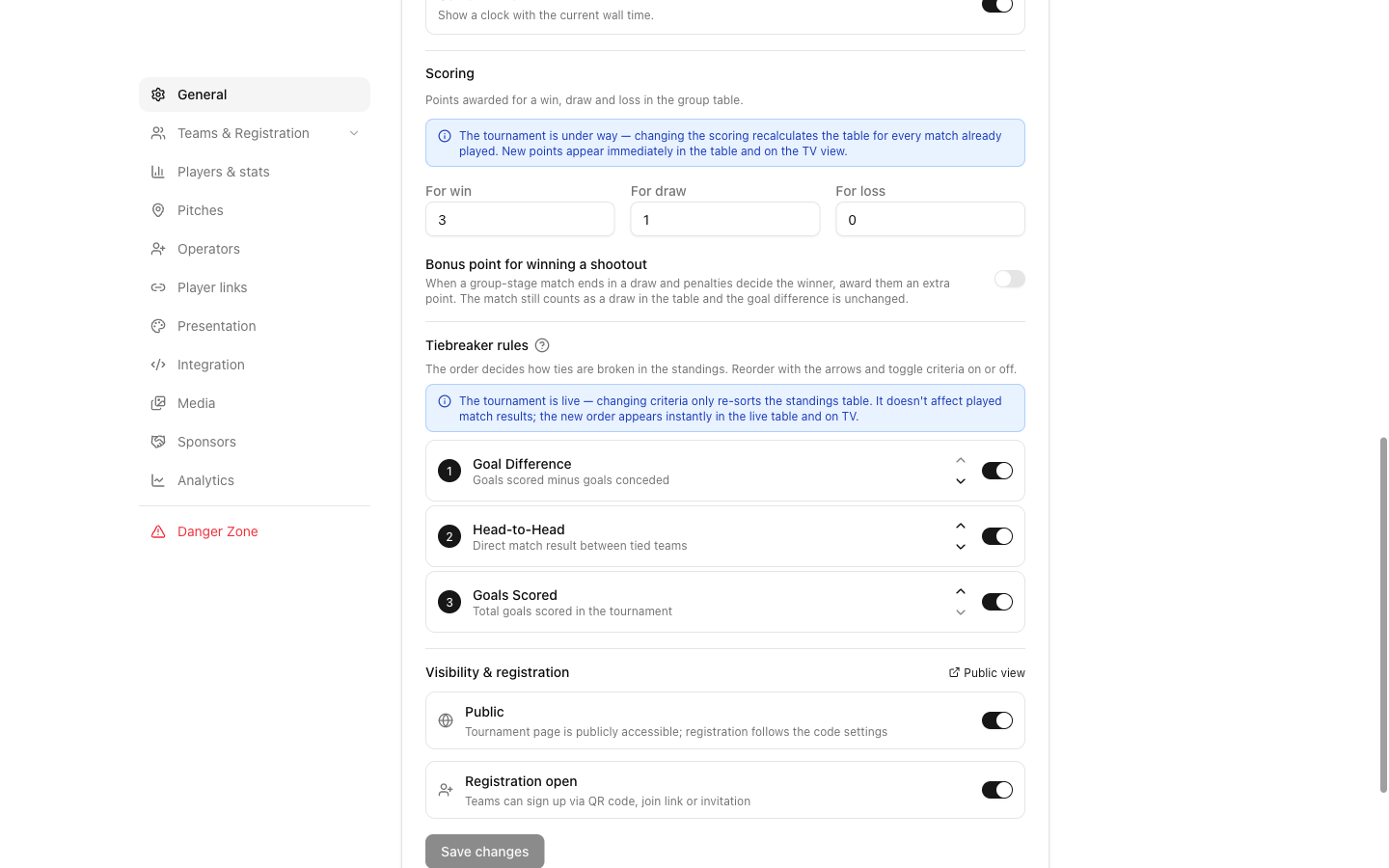
You don't have to leave your tournament to find help. Small question mark icons now sit next to settings and features that need a bit of explanation: tiebreaker rules, branding and sponsors, the live match view, referee mode, sharing, the TV screen and billing. Click one and the matching guide opens in a new tab, so you don't lose your place in the tournament.
You can also find the Help Center in the account menu, next to your profile and plan.
Built for a phone, because that's what you have at the venue
Most organizers run the day from a phone, so the Help Center is made for a small screen first. The search box is big, results are easy to tap, and the guides read in one column without sideways scrolling. If a guide still leaves you with a question, the Ask us button is always close.
What you'll find inside
Getting started has six guides: create your account and your first tournament, choose a format, add teams, create the schedule and start the tournament. Match day covers entering and correcting scores, referee mode, the TV display and sharing the public page. Tournament setup goes into groups and the draw, points and tiebreakers, team registration, rosters, branding and sponsors. Account and billing explains plans, unlocking a single tournament, upgrading or cancelling, and getting support. A short list of common questions sits on the home page.
Frequently asked questions
Do I need an account to use the Help Center?
No. The Help Center is open to everyone, with or without a LiveCup account, and it is free.
What languages is it available in?
English, Polish, German, Spanish, Portuguese, French, Italian and Czech. The guides and the search follow the language you use in the app.
Does search find answers if I make a typo?
Yes. Small typos and missing accents are fine, so jak dodac druzyne finds Jak dodać drużynę. Search results highlight your words in a short snippet and take you to the right section of the guide.
What if I can't find my answer?
Tap Ask us under the search results. It opens the support form with your question already filled in, so you can send it in one click.
Can I open the full-size screenshots?
Yes. Tap any screenshot and it opens full screen on the same page. Use the arrows to see the next one, and close it with the X button or the Esc key.
Where are the question mark icons in the app?
Next to features that need explaining, such as tiebreaker rules, branding and sponsors, the live match view, referee mode, sharing, the TV screen and billing. Each icon opens the matching guide in a new tab.
Does it work on a phone?
Yes. The search box, the results and the guides are made for a small screen, so you can look up an answer at the venue without a laptop.
Related Articles
Draw the groups with real balls. Show every team on the big screen.
You draw. LiveCup.app shows each team on the projector, with an animated reveal, and builds the groups behind it.
A Scoreboard You Can Read From the Back of the Hall
Bigger type, stronger contrast, digits that never jump — plus your own colours and typeface on PRO.
Your Roster Isn't Final When the First Whistle Blows
Add, rename or remove players at any point in the tournament — from the Teams page in settings, or straight from the goal dialog mid-match.
Have a question right now?
Open the Help Center and type it in. Most answers take less than a minute.
Open the Help Center