Draw the groups with real balls. Show every team on the big screen.
You draw. LiveCup.app shows each team on the projector, with an animated reveal, and builds the groups behind it.
Many tournaments still open with a group draw in front of the teams: a bowl of balls, a name read out, a cheer from one corner of the hall. A quick software draw gives you the groups, but it takes the ceremony away. Live draw keeps the ceremony and removes the whiteboard. You pull the ball, tap the team, and the whole room sees it on the TV.
Why a software draw feels wrong at an official ceremony
A draw that happens on a laptop is a result, not an event. Teams see the groups appear, but nobody saw how. If a coach asks whether it was fair, the honest answer is "the program did it", and that is a hard sentence to say in front of a full hall.
Live draw does not pick teams at random. A person draws the ball, the operator taps the team that came out, and LiveCup.app shows it. The software never decides who goes where. It places the team in the next free slot, keeps the groups in order and puts every pick on the screen the audience is already watching.
How it works in four steps
1. Choose Live draw and open the TV screen
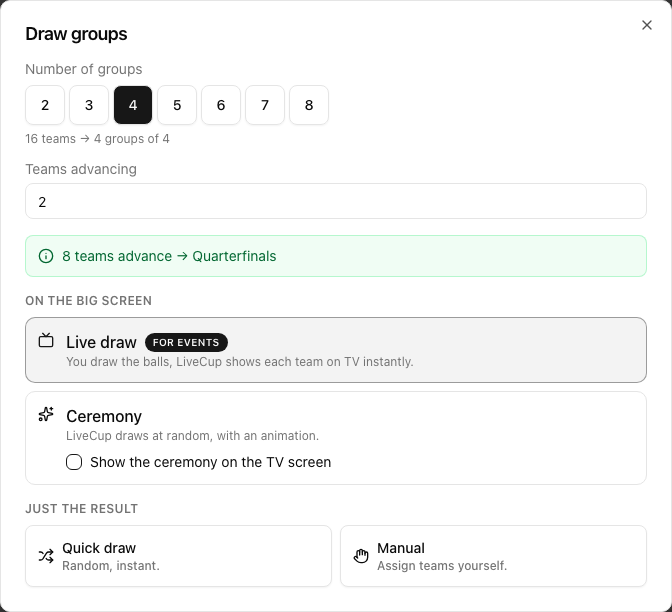
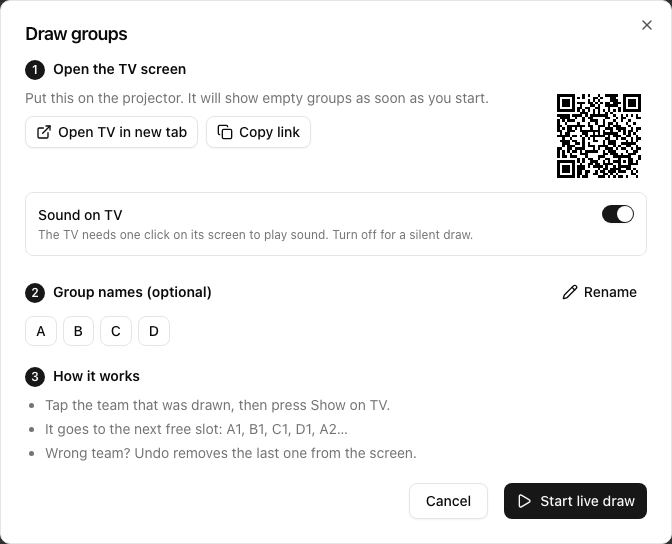
In the Groups step of your tournament, press Draw groups, pick the number of groups (2 to 8) and choose Live draw under On the big screen. A short setup window opens. Open the TV screen in a new tab and put it on the projector. It shows empty groups as soon as you start. You can also copy the link or scan a QR code to open it on another device.
In the same window you can rename the groups and turn the TV sound on or off. Then press Start live draw.
2. Draw a ball, tap the team
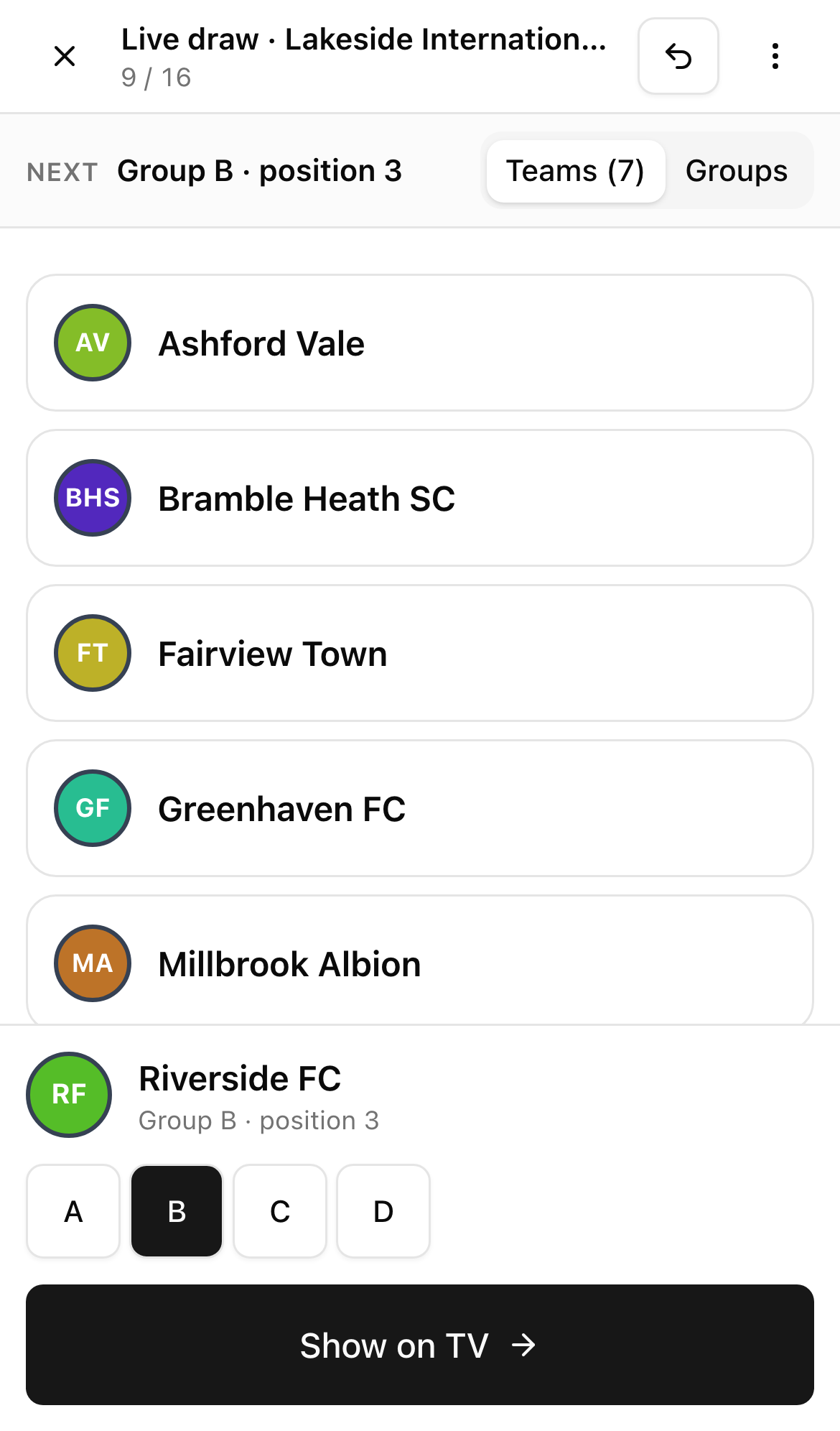
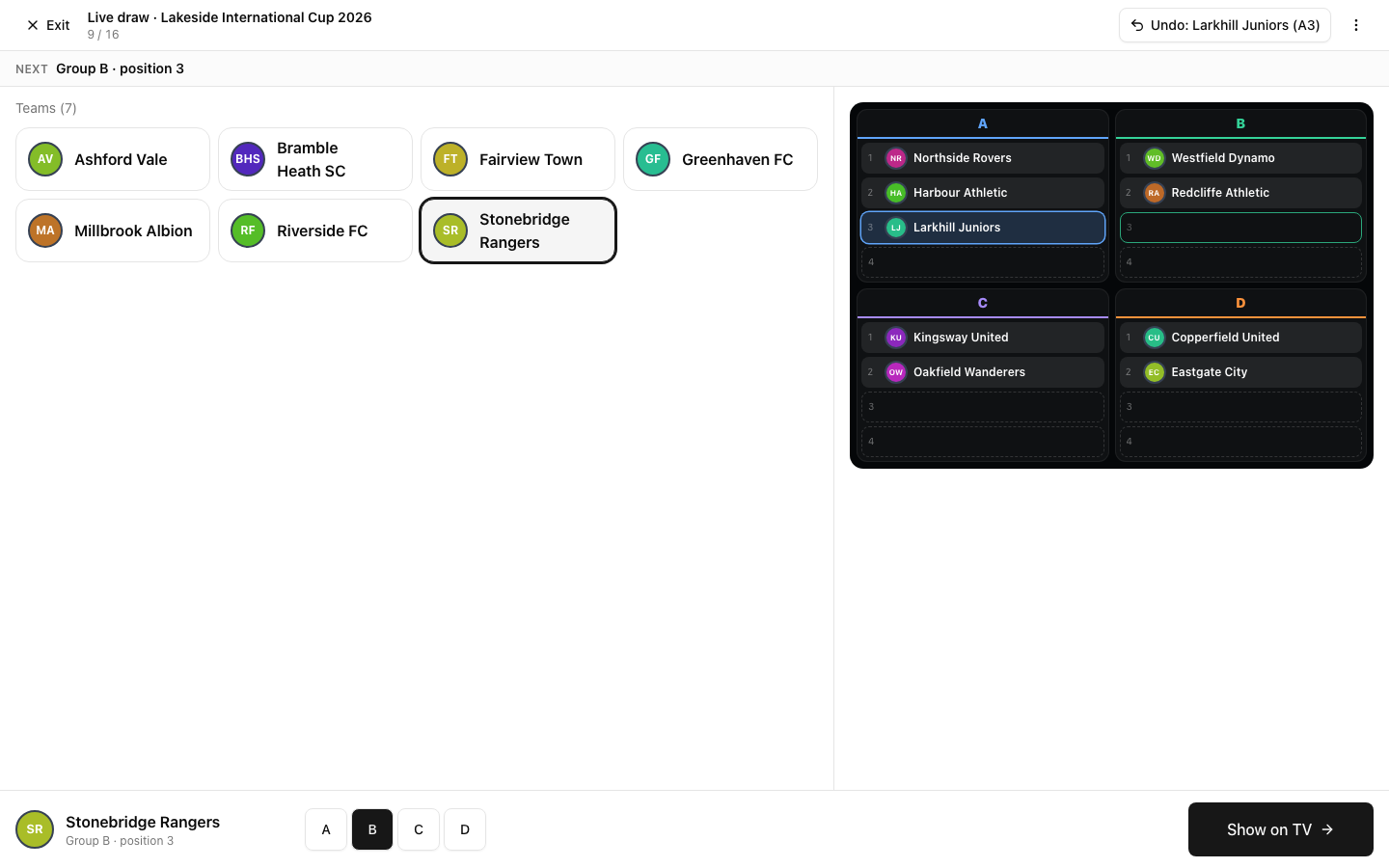
The operator screen lists the teams still in the pot. When a team comes out of the bowl, tap its name and press Show on TV. The team goes to the next free slot in the order A1, B1, C1, D1, A2 and so on. The slot is shown at the top, so you always know where the next team lands.
If the draw works differently in your hall, for example you draw the group first, pick another group with the letter buttons before you press Show on TV. Wrong team? Undo takes the last one back off the screen. If you refresh the page or close the laptop, press Resume and the draw continues where it stopped.
The operator screen works on a phone, a tablet or a laptop, so the person with the balls can also be the person with the phone.
3. The room sees the reveal
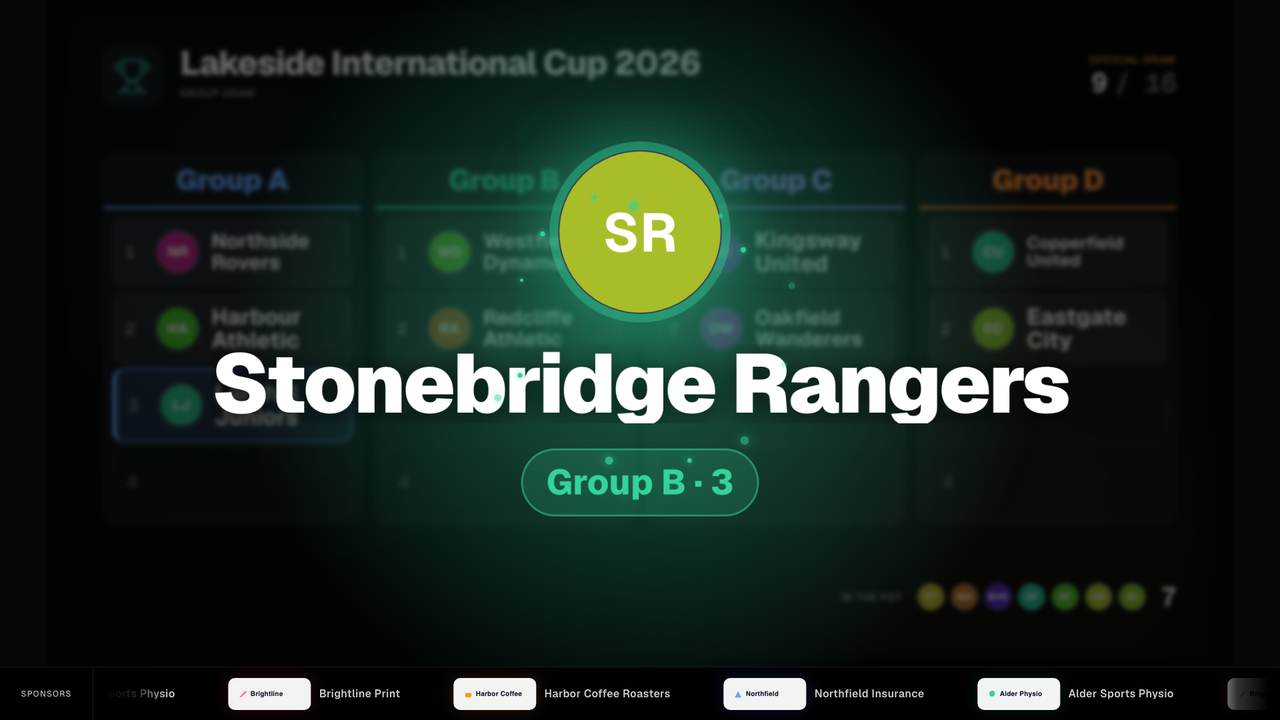
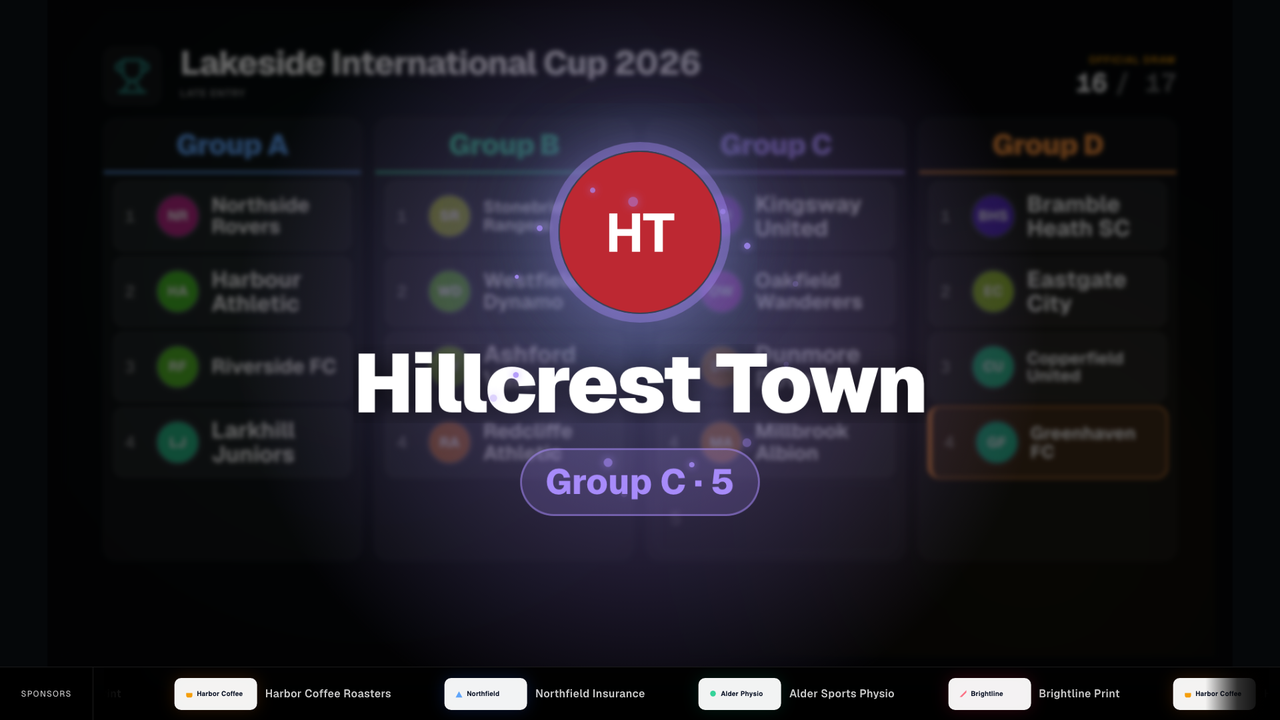
Within about a second of your tap, the team appears on the TV: a large badge, the full club name and the group and position it goes to. Then the screen settles back to the board and the team takes its place. Short sound effects play with each reveal. There is no music.
Browsers block sound until someone interacts with the page, so click once on the TV screen on the projector computer before the ceremony. The TV never shows a prompt for this, so the audience sees only the draw. If nobody clicks, the draw simply runs without sound. If you want a silent draw on purpose, turn Sound on TV off on the operator screen.
4. Confirm the groups
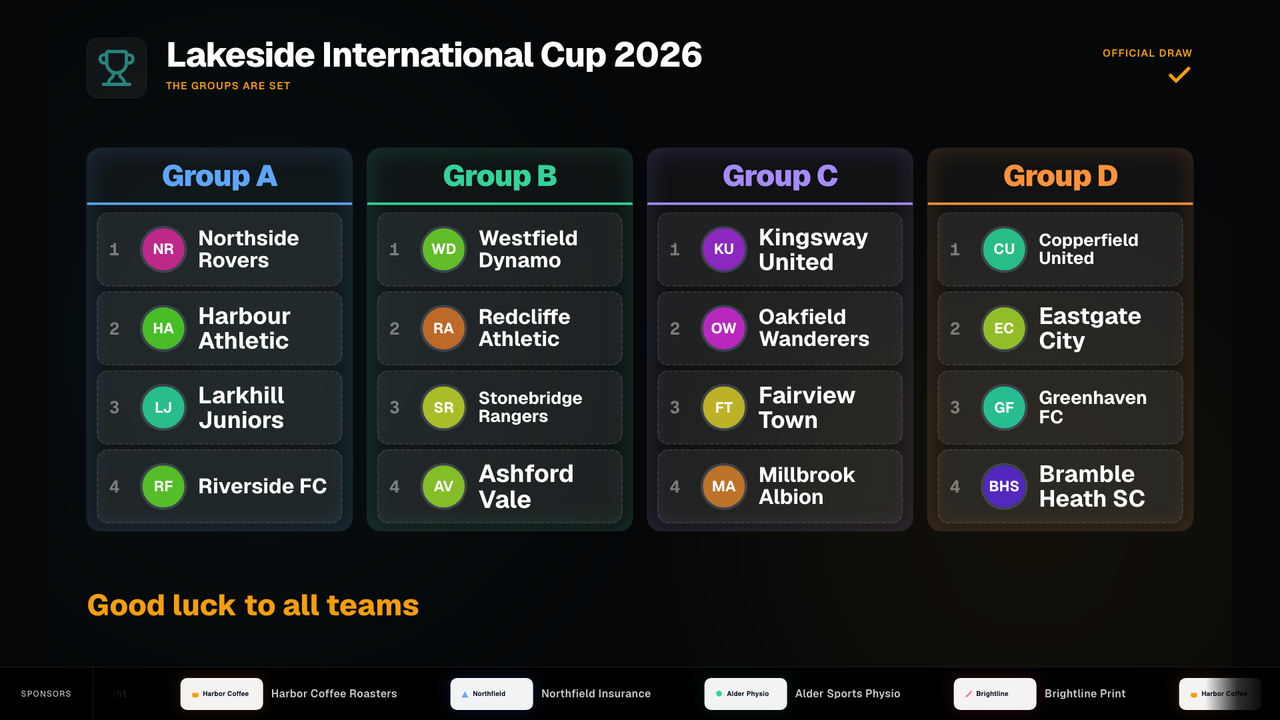
When the last team is placed, press Confirm groups. The groups are saved to the tournament and the TV shows the final board with the message The groups are set. You can then generate the schedule as usual.
What the audience sees
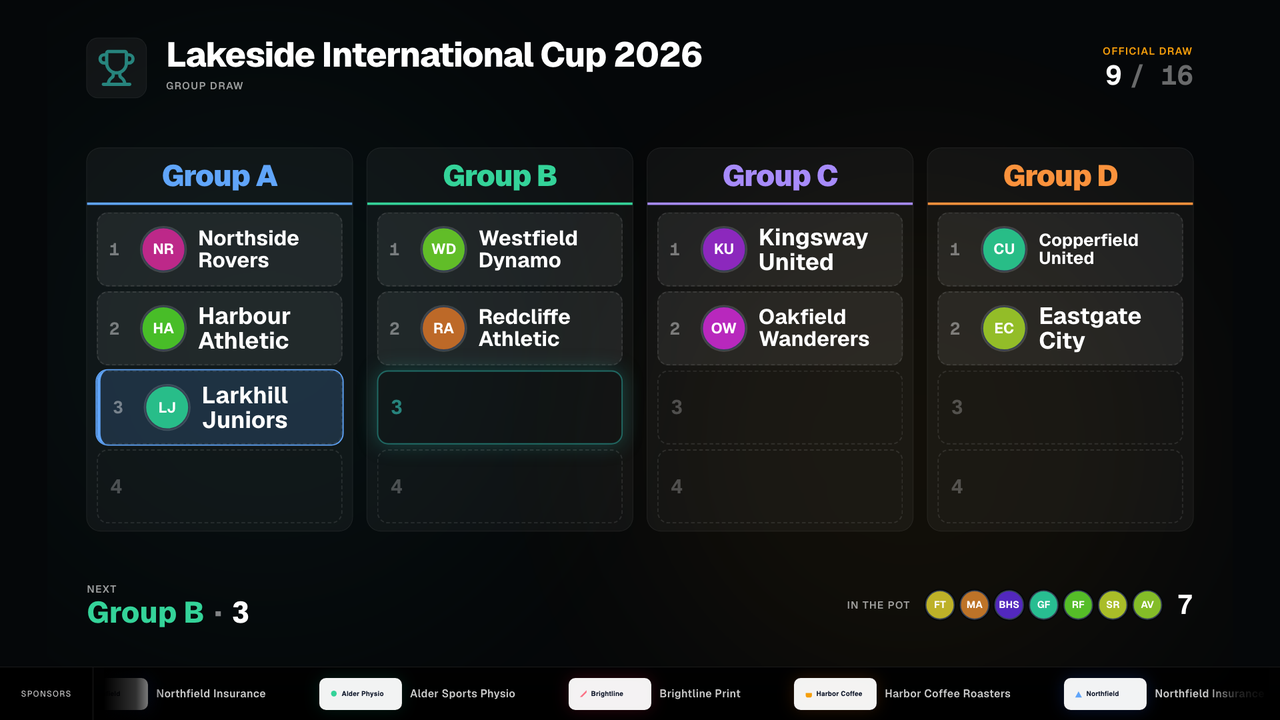
The TV board shows every group with numbered slots, the team that was just drawn, whose turn is next and how many teams are still in the pot. The empty slot that comes next is highlighted, so the room can follow the order. The same screen works from the first ball to the last without anyone touching it.
Colors and sponsors are part of the paid plans. With a paid plan (PRO or higher), the draw screen uses your organizer colors and shows your sponsor carousel along the bottom, the same way as TV branding and sponsors in the normal TV mode. TV mode itself is free on every plan, with ads.
Last-minute changes after the draw
Real tournaments change after the draw. A team joins late, another drops out, a club sends a different squad. LiveCup.app handles these changes without a new draw and without breaking the schedule.
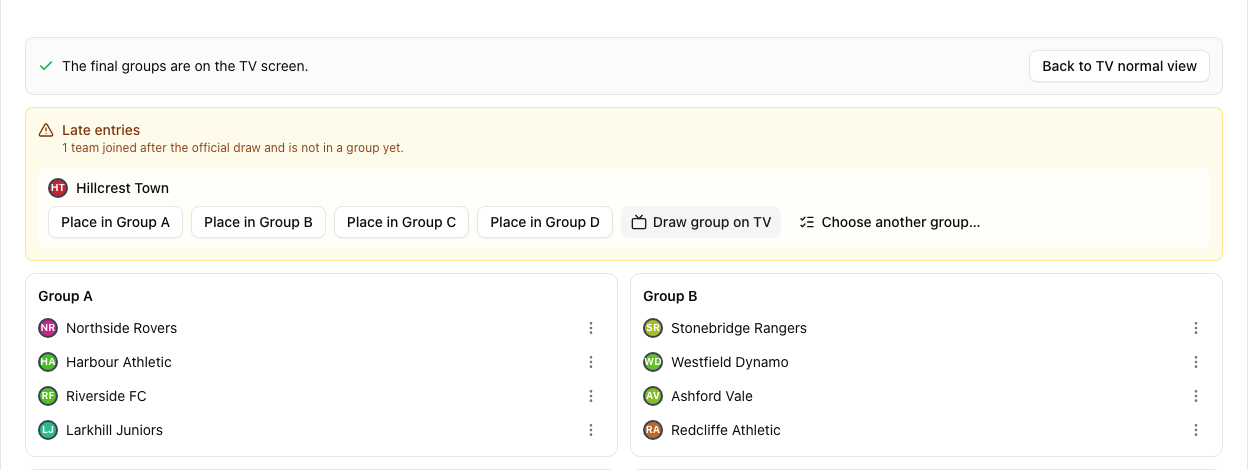
Late entries are listed in the Groups card. By default a late team goes to the smallest group. If several groups are tied for smallest, you can draw a ball for it on the TV, in the same way as the main draw, or choose a group yourself. Placing a team in a group that is not the smallest asks for an extra confirmation, because the groups become uneven.
Uneven groups are fine. With 17 teams you get groups of 5, 4, 4 and 4, and LiveCup.app builds the schedule and the standings for that. Replace a team and the new one takes the same slot with the same matches and times; its team links stop working, the roster is cleared and payment is reset to unpaid. Withdraw a team and only its unplayed matches are deleted.
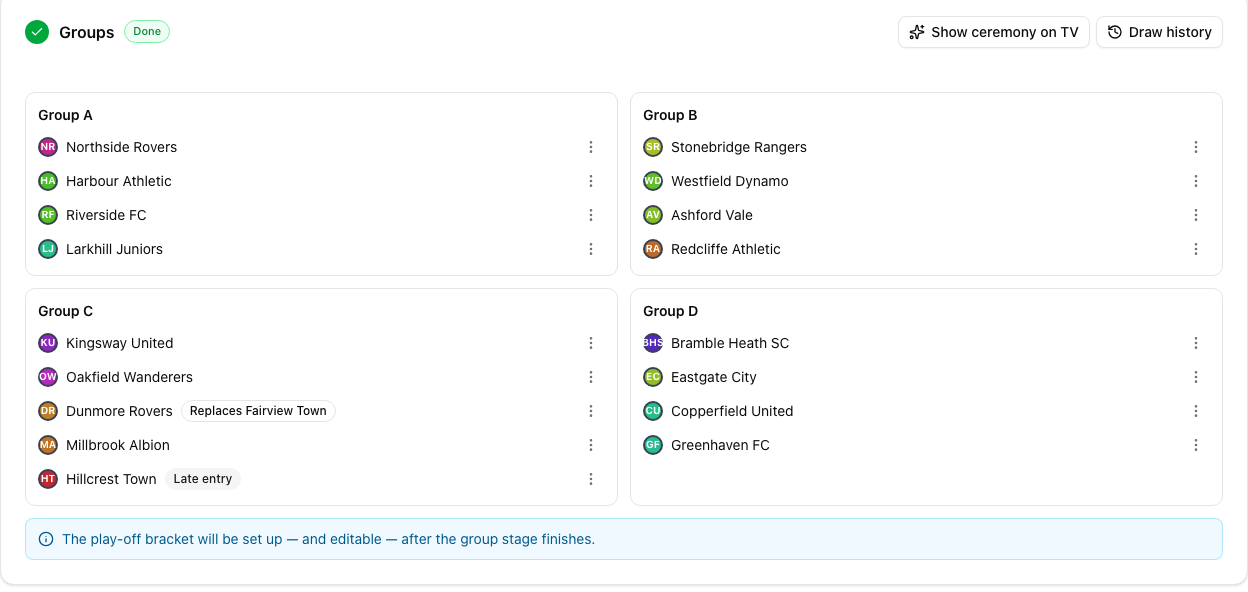
Draw history for the organizers
Every official draw and every change after it is recorded: who was placed where, which team replaced which, and whether a late team was placed by ball draw or by choice. The history is visible to organizers only. It does not appear on public pages or on the TV, so you can answer a question about the draw with facts.
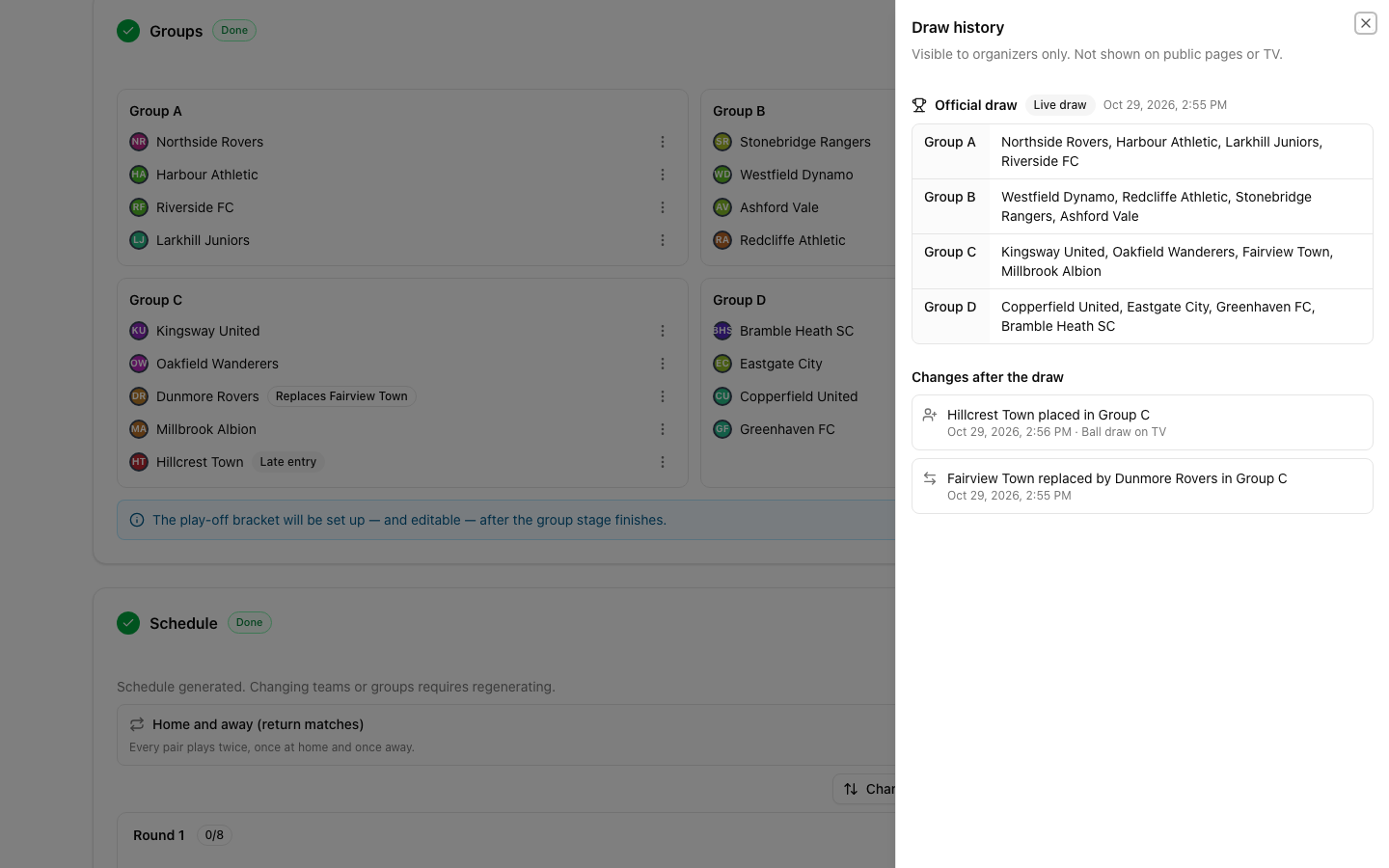
Tips for the day of the ceremony
- Open the TV screen on the computer that is connected to the projector and click once on the page so the sound can play.
- Test everything the day before. Run a full draw on a test tournament, check the sound and look at the screen from the back of the hall.
- Put the operator screen on a phone or tablet. The person with the bowl should be able to tap without walking to the laptop.
- Name the groups before you start, for example A to D or by country, so the reveal reads the way you announce it.
- If a team may still register, do not wait for it. Draw with the teams you have and add the newcomer afterwards as a late entry.
Frequently asked questions
Does LiveCup.app pick the teams at random in Live draw?
No. In Live draw a person draws the balls and the operator taps the team that came out. LiveCup.app only places the team in the next free slot and shows it on the TV. If you want the software to draw for you, use the Ceremony option.
How fast does a team appear on the TV?
In about a second after you press Show on TV, with an animated reveal of the team and its group.
Can I draw into a different group than the next one?
Yes. After you tap a team, choose another group with the letter buttons before you press Show on TV. The default order is A1, B1, C1, D1, A2 and so on.
What if I tap the wrong team, or the page reloads?
Press Undo to take the last team off the screen. If the page reloads or the laptop closes, press Resume and the draw continues from where it stopped.
How many groups can I draw, and can they be uneven?
From 2 to 8 groups. Groups of different sizes are fine, for example 17 teams in groups of 5, 4, 4 and 4. The schedule and the standings are built for that.
Is there sound, and is it on by default?
There are short sound effects, no music. The TV needs one click on its screen before the browser plays sound. The operator can turn Sound on TV off for a silent draw.
Which parts need a paid plan?
TV mode works on the free plan, with ads. Your organizer colors and the sponsor carousel on the draw screen are available with a paid plan, PRO or higher, like TV branding and sponsors.
Related Articles
A Scoreboard You Can Read From the Back of the Hall
Bigger type, stronger contrast, digits that never jump — plus your own colours and typeface on PRO.
Group Stage + Knockout Tournament Generator: Run Your Own World Cup
The complete guide to the most popular tournament format on the planet — how groups work, who advances, how the bracket is seeded, and how to generate the whole thing in minutes.
Multi-Stage Tournaments Are Here
Play the group phase, then send the qualifiers into a brand-new linked final stage — a league, more groups, or a knockout cup. One event, one public page, as many stages as you need.
Planning a draw in front of the teams?
Create a tournament with groups and a playoff, add your teams and run the draw on the big screen.
Create a tournament