Let players score their own matches. The next match finds a free court by itself.
Personal scoring links with QR codes, optional opponent confirmation, and an autopilot that puts the next ready match on the next free court or board.
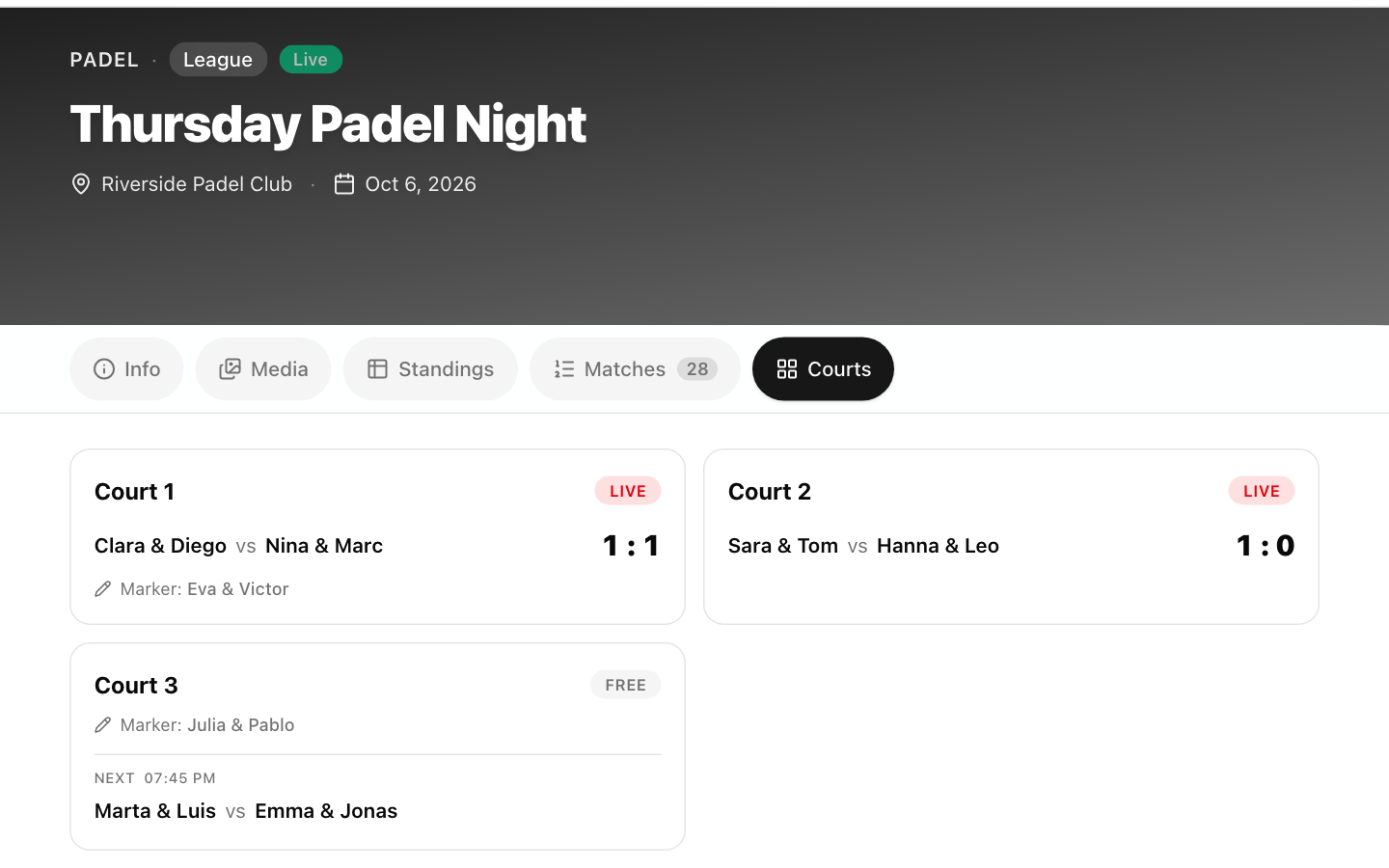
On a busy club night the organizer runs between courts, writes down scores and shouts who plays next. Now the players do the scoring on their own phones, and LiveCup sends the next match to the court that just became free. It works for padel and tennis courts, darts boards, football pitches and table tennis tables.
A private scoring link for every player or team
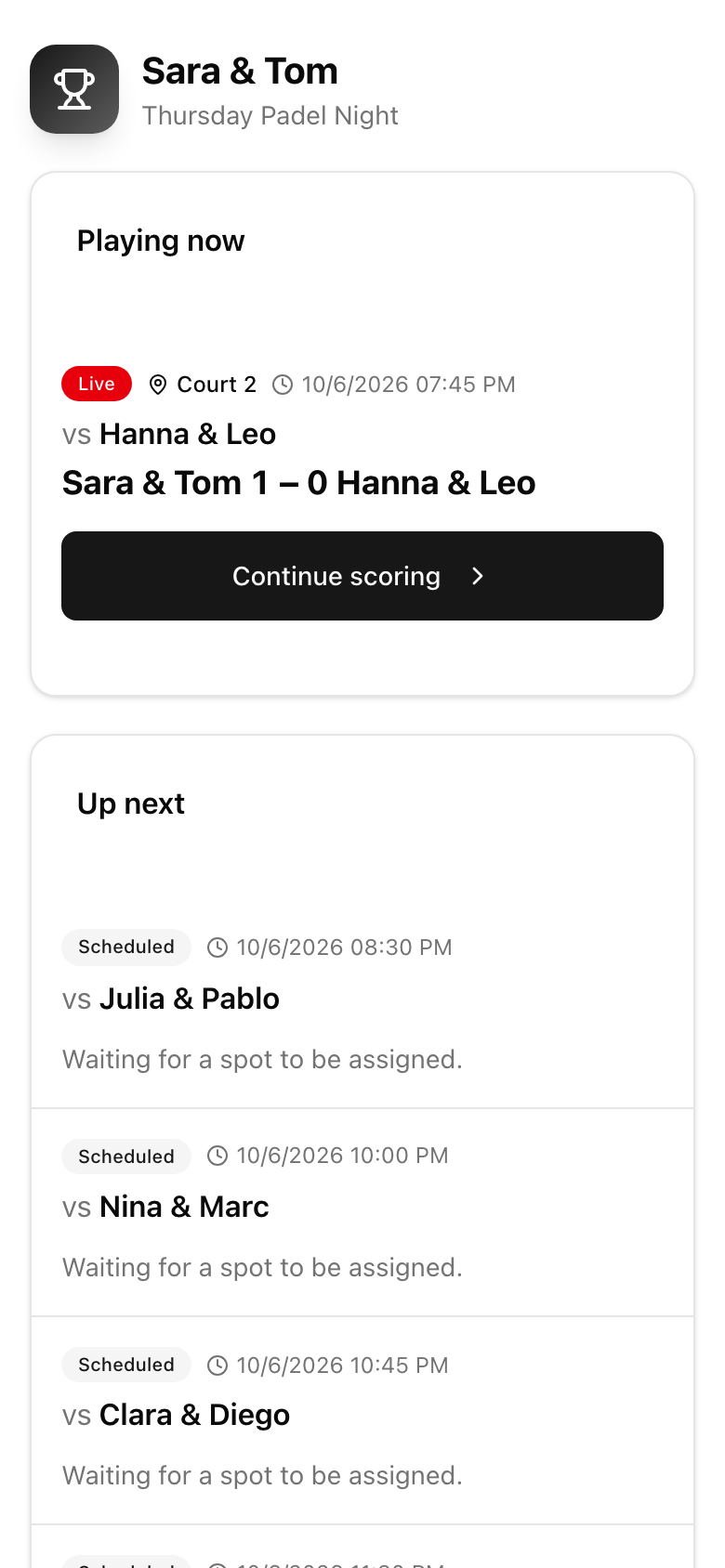
Turn on player links and every player or team gets a personal link and QR code. Opening it shows only their matches: playing now, up next and played, with the court and the time. No account and no app are needed.
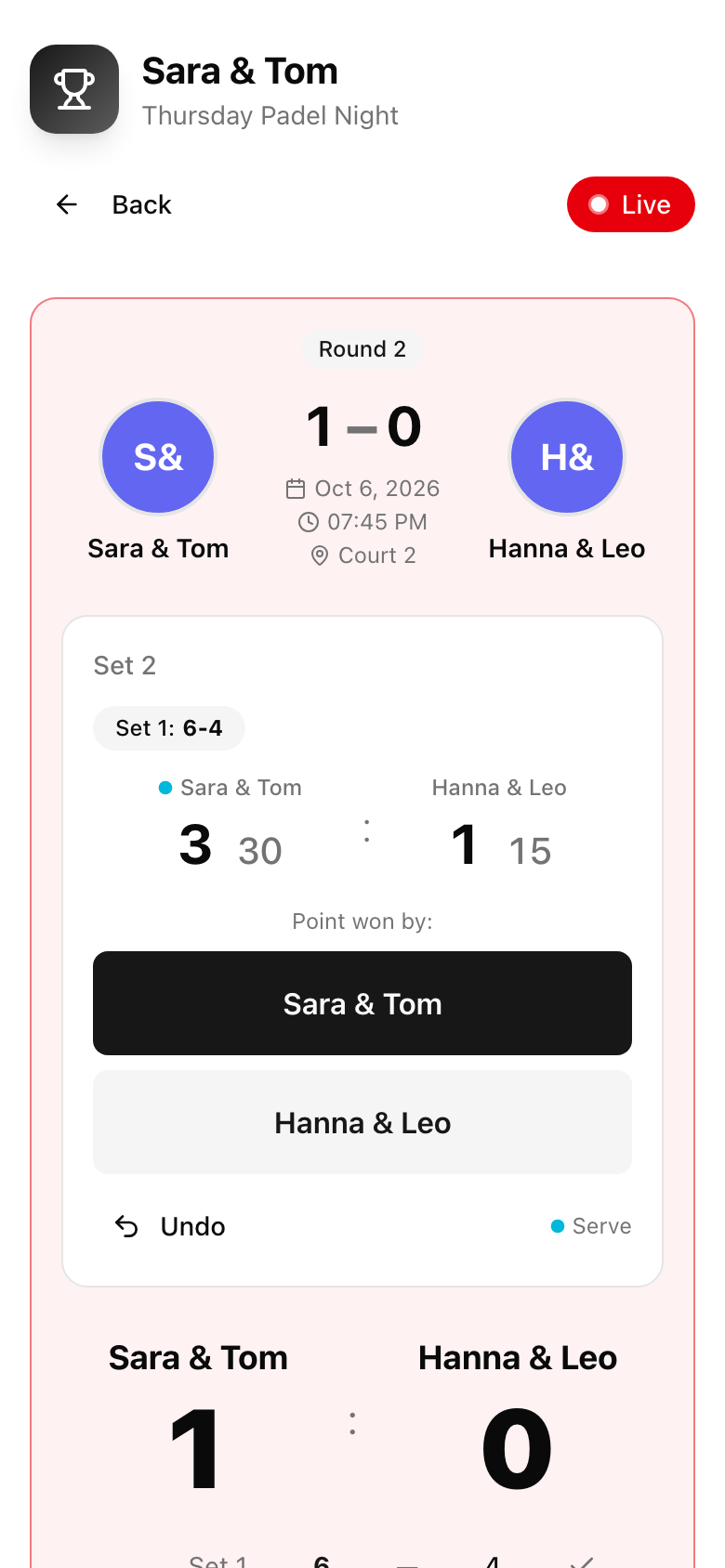
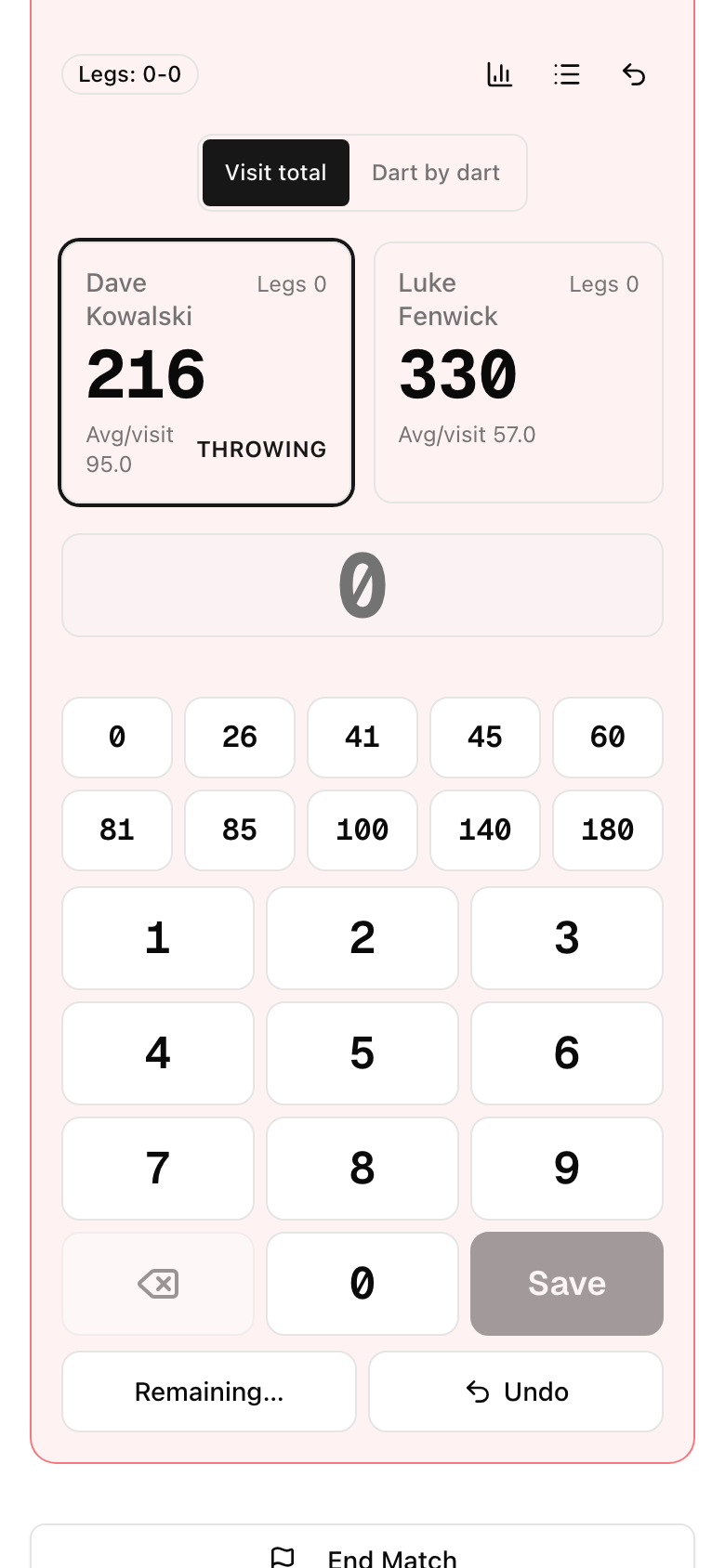
When their match is on a court, a Score this match button opens the same scorer you use as an organizer. Padel points, darts visits, football goals: whatever the sport, the full match is scored from that phone. A link can never open another team's match.
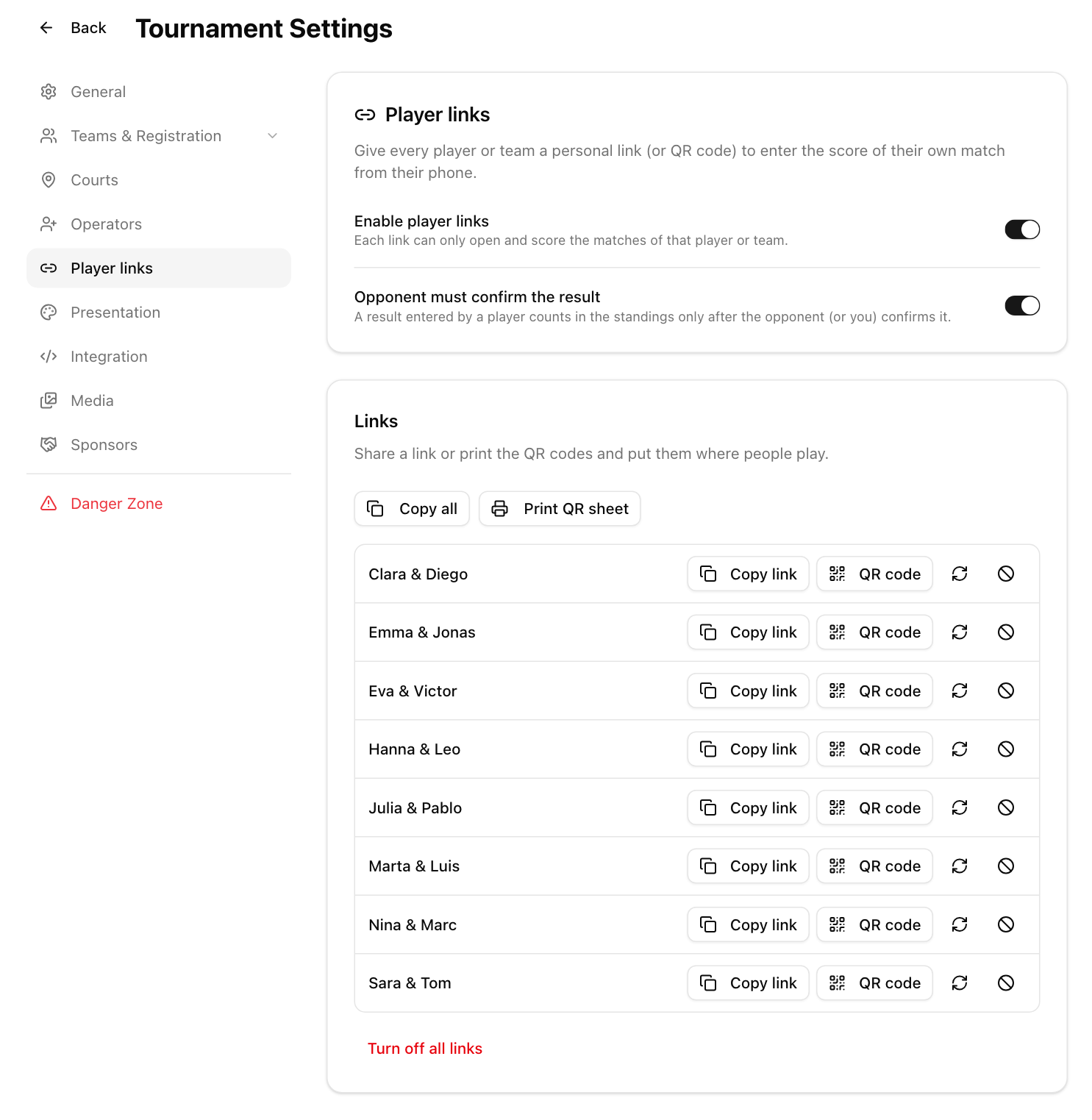
Lost a link? Rotate it and the old one stops working at once. You can also turn off all links with one switch.
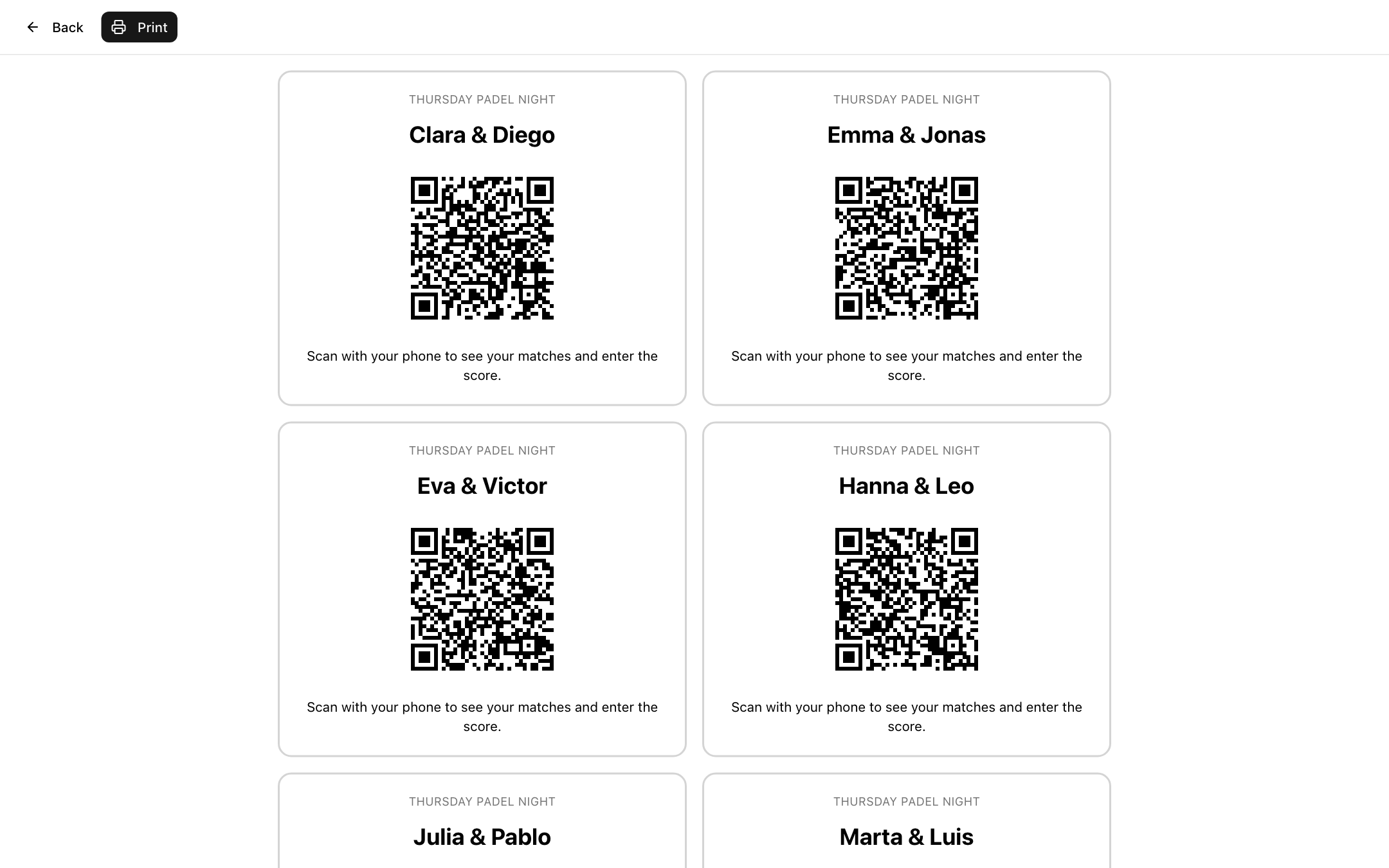
Print the QR codes and put them where people play
Print a sheet with one QR card per player or team, with the tournament name and a one-line instruction. Hand the cards out at check-in or stick them next to the courts. Players scan, see their matches and keep score. You can also copy all links at once and send them in your group chat.
Optional: the opponent confirms the result
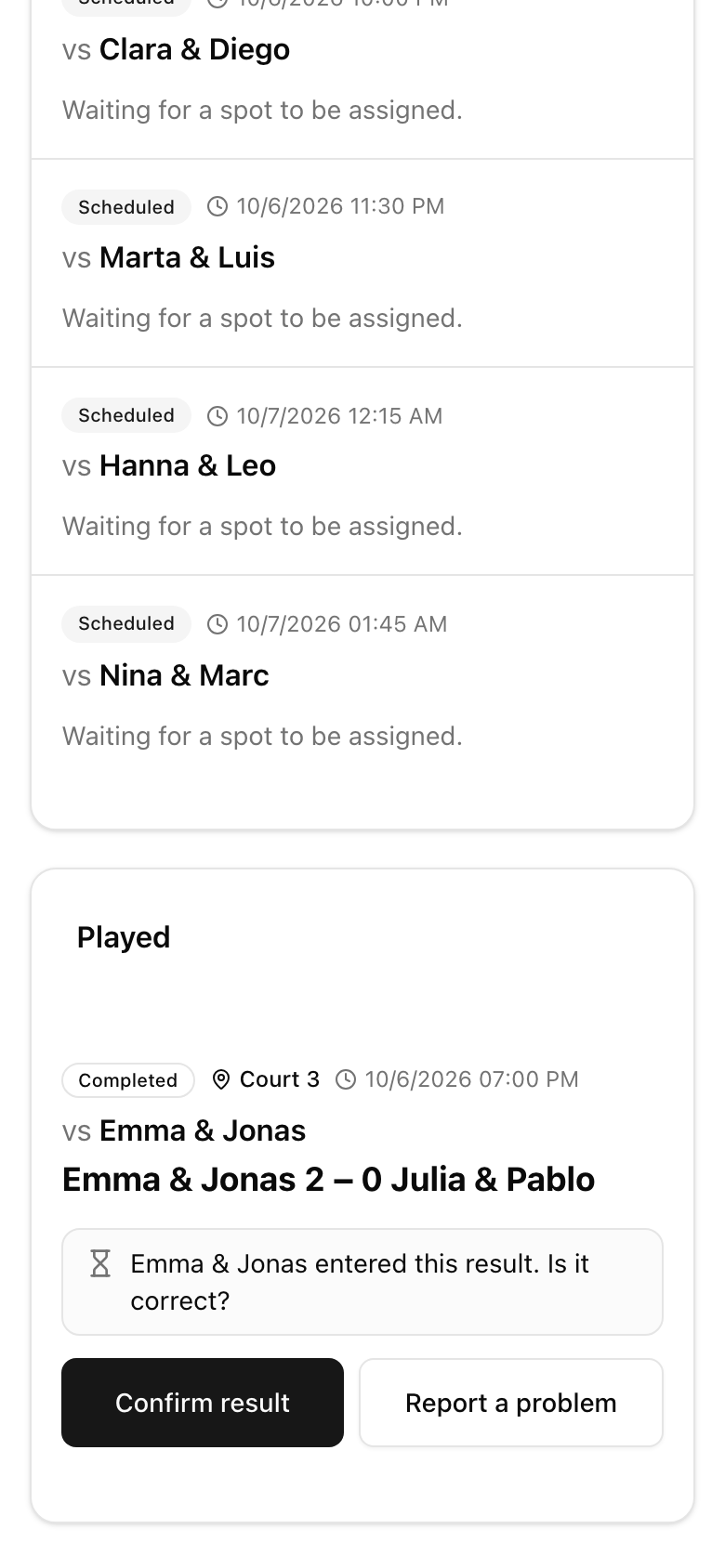
For leagues where results matter, switch on Opponent must confirm the result. When one side finishes a match, the other side sees the score on their own link with two buttons: Confirm result or Report a problem.
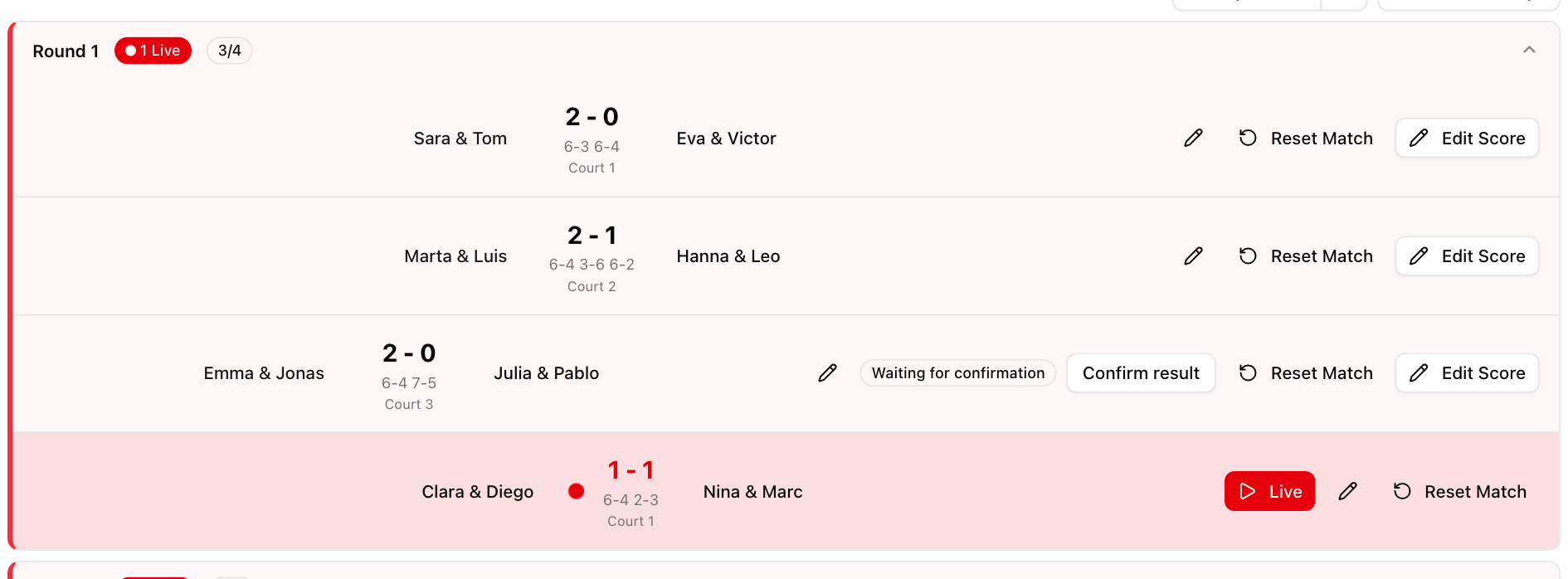
Until it is confirmed, the result does not count in the standings. You see a Waiting for confirmation badge in the match list and can confirm it yourself. If someone reports a problem, the match is marked as disputed so you can check it and correct the score.
Court autopilot: the next match goes to the free court
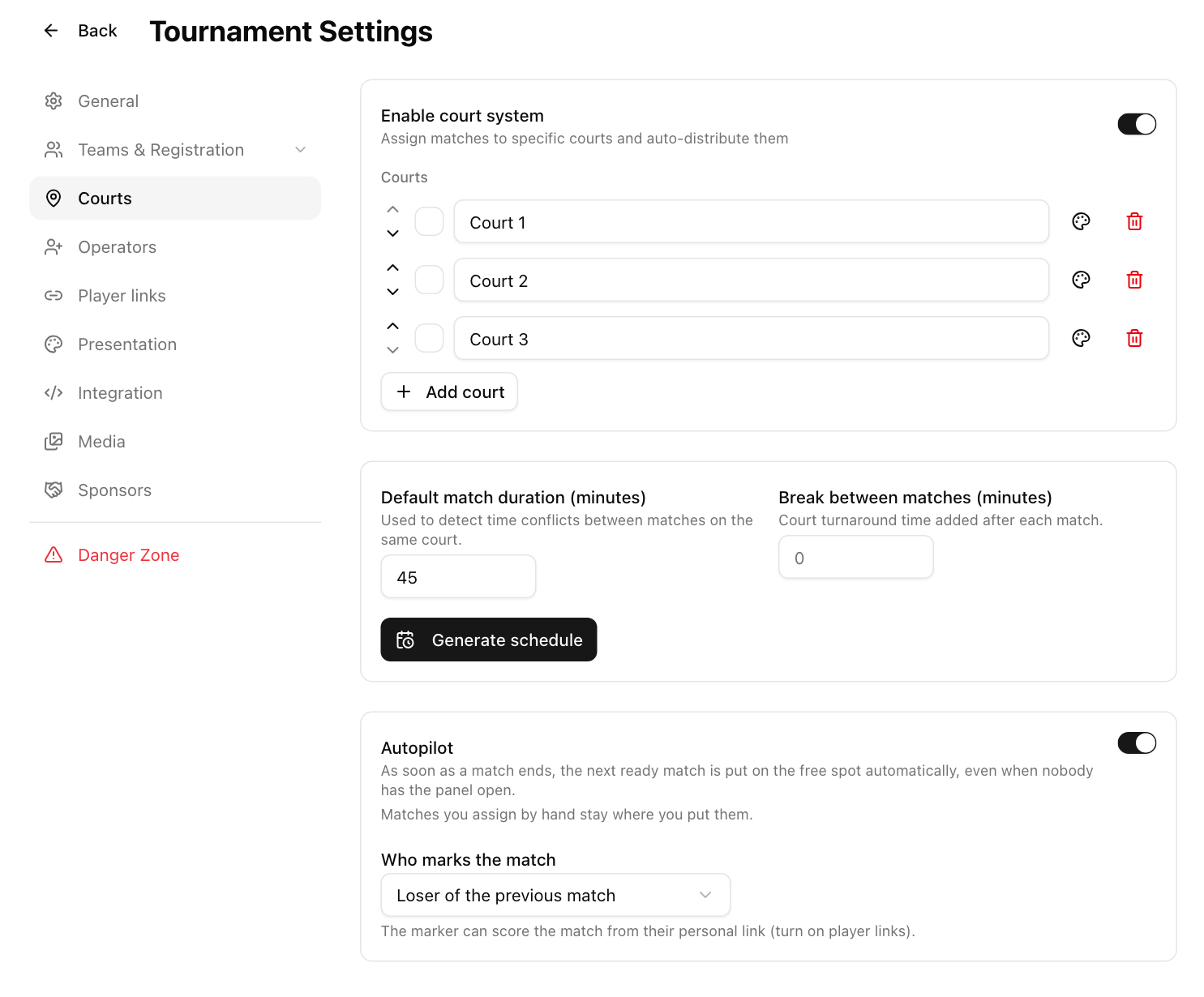
Turn on Autopilot in the court settings. As soon as a match ends, LiveCup puts the next ready match on the court that just became free. It runs on the server, so it works even when nobody has the organizer panel open.
A match is ready when both players or teams are known and neither of them is playing or marking somewhere else. Matches you assign by hand stay where you put them. The match waits on the court until the players or you start it.
Who keeps score: markers from the players
No volunteers at the courts? Let the players mark each other. Choose who marks the next match on a court: the loser of the previous match on that court, or the player or team that has been waiting the longest.
The marker sees You keep score on their own link and can score that match, even though they are not playing in it. In darts this is the classic pub rule: the loser of the last game chalks the next one.
Every court on one screen
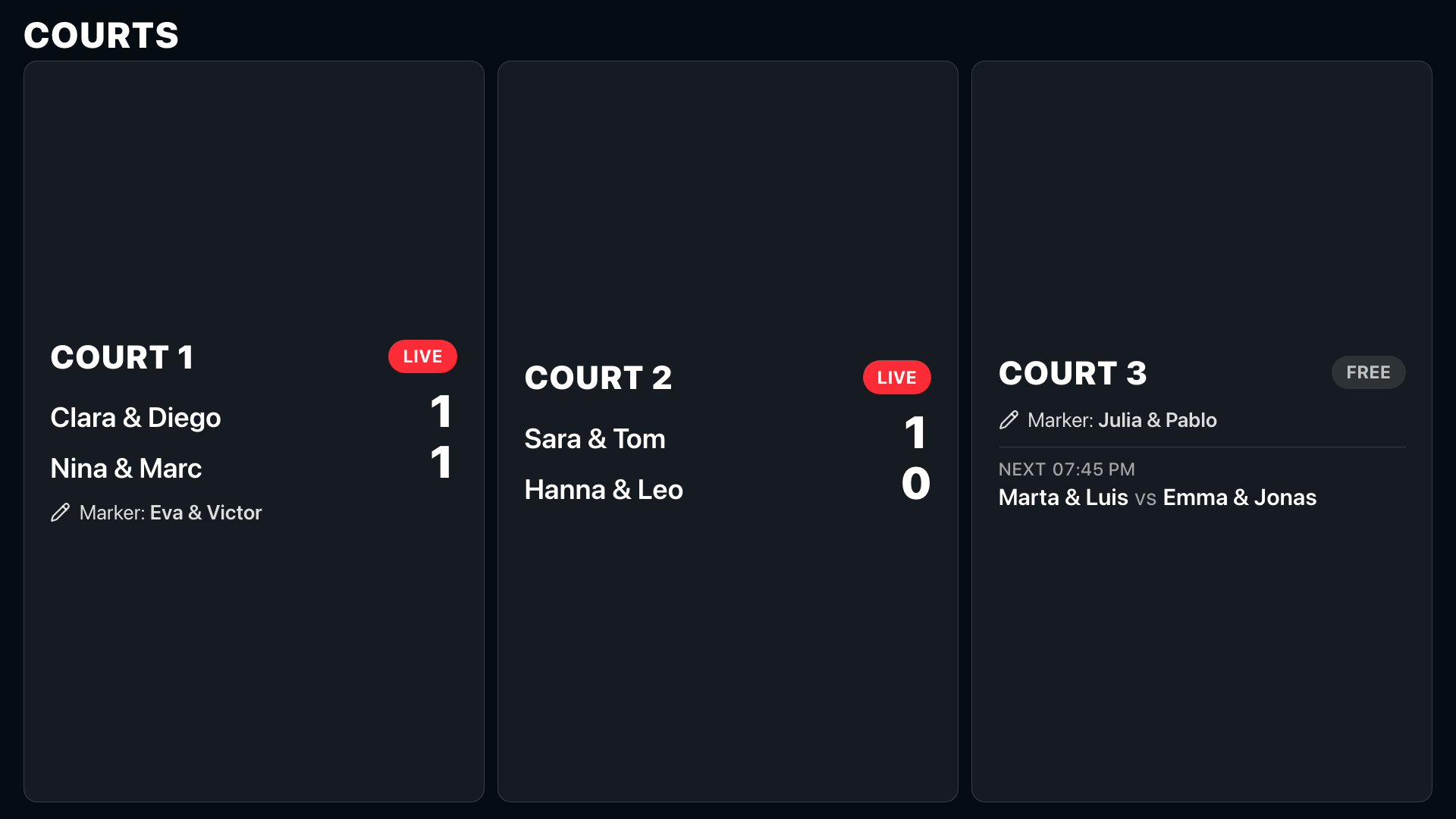
A Courts tab on the public tournament page shows each court with the match on it, the live score, the marker and what is coming next. Players stop asking where they play.
Put the TV view on the big screen and the courts appear there too, taking turns with the table, large enough to read from across the room.
Who it is for
Club nights and pub leagues with several courts or boards, padel and tennis evenings, school and company tournaments, and any event where one organizer cannot be at every court. Player links and the autopilot are part of the PRO and BUSINESS plans.
Set it up in two minutes
Open your tournament settings. Turn on the court system and add your courts or boards, then switch on Autopilot and choose who marks the matches. Under Player links, switch on the links, decide whether the opponent must confirm, and print the QR sheet. That is it: start the tournament and the first matches go to the courts.
Frequently asked questions
Do players need an account or an app to score their matches?
No. Each player or team gets a private link or QR code that opens in any phone browser. It shows only their matches and lets them score those matches, nothing else.
Can a player change the score of someone else's match?
No. A link only works for matches that player or team plays in, or a match they were chosen to mark. Every other match is refused by the server. You can rotate or turn off any link at any time.
What happens if two players enter different results?
Turn on opponent confirmation. The result entered by one side waits for the other side to confirm it. If they report a problem, the match is marked as disputed and stays out of the standings until you correct or confirm it.
How does the court autopilot choose the next match?
When a court becomes free, it takes the earliest ready match in the schedule: both sides known and neither of them busy on another court. Matches you assigned by hand are never moved.
Which sports does it work for?
Every sport that uses courts in LiveCup: padel, tennis, pickleball, table tennis, darts boards, football pitches and more. The labels follow the sport, so darts shows boards and table tennis shows tables.
Do I need a paid plan?
Player links and the court autopilot are part of the PRO and BUSINESS plans. The rest of LiveCup, including scoring by the organizer and the TV view, works on the free plan for small tournaments.
Can players still start a match from their link?
Yes. When their match is on a court, the Score this match button starts it. If you prefer to start matches yourself, keep doing it from the organizer panel; the players' links then simply continue the scoring.
Related Articles
Darts league and tournament app for pub leagues and clubs
Score on phones at the oche, rank every player by average and legs, and show every board live on the screen above the bar.
A Scoreboard You Can Read From the Back of the Hall
Bigger type, stronger contrast, digits that never jump — plus your own colours and typeface on PRO.
QR Code Tournament Registration
Teams scan a code and register in seconds – no accounts, no paper forms, no registration chaos
How to Organize a Padel Tournament: Step-by-Step
From format selection to live TV display – the complete guide for club organizers and padel event planners
Run your next club night with fewer runs to the courts
Personal scoring links, opponent confirmation and a court autopilot, in the browser.
Create a tournament