If you are stuck, send us a ticket. It takes one minute. We usually reply within a few hours on business days.
Send a ticket
Click the lifebuoy icon in the top bar. Or open the avatar menu and click Support.
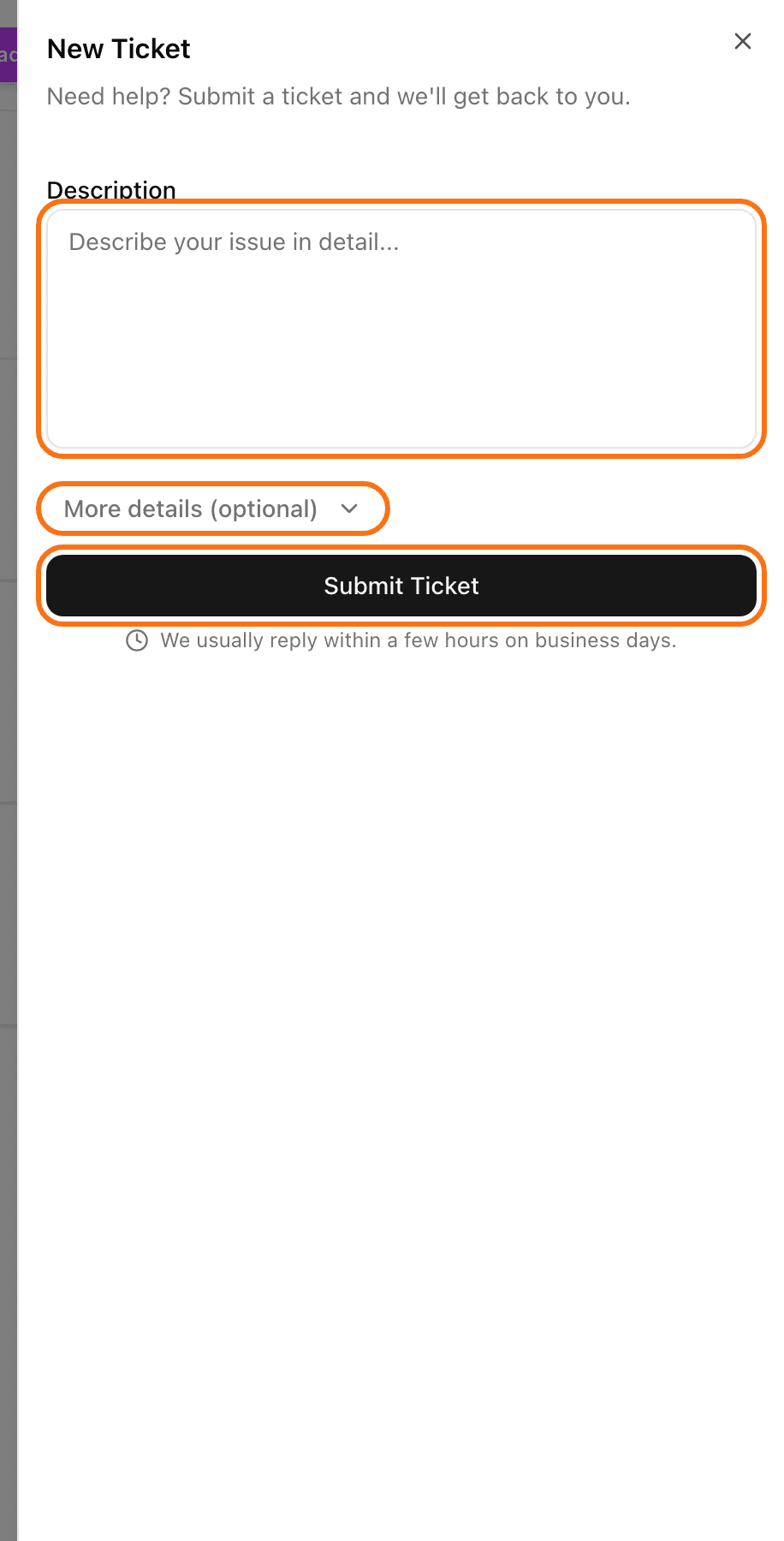
Click New Ticket.
In Description, write what you need. Be specific. Say what you clicked and what you saw.
Click Submit Ticket.
You see "Ticket created successfully".
Open the ticket from inside your tournament. Then the tournament is already chosen for you.
Add more details (optional)
Click More details (optional) to show more fields:
Subject: a short title.
Category: Bug Report, Feature Request, Help & Support, Account Issue, Billing, Other or Feedback. The default is Help & Support.
Related Tournament: pick the tournament your question is about.
Follow your ticket
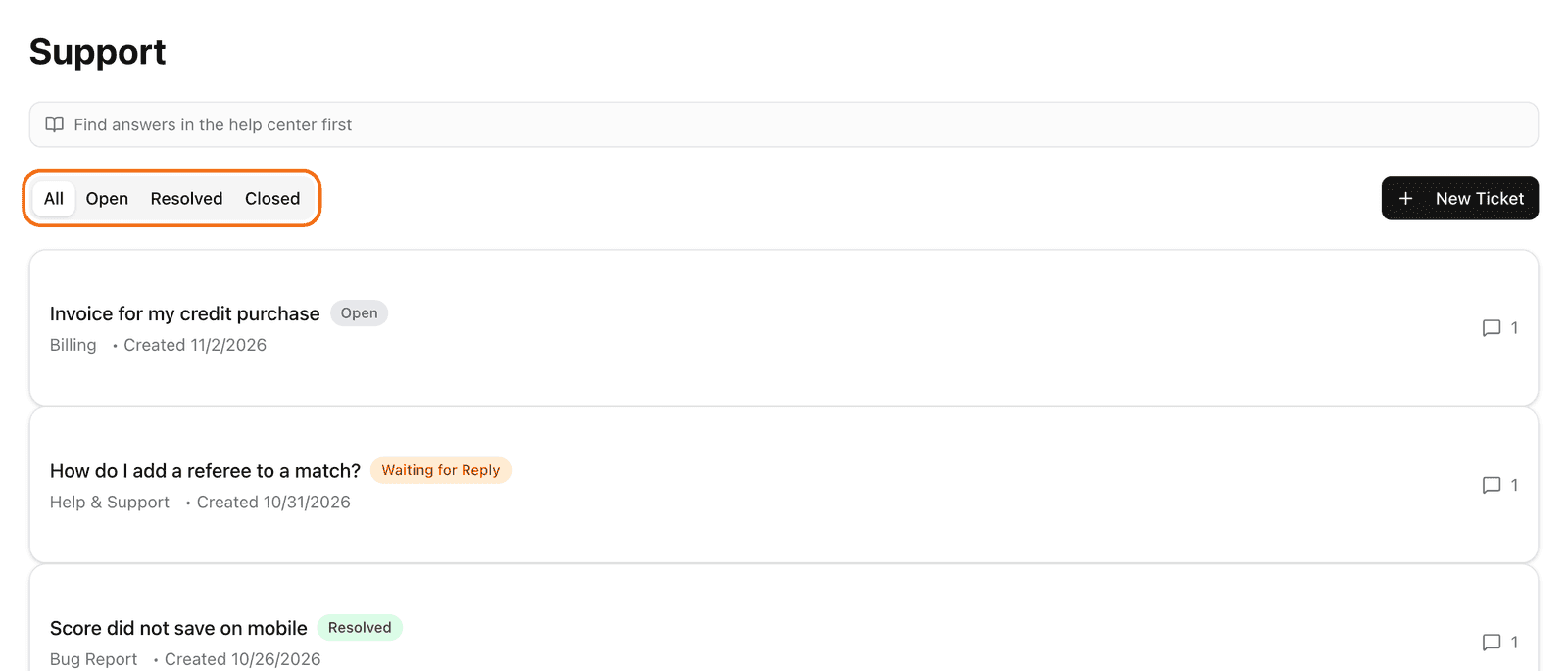
Open Support. You see your tickets.
Use the tabs All, Open, Resolved and Closed to filter.
Click a ticket to read the messages.
The status tells you where it is: Open, In Progress, Waiting for Reply, Resolved or Closed. When we reply, you also get an email.
Reply
Open the ticket.
Type in the box Type a message... and send it.
If the ticket is closed or resolved, your reply opens it again. LiveCup.app asks you first. Click Send & Reopen.