You can upgrade, cancel and get invoices yourself. Payments go through Stripe.
Upgrade to Pro or Business
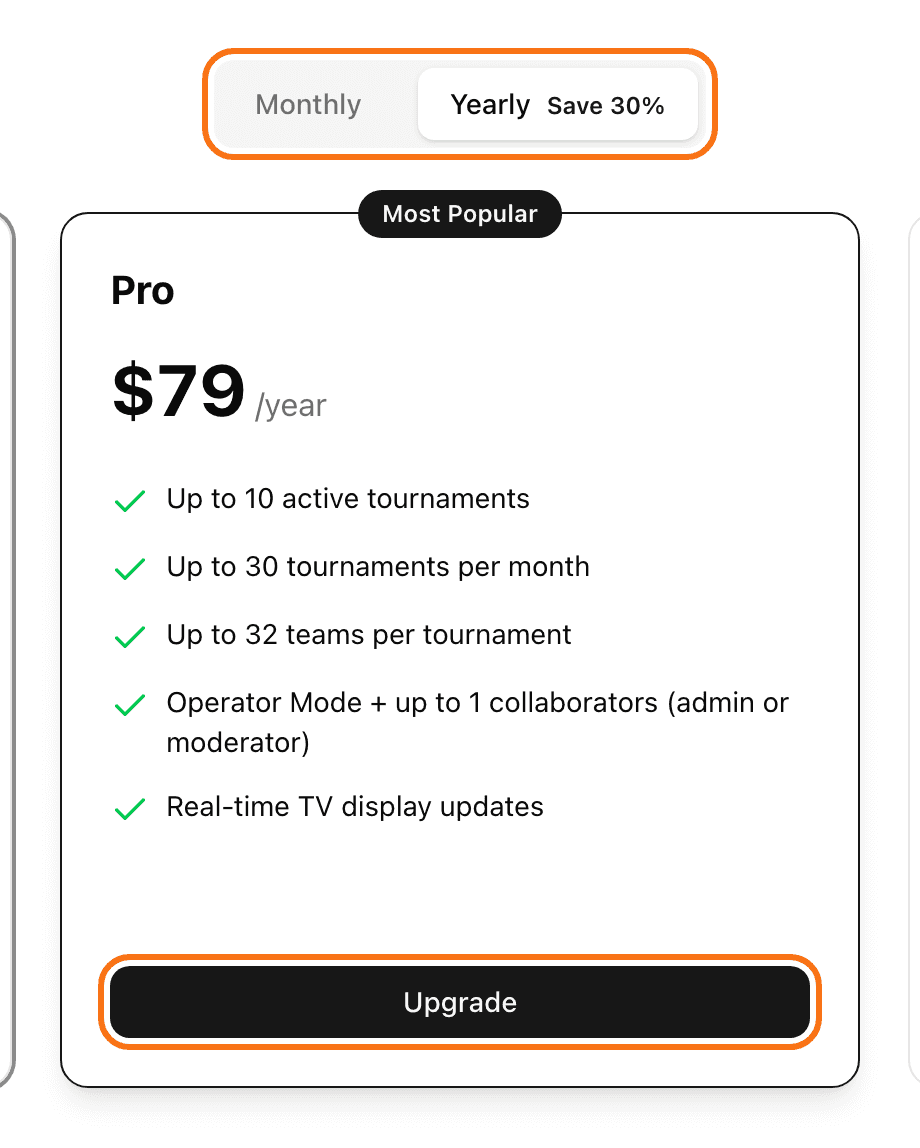
Open the avatar menu and click Plans & Pricing.
Choose Monthly or Yearly.
Click Upgrade on the plan you want.
Pay on the Stripe page. You come back to LiveCup.app and see "Subscription activated successfully!".
If you already have a paid plan, Upgrade opens the Stripe billing page where you pick the new plan. Stripe charges the prorated amount. You never get a second subscription.
Cancel your subscription
Open the avatar menu and click Settings.
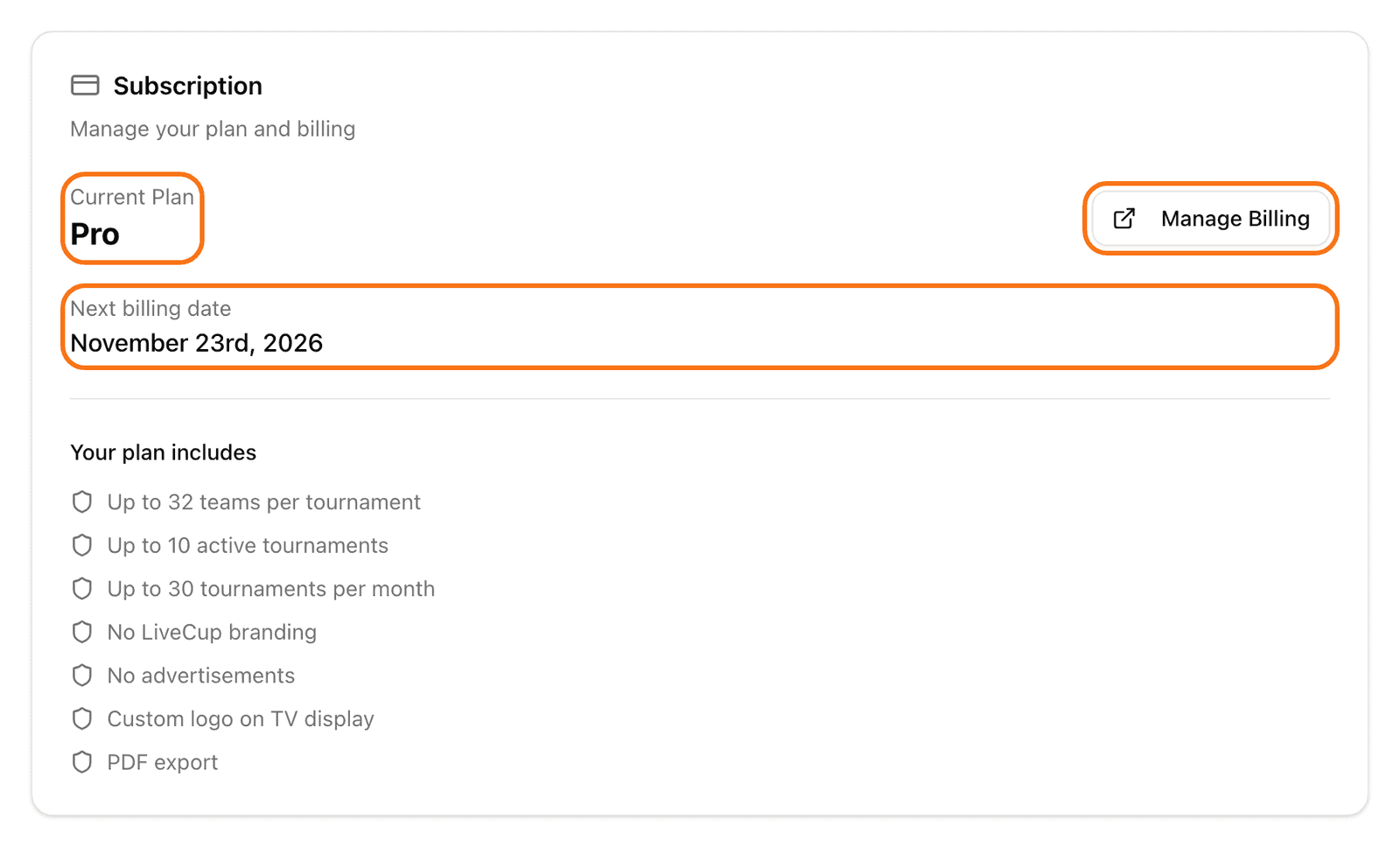
In the Subscription card, click Manage Billing.
Cancel on the Stripe page.
After you cancel, Settings shows Canceling next to your plan. The line Access until shows the last day. You keep your plan until then. After that, your account goes back to the Free limits. Your tournament data stays.
Go to a cheaper plan
The Downgrade button on the pricing page is not active. Open Manage Billing instead. A lower plan starts at the end of your billing period. Settings then shows "Changing to ... on ...".
Subscription from the iPhone app
If you bought your plan in the App Store, you manage it there. Settings shows a box with the steps. You cannot have a web subscription and an App Store subscription at the same time.
Invoices
Open Settings.
Find the Invoices card. It appears when you have a purchase.
For a new purchase, click Request an invoice. You can do this within 30 days of the purchase.
Fill in the Billing details and click Save.
When the status is Issued, click Download.
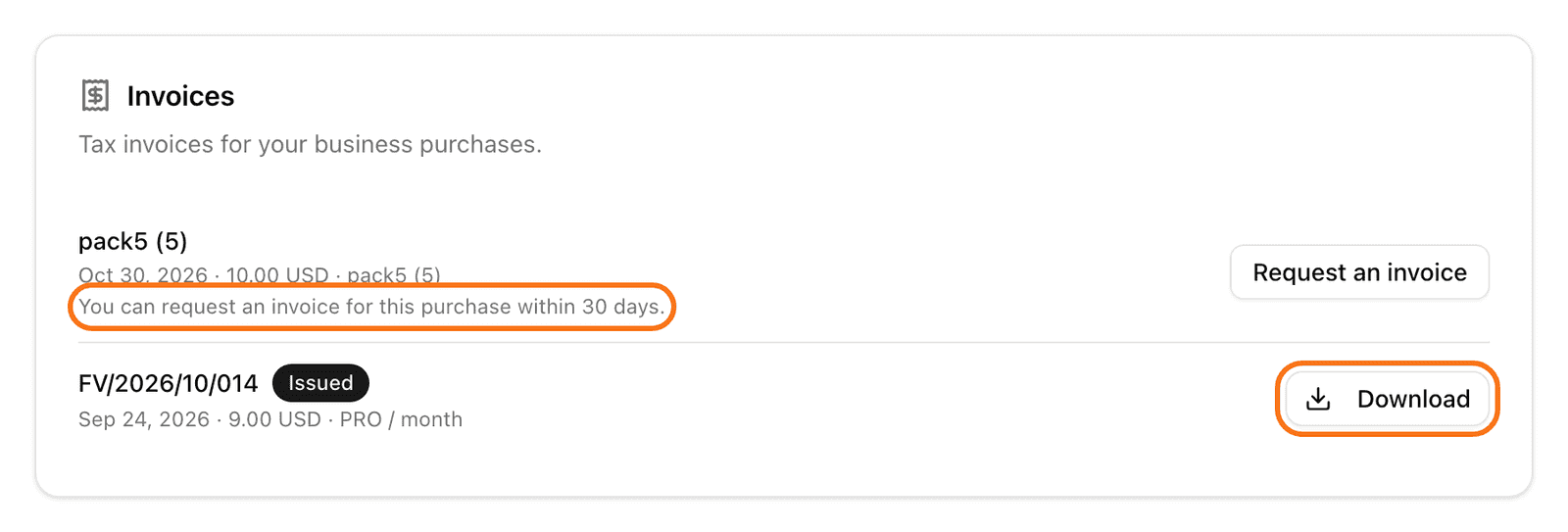
If you see Pending, the invoice is not ready yet. It appears in the same card when it is ready.
Refunds
We offer a 7-day money-back guarantee. Contact us within 7 days of your purchase. Send a ticket and choose the category Billing. See Contact support.
Payment problem
If your plan shows Past Due, a payment did not go through. Click Manage Billing to check your payment details in Stripe.