An event is created in a few steps. Then you add the tournaments that belong to it.
Events need the PRO plan or higher. See what is an event.
Create the event
Open your dashboard and click Events.
Click Create event.
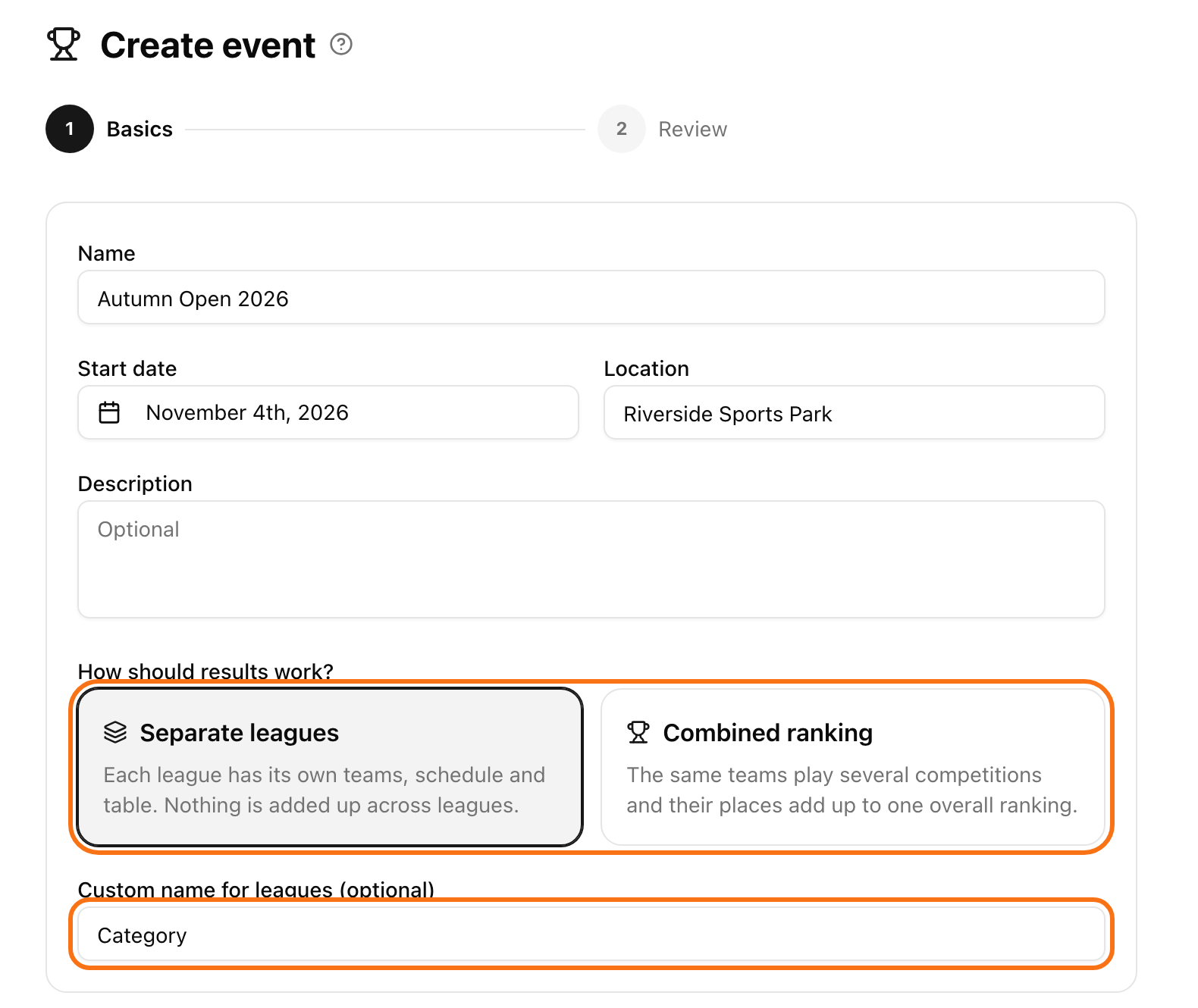
Fill in Name, Start date, Location and Description. Only the name is required.
Under How should results work? choose Separate leagues or Combined ranking.
For Separate leagues you can type a Custom name for leagues (optional), for example "Category" or "Division". Fans and buttons then use your word.
Click Next, check the Review step and click Create.
With Combined ranking there are two more steps. On Teams add at least 2 team names. On Point system set how many points each place earns.
Add tournaments to a Separate leagues event
On the event page you have two buttons:
Add league (or your custom word, for example + Category) opens the normal tournament wizard. The new tournament joins the event when you finish it.
Attach existing tournament adds a tournament you already made. Choose it under Select tournament and click Attach.
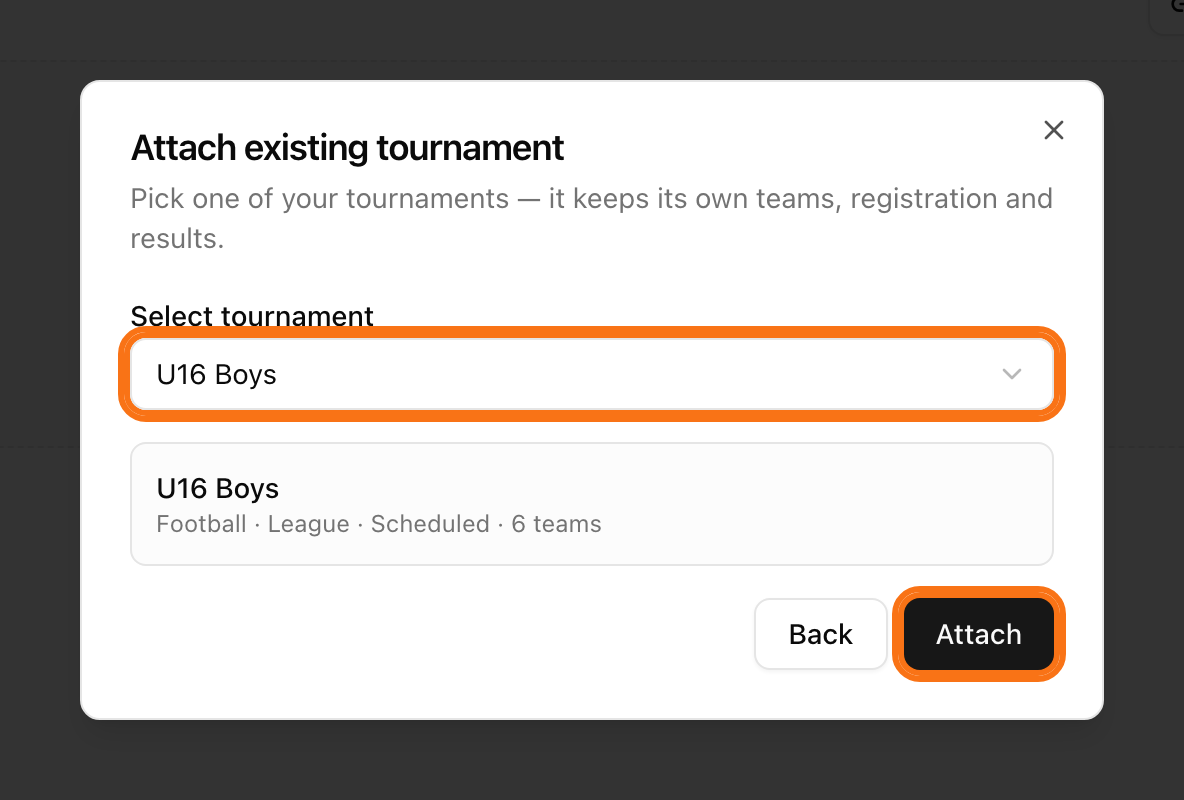
You can attach any of your tournaments that is not in another event. Drafts and archived tournaments are not on the list. The tournament keeps its own teams, registration and results.
To take a league out, click the three dots on its card and choose Remove from event. The tournament is not deleted.
Add tournaments to a Combined ranking event
Click Manage teams and add the event teams first.
Click New tournament to make one with these teams, or Add sub-tournament to attach an empty tournament that has not started. The event teams are copied into it.
Each tournament can have its own sport and format. To remove one, click Detach. The tournament itself stays.
Change the basic info later
On the event page click Settings.
Open General.
Change the Name, Logo, Start date, Location or Description.
Click Save changes.
The result mode is locked as soon as the event has teams or tournaments.