Creating a tournament takes three steps. You add teams later, after the tournament exists.
Open the wizard
Log in. You land on your dashboard.
Click New Tournament. On an empty dashboard, click Create First Tournament.
Step 1: pick the sport
Find your sport in the list, or type its name in Search sport....
Click the sport.
Click Next.
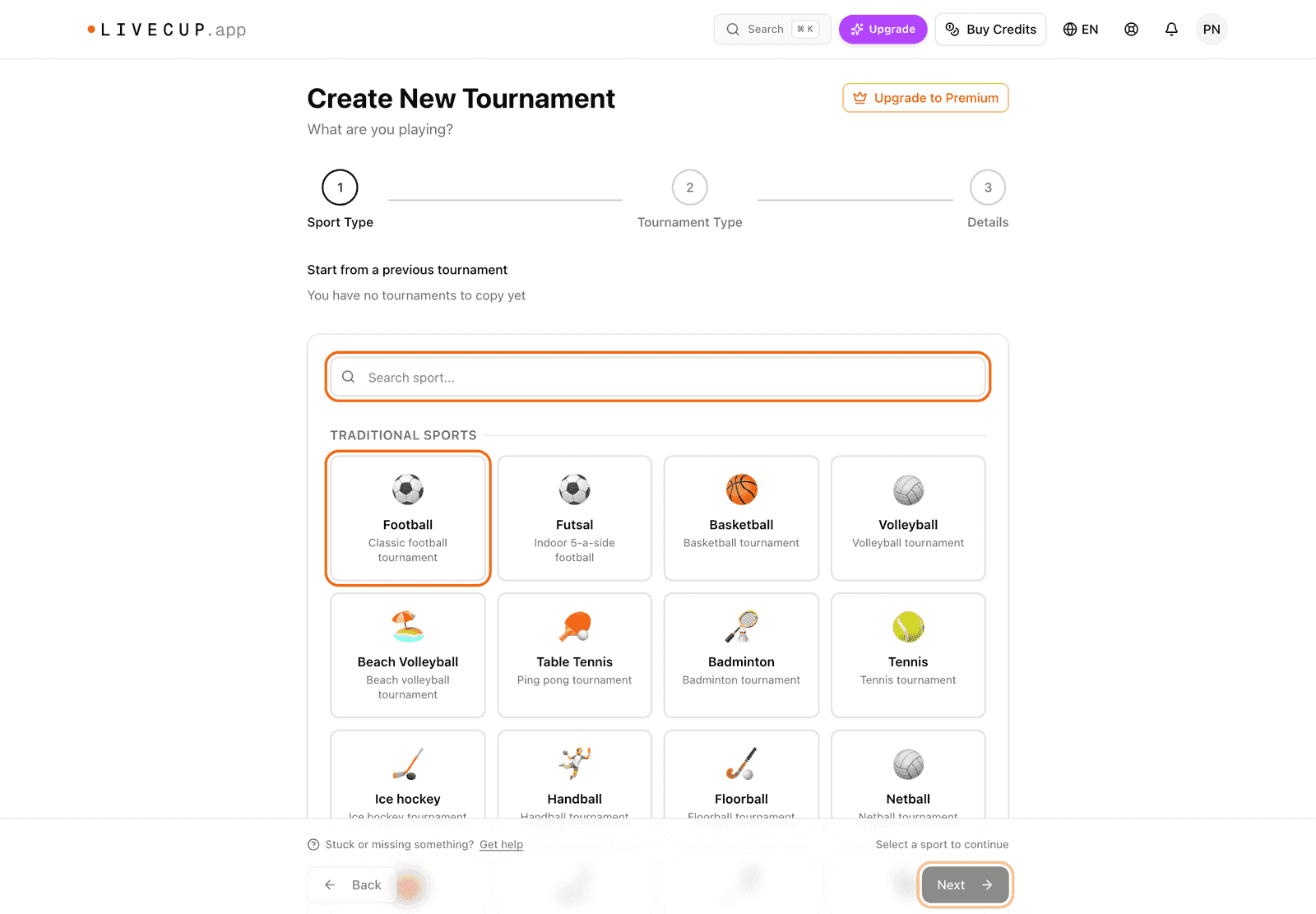
Your sport is not in the list? Pick Other under Custom, then type the name of your game.
Step 2: pick the format
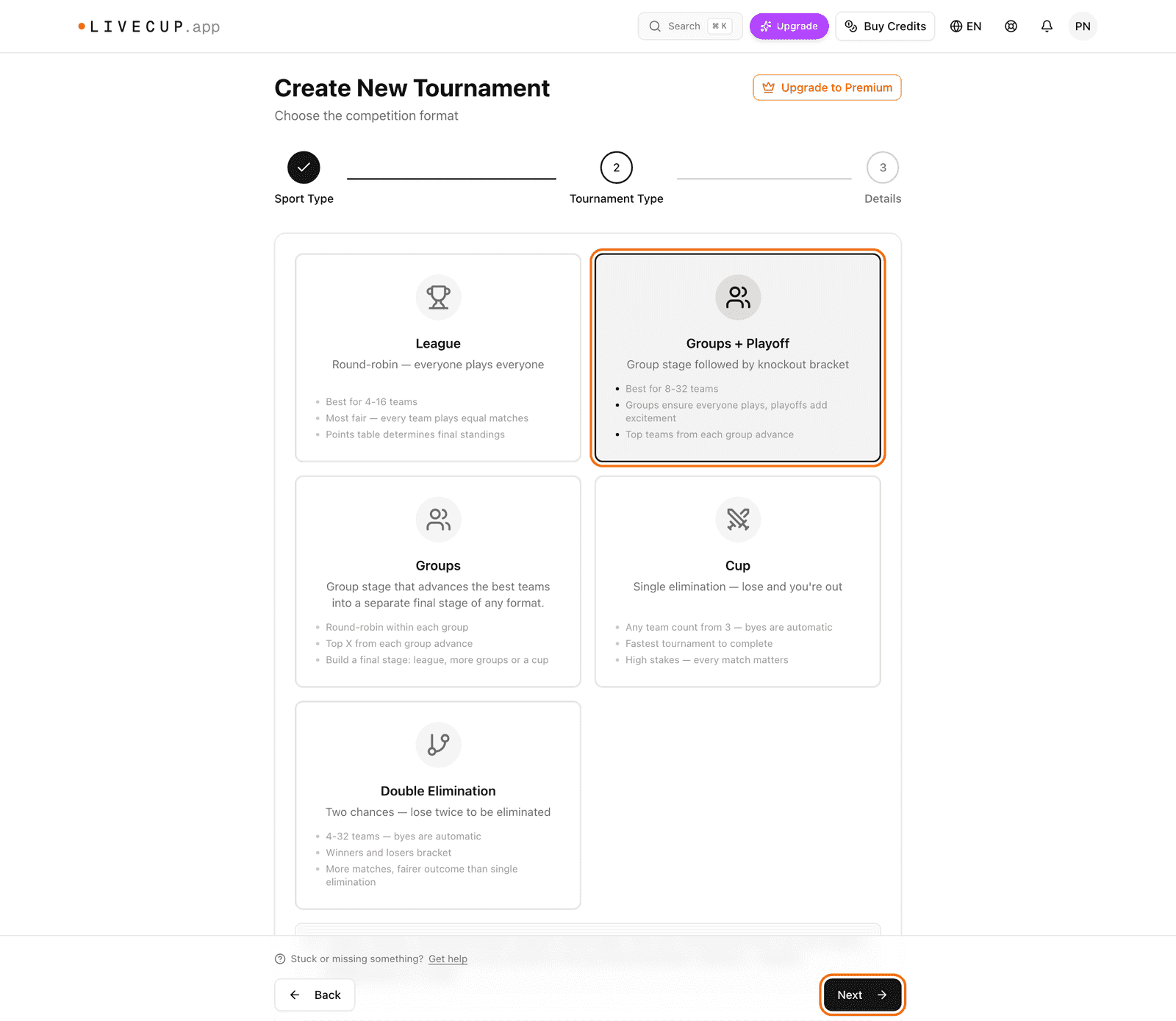
Click one card, for example League or Cup.
Click Next.
Not sure which one to pick? Read how to choose a tournament format.
Step 3: name and date
Type the Tournament Name (a required field).
Choose the Start Date and the time.
Click Create Tournament.
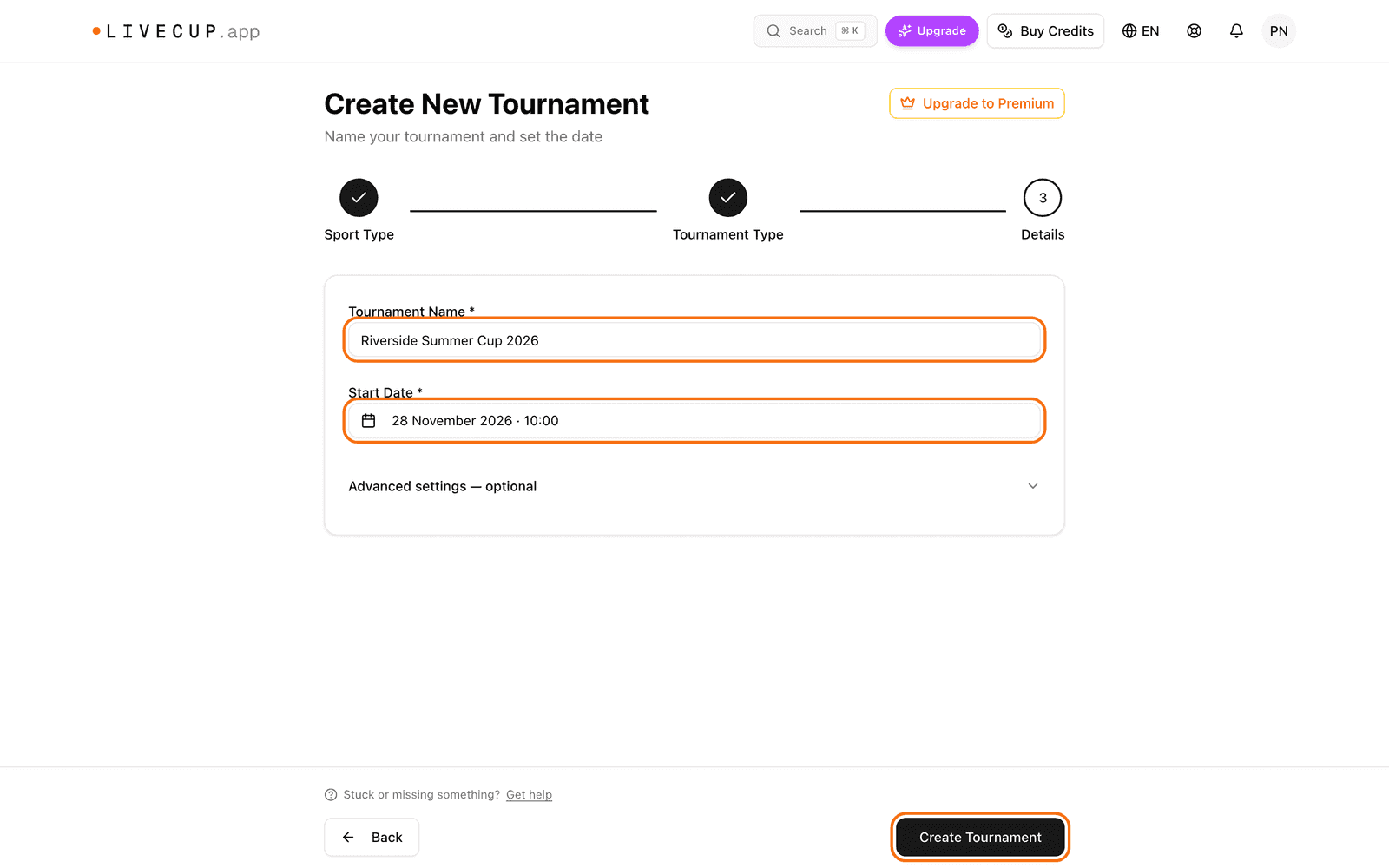
Some sports show extra fields here, for example match rules. The defaults are fine for most events.
Want to add a place, a description, or a limit of teams? Open Advanced settings — optional. You can change all of this later in the tournament Settings.
What you see next
LiveCup.app opens your tournament page. A Setup bar at the top shows the steps: Add teams, Generate schedule, and Start. Tournaments with groups also have a Draw groups step.
Next: add your teams.
The free plan has limits on how many tournaments you can run and how many teams one tournament can have. If you hit a limit, the wizard shows your options.