Start the tournament when the teams and the schedule are ready. After that you can enter scores.
Start the tournament
Open your tournament.
Check the Setup bar. Add teams and Generate schedule should have a green tick.
Click Start Tournament. You find it at the top of the page and in the last card, Start tournament.
Check the number of teams in the window. Click Start Tournament again.
LiveCup.app shows "Tournament started!". The status changes to In Progress.
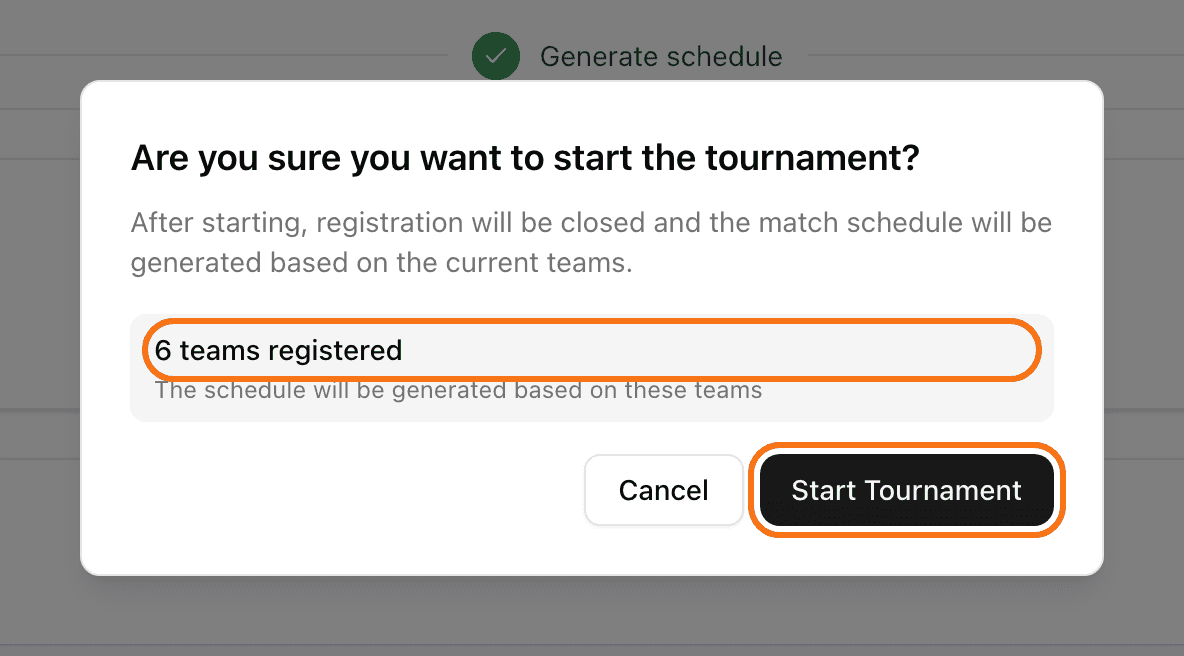
The button is grey? You have no schedule yet. The card says "Generate the schedule first to start." See how to create the schedule.
What changes after the start
You cannot add teams any more. New teams cannot join with the link. They see "Tournament has already started".
You can enter scores. Click Start Match on a match when it begins.
You can still change the time of matches that have not started.
Players who signed up with a LiveCup.app account get a message that the tournament started.
Started by mistake? Open Settings, then Danger Zone, and click Revert to registration. This deletes the schedule. It works only while no match has been played.
Share the public page
Everyone can follow your tournament on a public page. They do not need an account.
At the top of your tournament, click Share.
Click Copy link and send it by message or email. Click Show QR code to show a code on a screen. Click Open to see the page yourself.
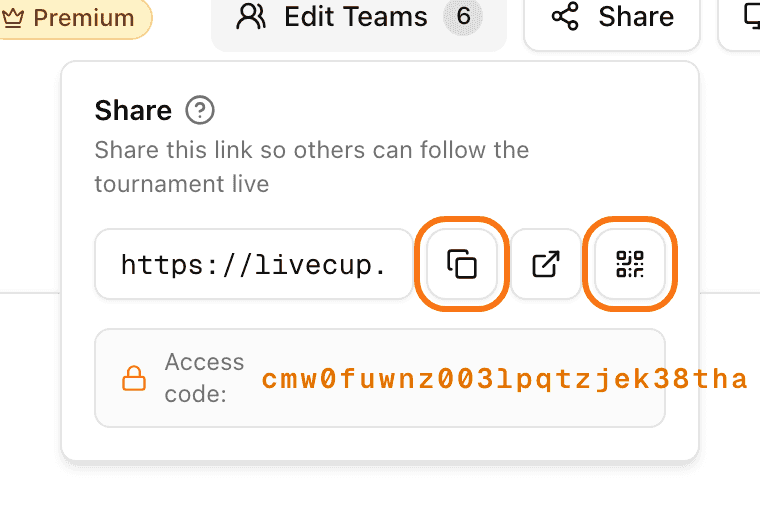
The link looks like livecup.app/en/t/ followed by a code.
What visitors see
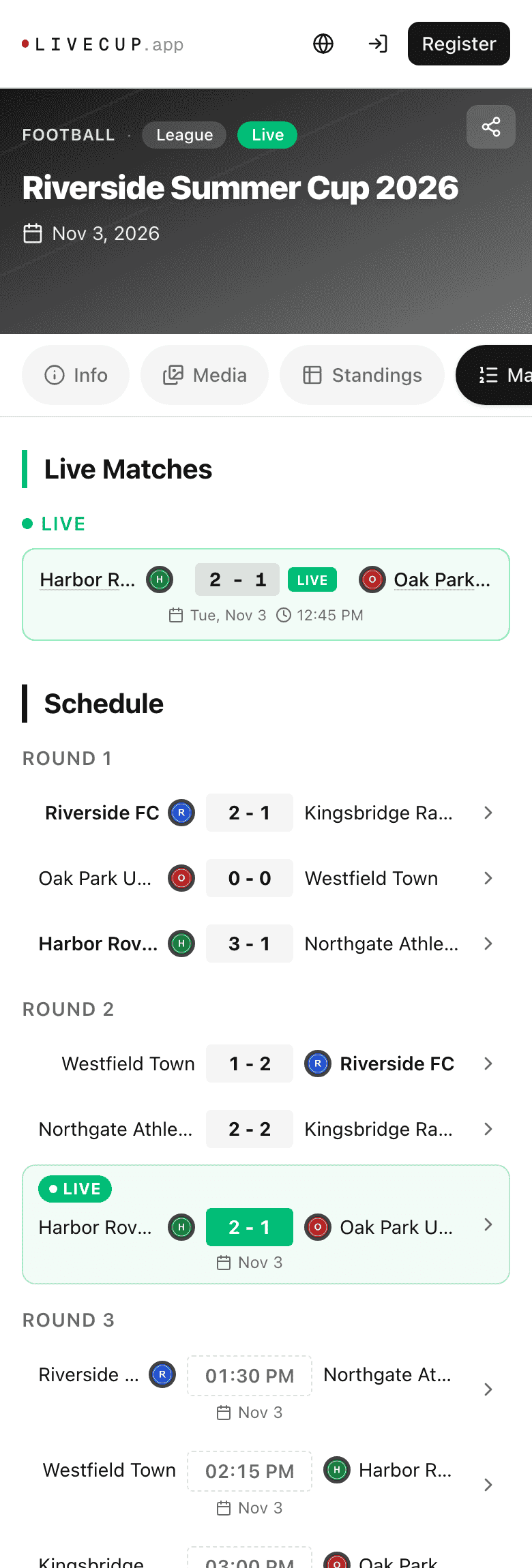
The public page has tabs. Visitors can open Info, Standings, and Matches. In a Cup the standings tab is named Bracket. The page updates when you enter scores.
Before the start, visitors land on Info.
During the tournament, they land on Matches.
After the end, they land on Standings.
Want a big screen at the venue? Click TV Display at the top of your tournament.