Do you run the same night every Thursday? You do not need to build it again. Use Repeat to create the next edition. Or switch on a series and the editions create themselves.
Repeat and series need the PRO plan or higher. An Event Pass does not unlock them. If your plan ends, automatic editions are paused and your old editions stay available.
Repeat one tournament
Open your tournament.
Click the three dots menu and choose Repeat. Only the owner sees it.
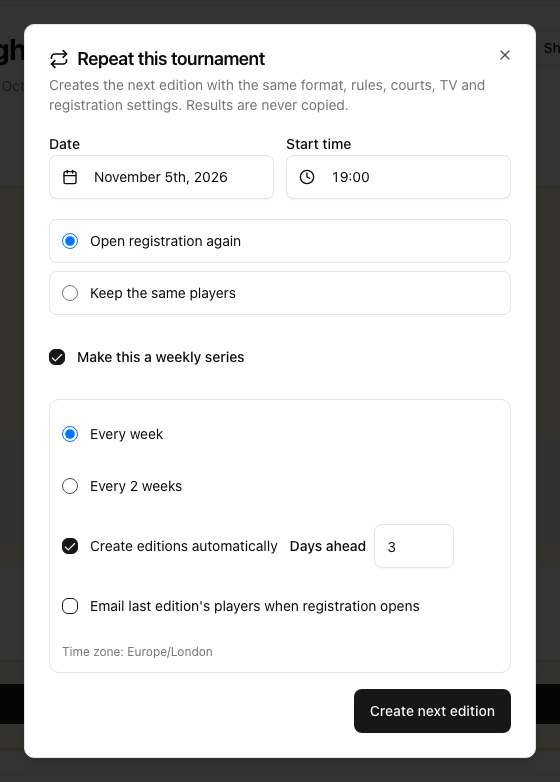
Pick the Date and the Start time of the new edition.
Choose what happens with the players:
Open registration again: the new edition starts with no players and registration is open.
Keep the same players: the players and their rosters are copied.
Click Create next edition.
The new edition gets the same format, rules, courts, TV settings, branding, sponsors and registration settings. Results are never copied. Staff, the schedule, groups and manager contacts are not copied either. The new edition always opens with registration open.
Make it a weekly series
In the same window, before you click Create next edition:
Tick Make this a weekly series.
Choose Every week or Every 2 weeks.
Leave Create editions automatically ticked if you want LiveCup.app to do it for you. In Days ahead, set how many days before the date the edition is created (0 to 14, the default is 3).
If you chose Open registration again, you can tick Email last edition's players when registration opens. Regular players then hear about it first.
The time zone of your browser is used for the date and the time. The series keeps the same weekday and hour every time.
An edition is named after the series and its date, for example "Thursday Americano · 22 Oct". On the tournament page you will see a small tag Series · edition 2. Click it to open the series page.
Manage the series
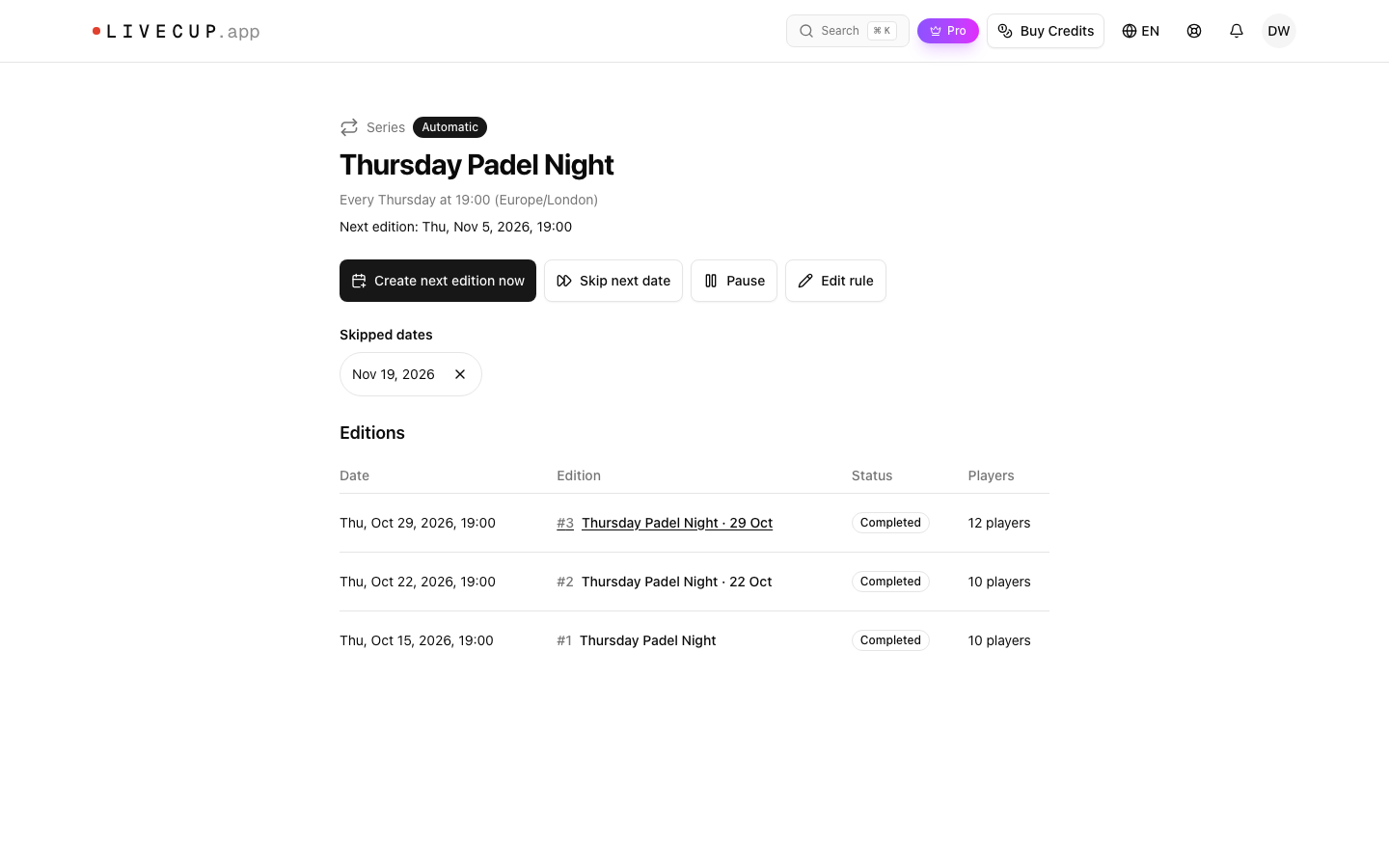
The series page (title Series) shows the status, the next date and all editions.
Status: Automatic, Paused or Manual (you turned automatic editions off).
Create next edition now: makes the next edition right away.
Skip next date: no edition for that date, for example on a holiday. Under Skipped dates you can bring a date back.
Pause and Resume: stop and start the automatic editions.
Edit rule: change the series name, Every week or Every 2 weeks, the weekday, the start time, the time zone, the players choice, Create editions automatically and Days ahead, then click Save.
If an automatic edition fails, the page shows the reason and you get a notification. Most often the plan no longer includes series.
Good to know
Series work for every sport. They are very popular for weekly padel and pickleball nights. See Americano and Mexicano.
The copy keeps your courts, so check the dates before the night. See courts and match order.
A one-off copy of a tournament without the series options is called Duplicate in the same menu.