LiveCup.app can follow a rugby match event by event: tries, conversions, penalty goals, drop goals, cards and substitutions. The score, the clock and the sin-bin timers are kept for you. If you are short of time, you can type only the final score.
The rugby scorer, the final-score shortcut and event corrections are free on every plan. Match-day squads and substitutions need team rosters, which are described below.
Choose the rugby format
Open your tournament and click Settings, then General. On a phone, Settings is in the three dots menu (More actions) at the top of the tournament page.
Find Rugby format and pick a Preset:
Rugby Union 15s: 10 minutes in the sin-bin, a bonus point for 4 tries.
Rugby Sevens: 2 minutes in the sin-bin, a bonus point for 3 tries, no loss bonus.
Custom: set Yellow-card penalty (seconds), Try bonus (at ≥ X tries), Loss bonus (margin ≤ points) and Match time (minutes) yourself.
Under Detailed rules you can change how many players are On the field, the Bench, the Substitution limit, the Halves and their minutes, Head-injury substitution, Players may return, Golden point on a knockout draw and Direct red card bans from the tournament. Click Save rules for these. The preset and the other fields above are saved with Save changes at the bottom of the page.
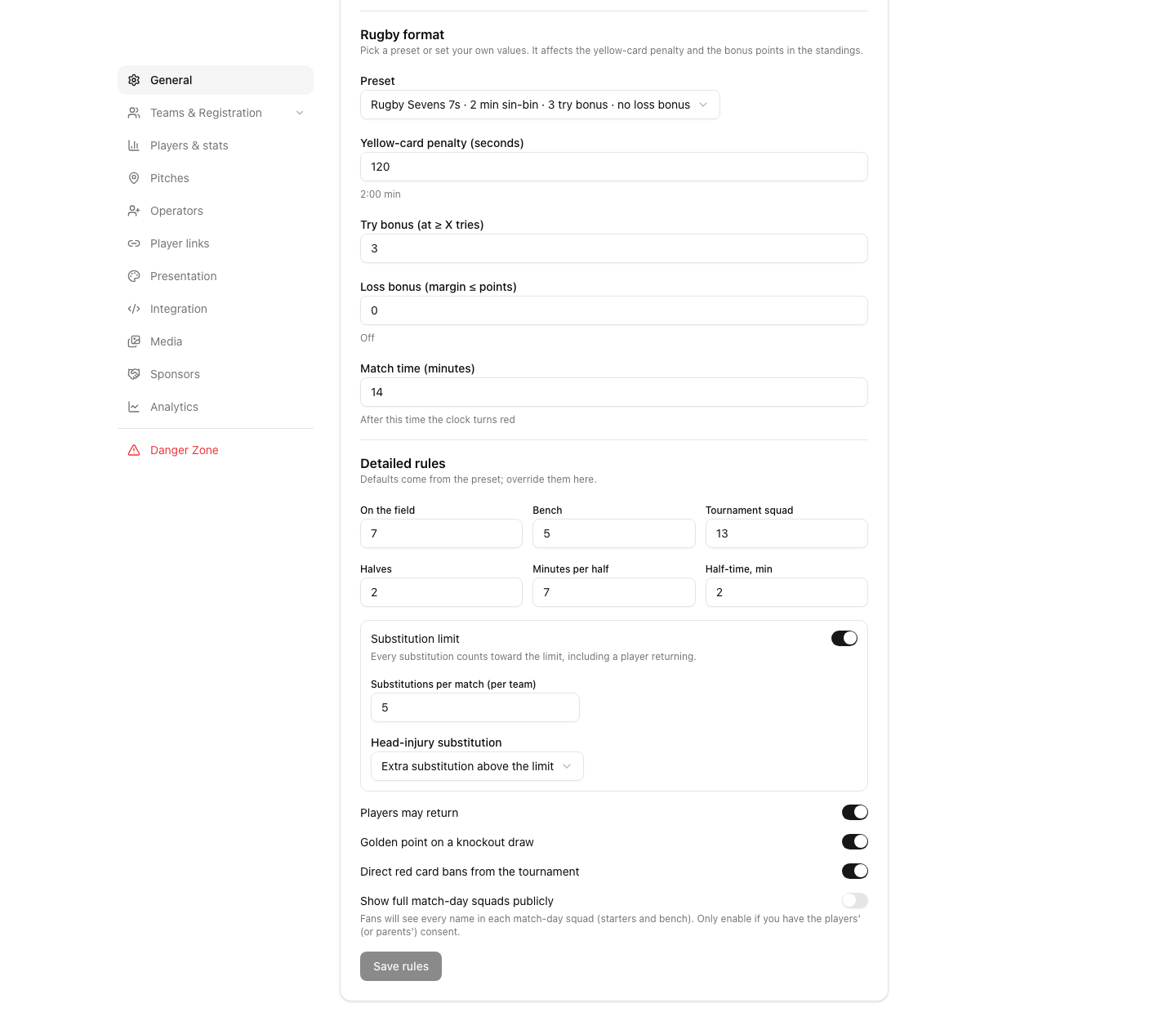
The substitution limit is off by default, so each team can make unlimited substitutions. Switch on Substitution limit and set Substitutions per match (per team) if your rules have a limit. For Head-injury substitution you choose: Extra substitution above the limit, Does not count towards the limit or Counts towards the limit.
Prepare squads
Match-day squads, substitutions and player names in tries need team rosters. They need a PRO plan or a tournament credit.
Click Settings, then Players & stats, and switch on Team rosters.
Add the players of each team with their numbers. See team rosters.
Before a match, open it and find Match-day squads. Tap a number to move the player: field, then bench, then out. The counter shows Field 15/15 · bench 8/8.
Click Save squad. Same as last match copies the previous squad.
The squad is locked after the first substitution. A player who is suspended for the tournament is greyed out.
Score the match
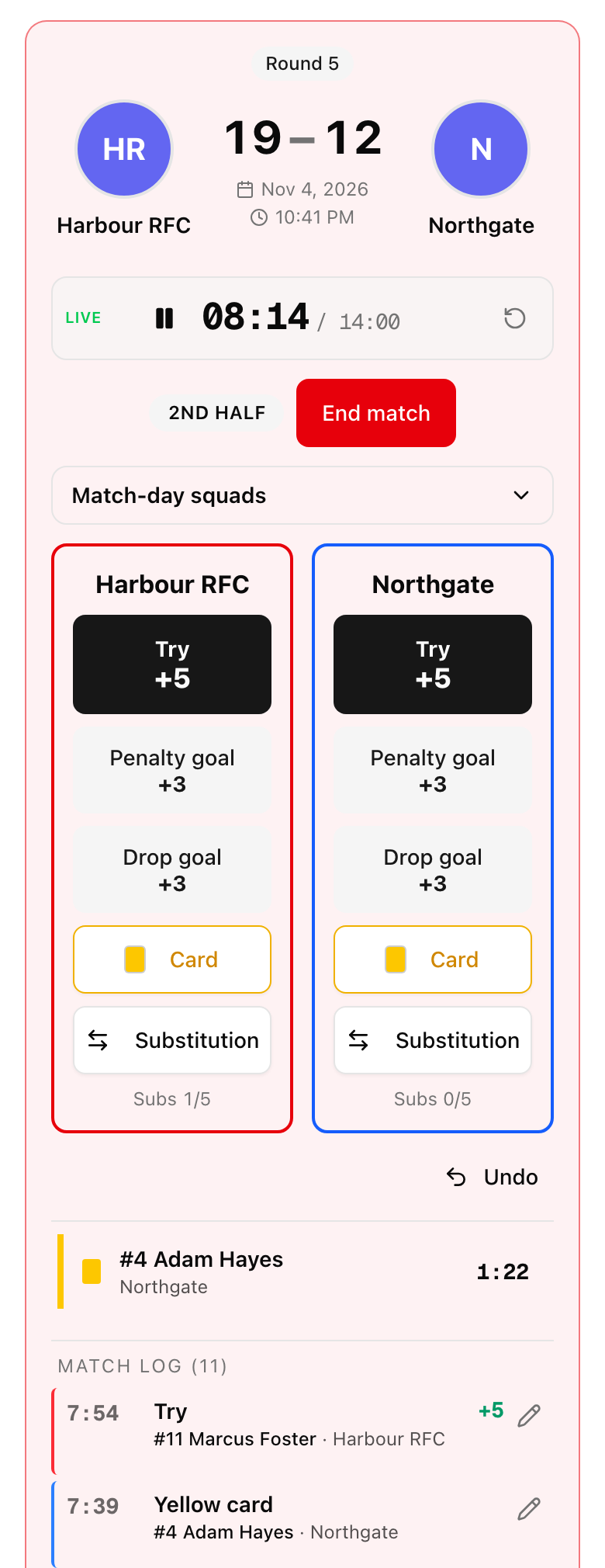
Click Start Match, then Start 1st half. The match clock starts. You can also use Start clock, Pause clock and Reset clock, or tap the time to edit it.
For each team, tap a button when something happens:
Try: 5 points. With a roster, LiveCup.app asks Who scored the try? Pick the player or tap Skip.
Conversion: after a try a small window asks Made or Missed. A made conversion gives 2 points. If you do nothing for 45 seconds, the window closes and records the conversion as missed.
Penalty goal: 3 points.
Drop goal: 3 points.
Card: choose Yellow card or Red card.
A yellow card starts the sin-bin timer. A second yellow for the same player asks Show red?
At half-time click End of half, then Start 2nd half. When the match is over click End match.
If a knockout match is level and Golden point on a knockout draw is on, Extra time: golden point appears.
Made a mistake? Undo removes the last event. In the Match log, tap the pencil next to any event to change the player, the type or the time, or choose Delete event.
Referees can score too, with a personal link. See referee mode.
Substitutions and head injuries
Tap Substitution under the team. The button works once the squad of that team is saved.
Pick the player who goes Off, then the player who comes On.
Need more than one change at the same stoppage? Pick the next pair. The list Substitutions to confirm grows.
For a head-injury replacement, switch on Head injury next to that pair. The rule you set in Head-injury substitution decides if it counts towards the limit.
Click Confirm substitution (with several pairs the button reads Confirm 2 substitutions, and so on).
The counter shows Subs 2/8 or Subs: 2 when there is no limit. The log groups changes made together as a double or triple substitution. LiveCup.app refuses impossible changes, for example a carded player coming off, or a player who is not on the bench.
Only the final score
You do not have to log every event.
Open the match and click Start Match. Then click Enter only the final score (before you log any scoring event).
Type both scores in Final score. If the try bonus is on, type the tries in Tries, because the bonus depends on them. Otherwise tries are optional.
Click Finish match. The button shows the result, for example Finish match 24:17. You go back to the tournament page.
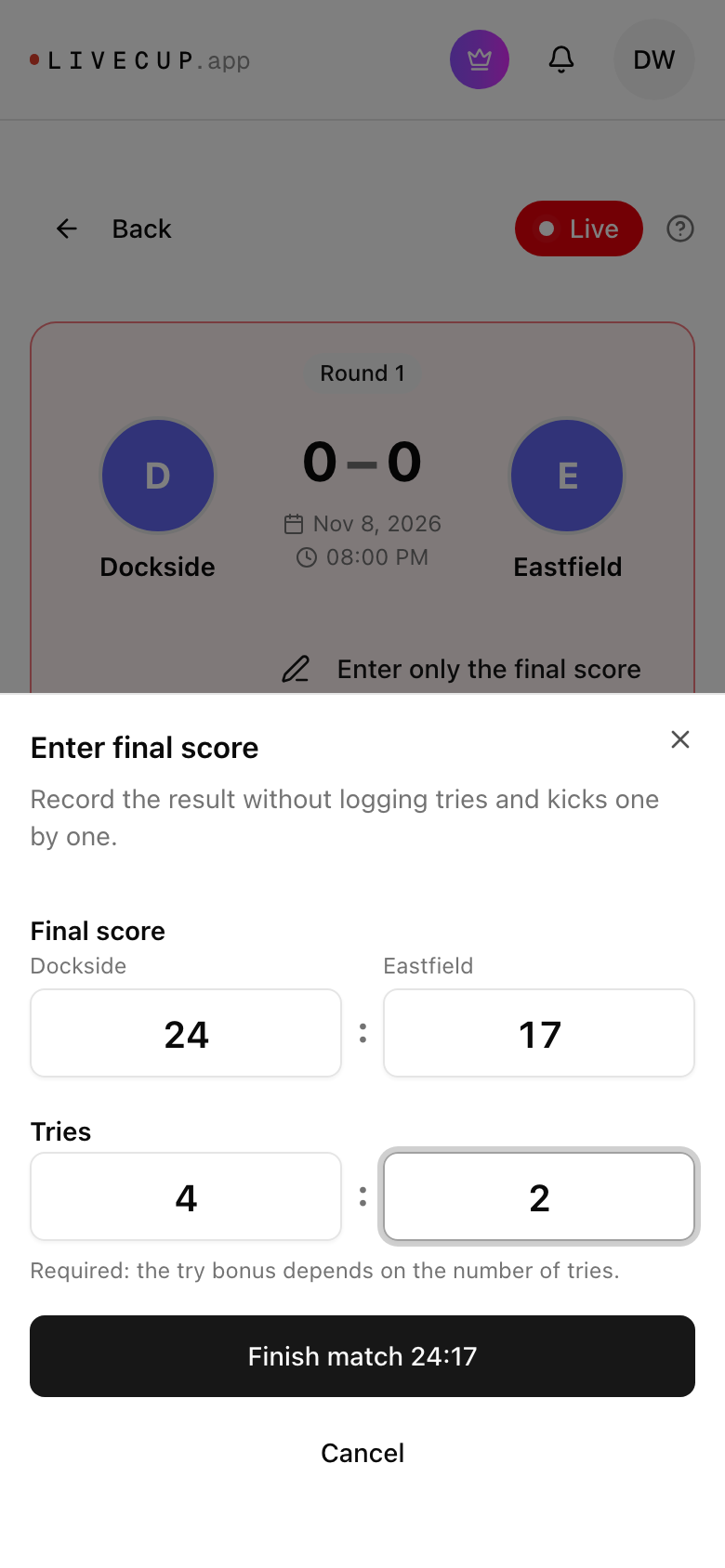
Only the owner and co-organisers can do this, not referees. Wrong result? Click Change result. Want to log the events after all? Click Enter match log. The typed result is removed and the match goes back to live.
Correct a finished match
Open the finished match and click Correct events.
Tap an event to change the player, the time or the kick result, or delete it. Add event puts a forgotten event in at the right minute.
Confirm with Save correction.
The score, the table and the suspensions update by themselves. LiveCup.app warns you if a player was not on the pitch at that time. It does not allow a correction that would change the winner of a knockout match that has already moved on.
What fans see
Fans open the match page and see the score, the time and the Timeline of events. The tab Squads appears only if you switch on Show full match-day squads publicly in Detailed rules. Do this only with the consent of players or parents. The TV shows the score, the cards and the match log. See the TV display.
How the bonus points and the player statistics work: rugby standings and player stats.