LiveCup.app can put your matches on several courts, pitches, tables or boards and give each match a start time. On the match day you can still change the time or the order.
The names change with the sport. Football says Pitches, tennis, padel and similar sports say Courts, and others say tables or boards. This page says "court".
Put matches on courts
Courts need a PRO plan or higher. A tournament credit does not unlock them.
First make the schedule. See create the match schedule.
In the Schedule card, click Set up courts. The courts page opens.
Switch on Enable court system.
Click Add court and type a name, for example "Court 1". Add all your courts.
Set Default match duration (minutes) and Break between matches (minutes). LiveCup.app uses them to find clashes.
Click Generate schedule.
Choose a Strategy: Balanced (parallel rounds) plays a whole round at once. Compact (tightest) finishes as early as possible.
Set the Start time and click Generate schedule again.
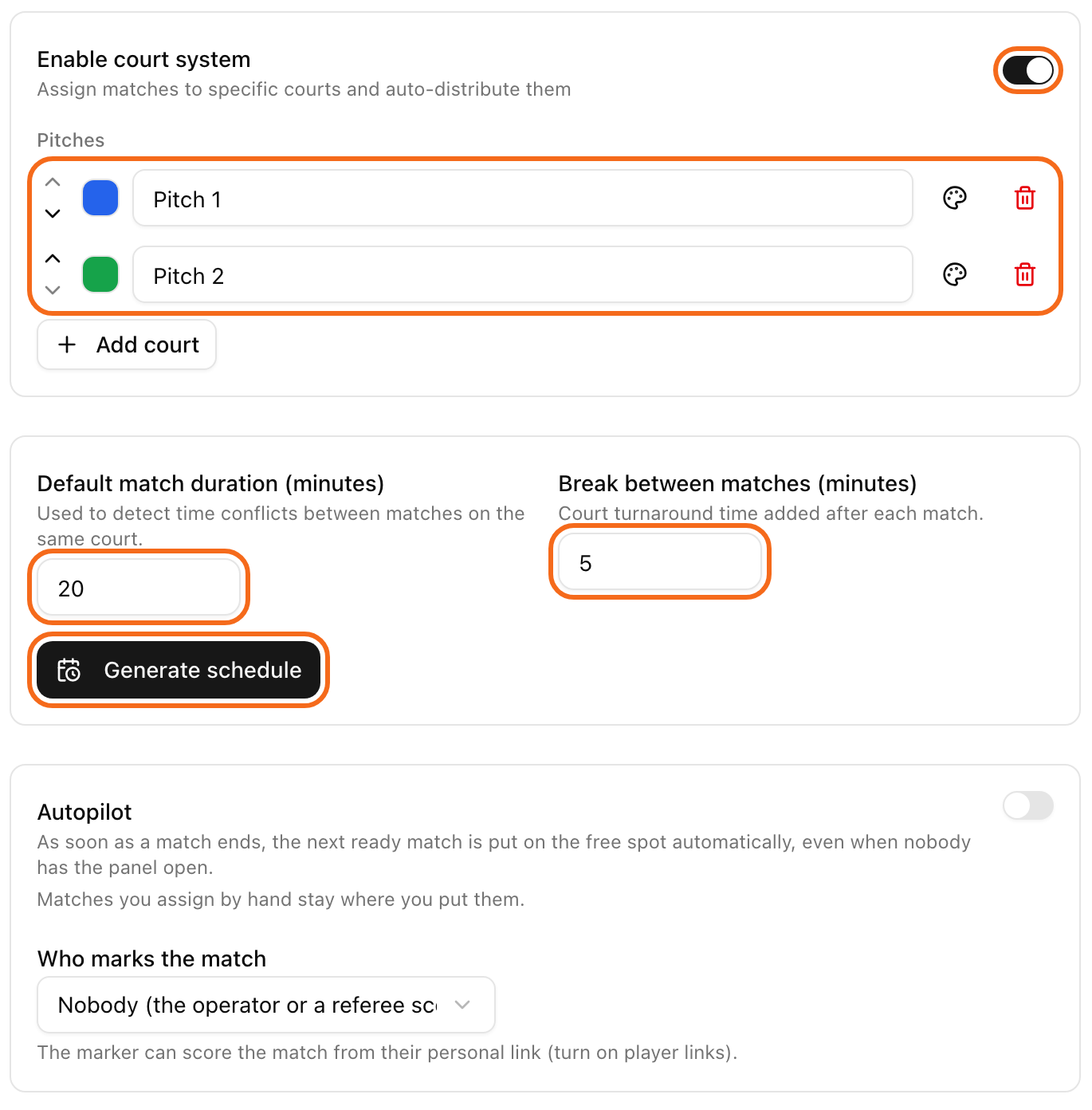
Every match now has a court and a start time. Teams see them on the public page.
If the tournament already runs, generating again redraws the court and time of every match that has not started. Live and finished matches keep theirs. LiveCup.app asks you to tick a box first.
The card is called Autopilot. Switch it on at the same place: as soon as a match ends, the next ready match goes to the free court automatically. The Who marks the match dropdown sets who can enter the score of that match from their personal link. It needs a PRO plan or higher.
Move one match to another court
Click Edit Match-ups above the match list.
Click the court name next to the match.
Pick another court.
A warning triangle shows if two matches overlap on the same court.
Change the time of one match
Find the match in the list and click the pencil icon (Edit match).
Under Date, pick the day.
Under Time, click the field. A clock opens. Click the hour, then the minutes.
Click Save.
You can change the time only before the match starts.
Change the order of matches
Quick moves with the menu:
On the card of a scheduled match, click the "…" button.
Choose Play next, Move to end or Swap with….
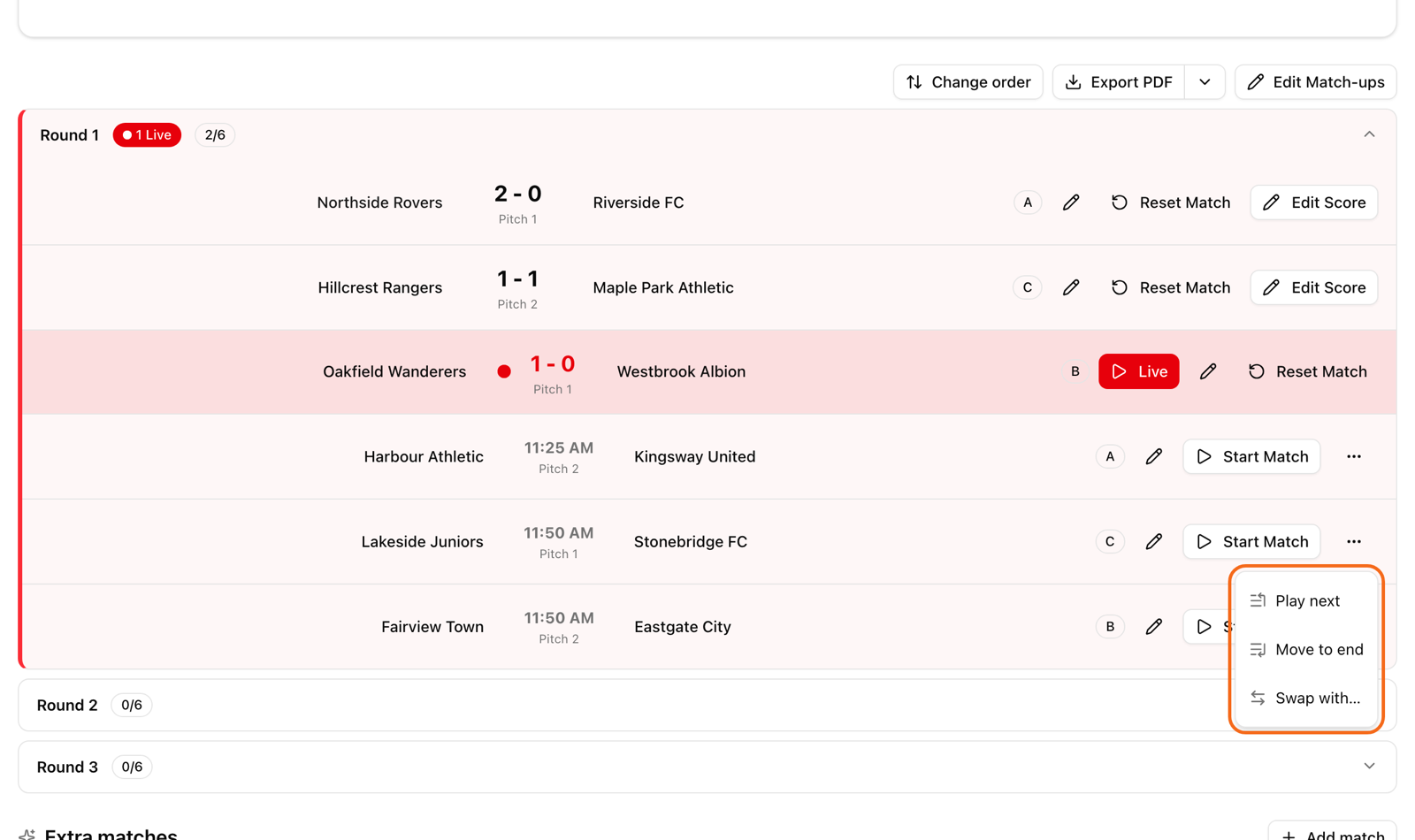
Many matches at once:
Above the match list, click Change order.
Drag a match by its handle, or use the up and down arrows.
Click Done.
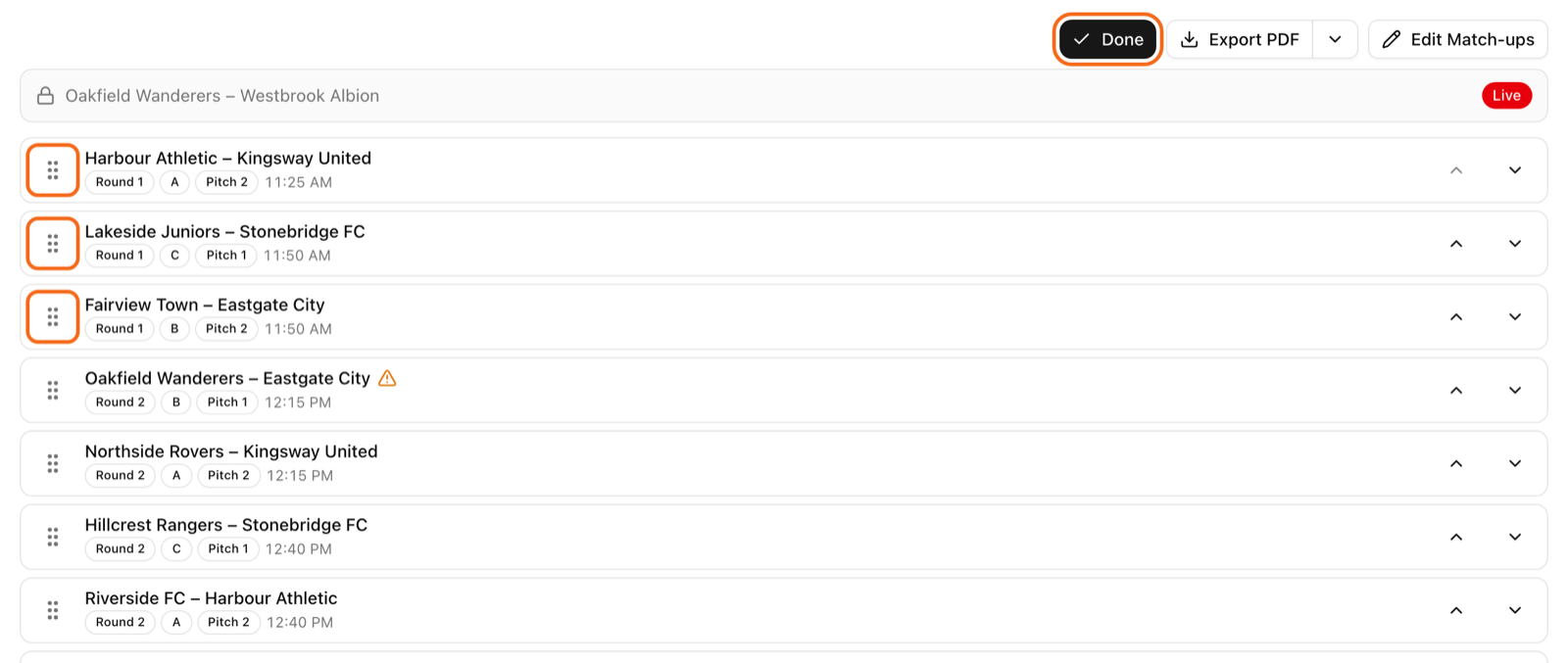
You can move only matches that have not started. A live match is pinned at the top of the list with a lock icon and a Live badge, and it cannot be moved.
A match moves only inside its own round or phase.
If a team would play two matches in a row, or at the same time, LiveCup.app shows a warning. You can still keep the change.
Moved by mistake? Click Undo in the message that appears.
Americano and Mexicano do not have this button.
An event with several leagues has a Court planner in the event settings. It plans all categories on the shared courts at once. It needs a PRO plan or higher.