A referee gets a personal link. They open it on their phone and score only their matches. They do not need an account.
Referees need a PRO plan or higher. A single tournament credit does not unlock them. On the Free plan the Operators page asks you to upgrade.
Add a referee
Open your tournament and click Settings.
Click Operators in the menu.
Switch on Referee mode.
Click Add person and choose Referee.
Type the Full name. Email is optional.
Click Add referee.
LiveCup.app shows Their personal link. Click Copy or Show QR and send it to the referee.
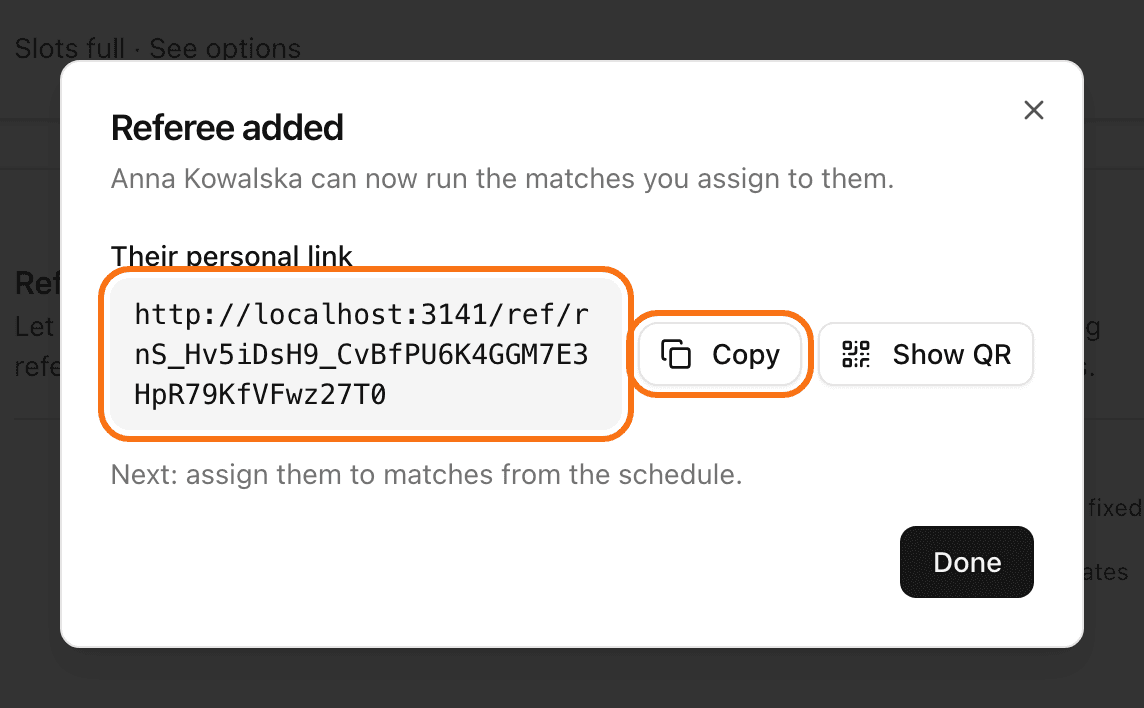
Each referee uses one operator slot. The Slots bar on the same page shows how many you have left.
Assign matches to a referee
Go to the Schedule tab of your tournament.
On a match card, click Assign referee.
Tick the referee's name. You can tick more than one.
The button then shows how many referees are on that match.
Have a fixed crew? On the Operators page, switch on Every referee can run all matches. Then you do not need to assign matches one by one.
What the referee does
The referee opens the link. They see Your matches.
They tap a match, then Start Match.
They tap + when a team scores.
At the end they click End Match.
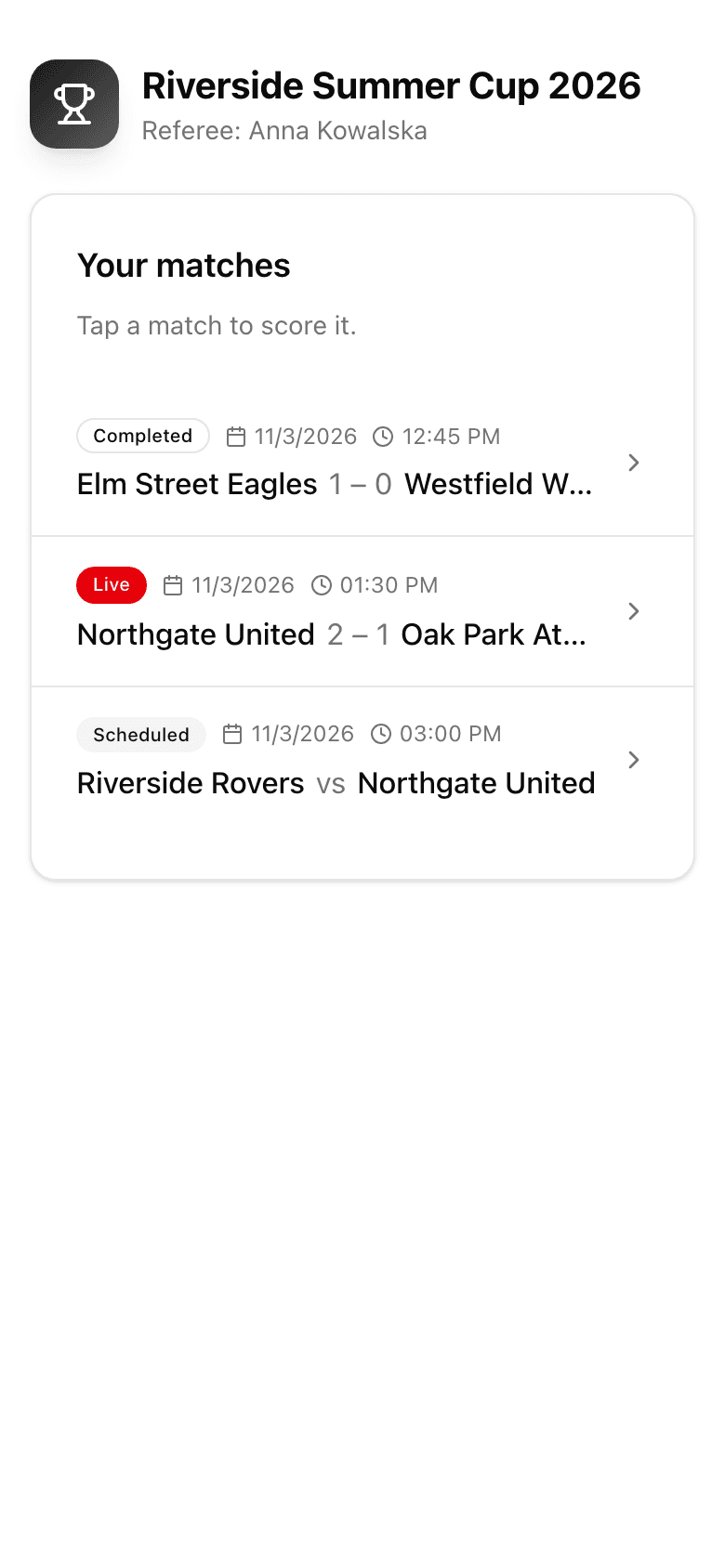
A referee cannot reset a match or change a finished result. You can do that for them. See how to fix a wrong score.
Stop a referee
On the Operators page, find the person and click Deactivate. Their link stops working at once. You can reactivate them later.