The TV screen shows live matches, upcoming matches and standings in big letters. It updates by itself. You do not need to touch it during the day.
Open the TV screen
Open your tournament.
Click TV Display. It opens in a new tab.
Put that tab on the TV or projector. Use your browser's full screen mode.
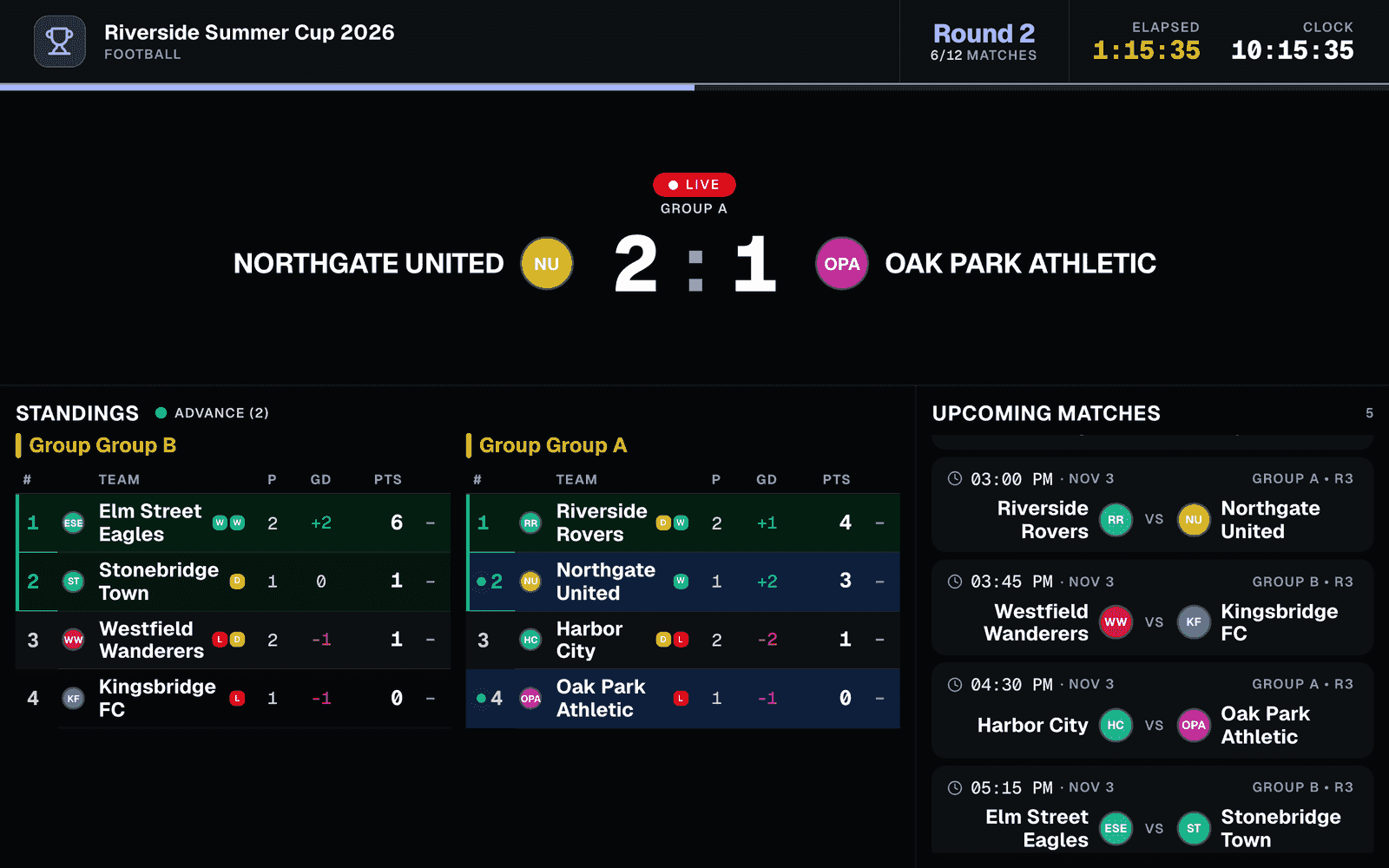
A new tournament has a private TV screen. The TV browser must be logged in to LiveCup.app, or the screen shows "This TV view is private. Please log in to access it." To let anyone open it, see the next part.
Let anyone open the TV link
A public TV screen needs a paid plan or a tournament credit.
Click Settings, then Presentation.
Find the TV View Visibility card.
Switch it to Public TV View.
Now the link works without a login. Copy it from the address bar of the TV tab and use it on any device.
Change the look
On the Presentation page, find TV Display Template.
Click the style you like.
Click Save template. Click Preview TV to check it first.
Arena is free. Stadium, Broadcast, Neon, Classic Board and LED Board need a paid plan or a tournament credit. Some sports also have a layout of their own.
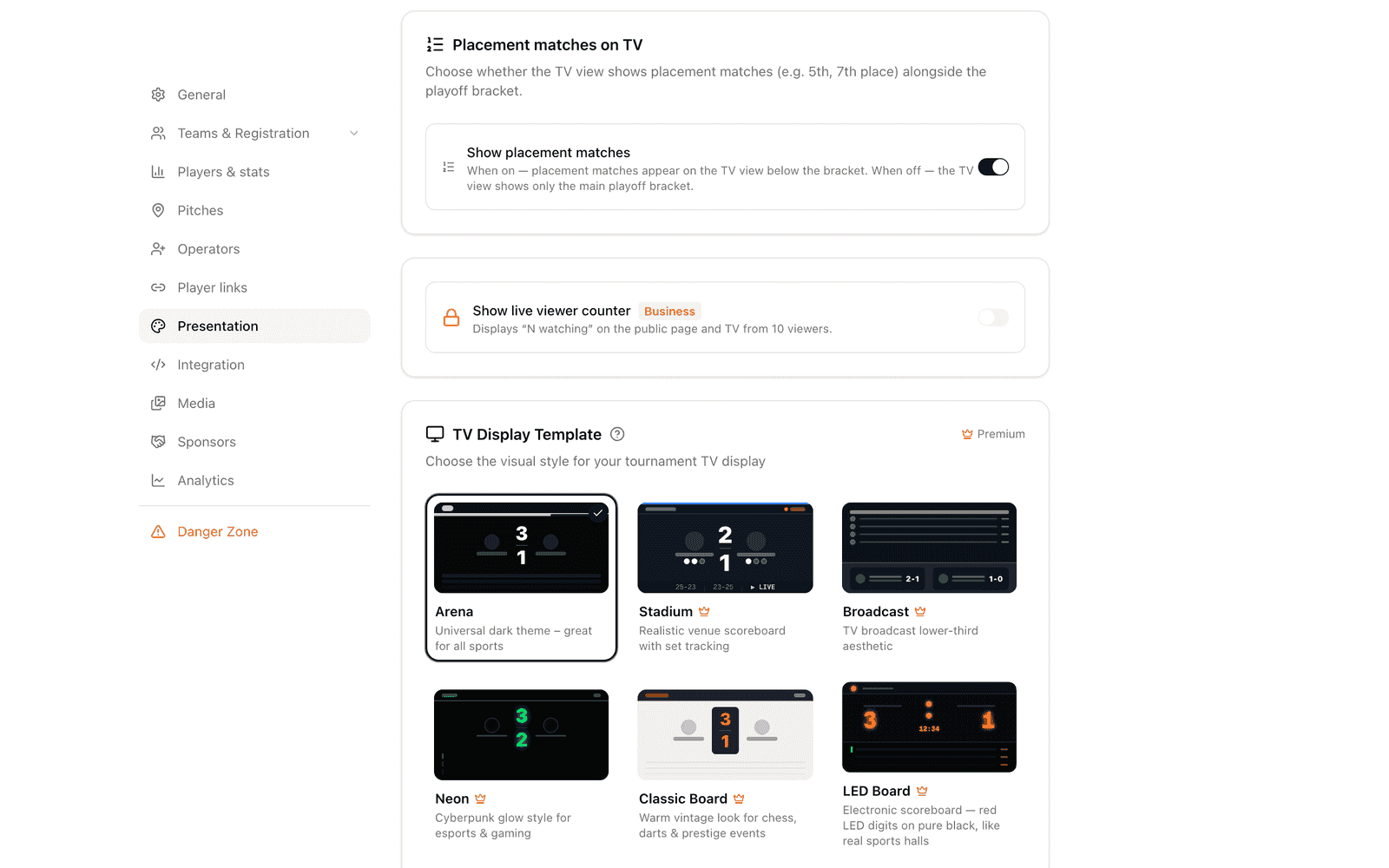
Slow TV or old computer? On the same page, switch on Disable all animations.
Want the table to change while a match is still live? Switch on Live projection in standings in the TV standings: live update card.