You can keep a list of players with shirt numbers for each team. You can also save the manager's contact details and a team logo.
Rosters work in team sports (like football or volleyball) and need a paid plan or a tournament credit.
Turn on rosters
Open your tournament and click Settings.
Click Players & stats.
Switch on Team rosters.
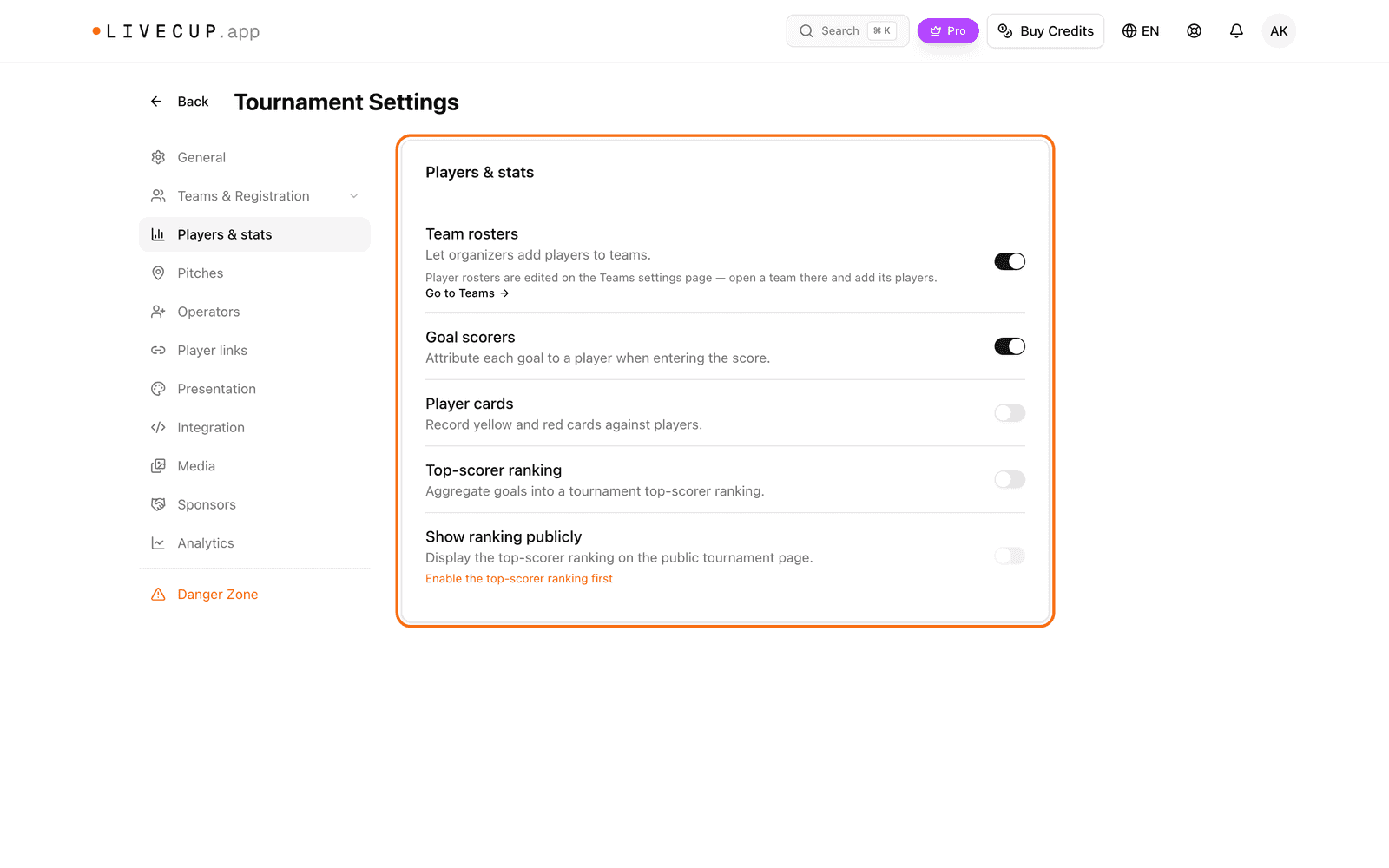
On this page you can also switch on Goal scorers, Player cards and Top-scorer ranking. They need Team rosters first.
Add players
In Settings, click Teams & Registration.
Find the Teams card. Click Roster next to a team.
Type the shirt number in #.
Type the name in Player name.
Click Add.
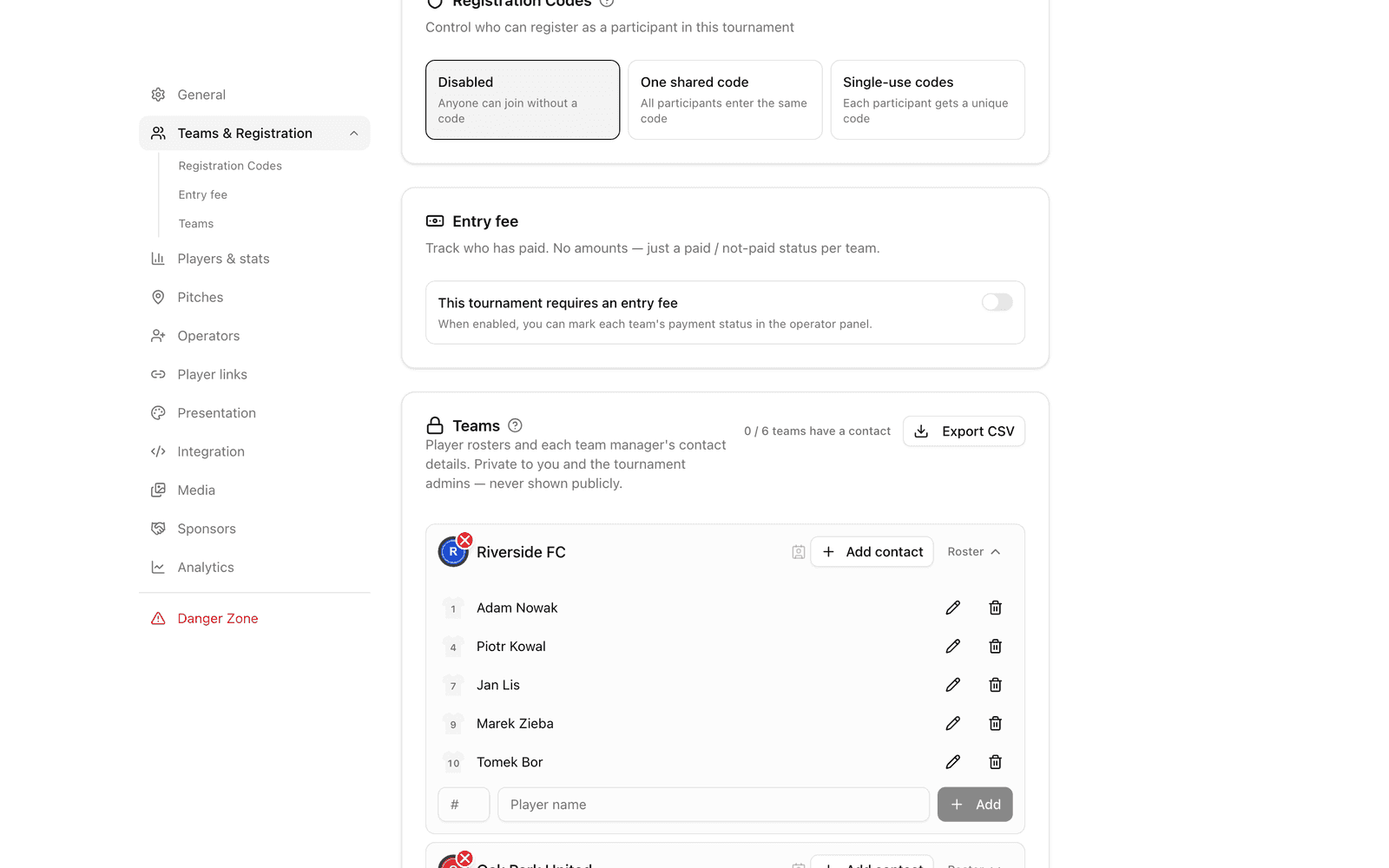
To change a player, click the pencil (Edit), then Save. To remove a player, click Remove. If two players have the same number, LiveCup.app warns you: "Two players share the same number".
Add manager contact details
In the Teams card, click Add contact next to a team.
Fill in First name, Last name, Email, Phone and Note.
Click Save.
Contact details are private. Only you and the tournament admins can see them. Click Export CSV to download all contacts.
Add or change a team logo
In the Teams card, click the round logo of a team.
Pick an image. JPG, PNG, WebP and GIF files work.
Crop the picture in the window that opens and confirm.
To remove a logo, click the small red X on the logo (Remove team logo).