The stream scoreboard is a small score graphic for your live stream. It sits on top of your camera picture. When someone enters a score in LiveCup, the stream shows it a few seconds later. You set it up once and do not touch it between matches.
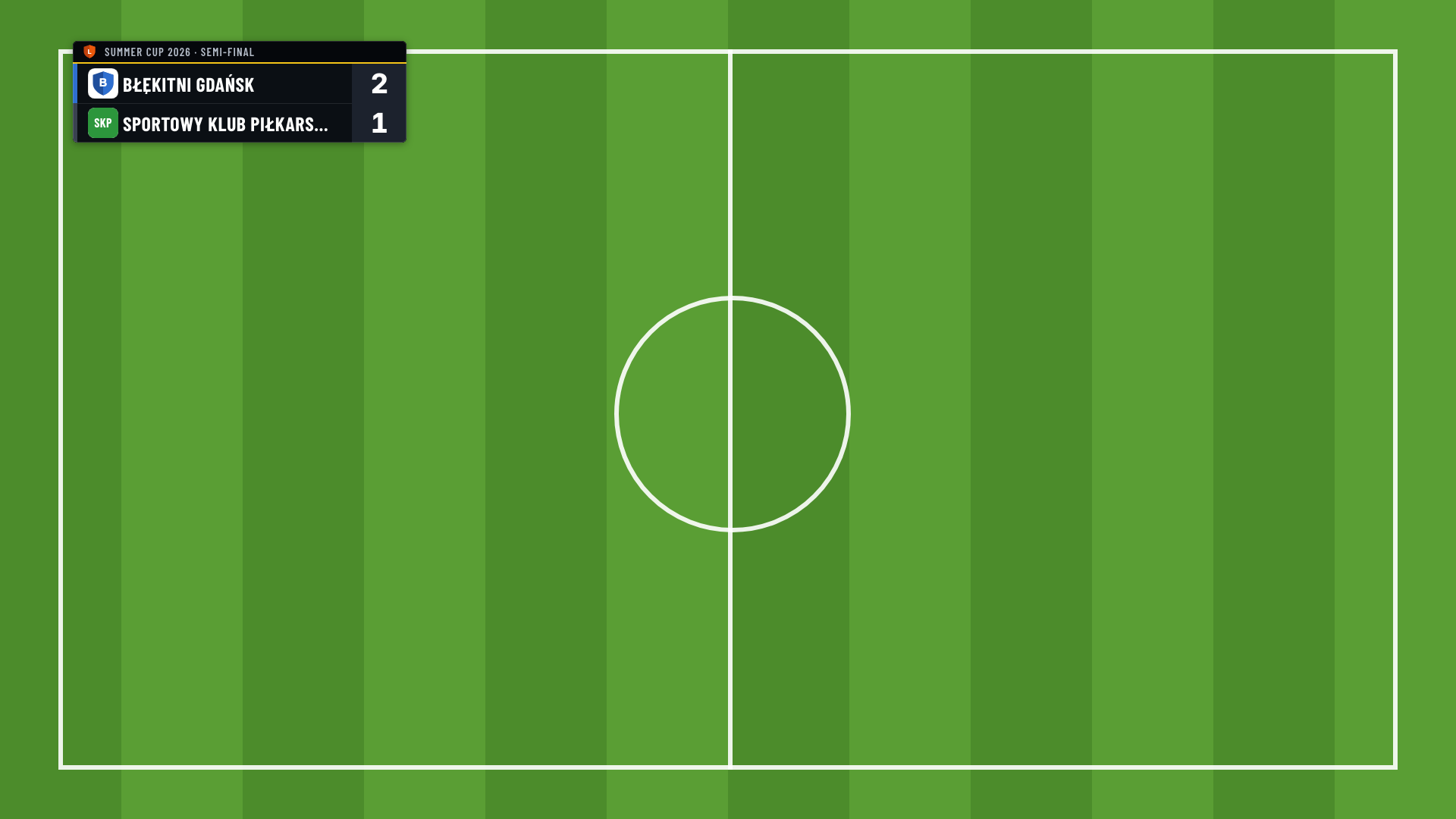
The stream scoreboard needs a paid plan or a tournament credit. A separate link for each pitch needs pitches, which are part of the PRO plan. For an event, the event organiser needs a paid plan.
What you need
A computer with free streaming software that can show a web page over the video. This guide uses OBS Studio. Streamlabs Desktop and vMix work the same way.
Your camera already added in that software.
The YouTube and Facebook phone apps cannot show the scoreboard. StreamYard cannot either. Some phone streaming apps can add a web page over the video (for example Streamlabs or PRISM Live Studio). We have not tested them, so try it before match day.
Copy your link
Open your tournament. Click Settings, then Integration.
Find the Stream scoreboard card.
Under Pick the link for your camera, find the pitch your camera films. No pitches? There is one link: Whole tournament.
Click Copy link. Working on a phone? Click E-mail this link and open the e-mail on the streaming computer.
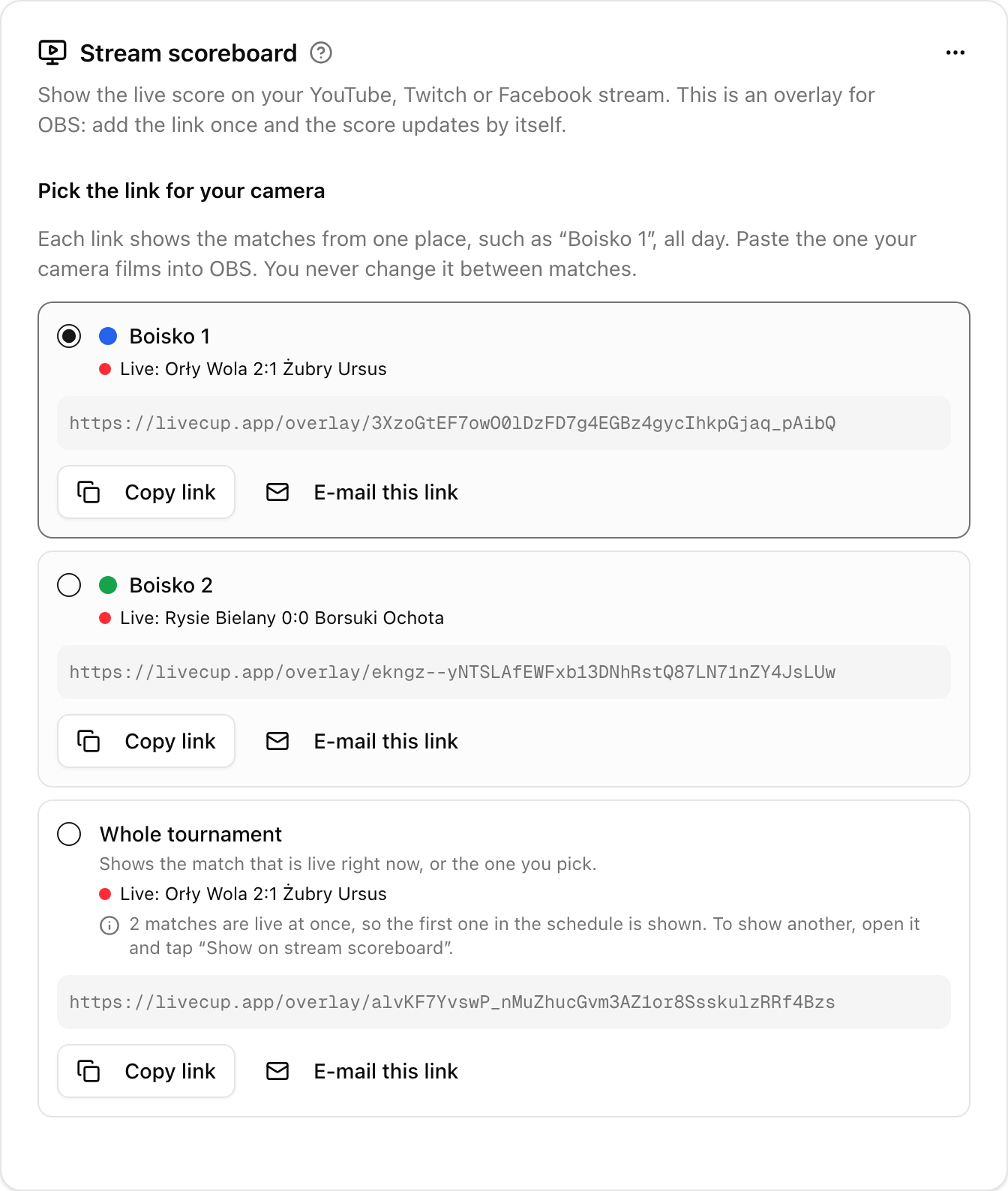
Each pitch link shows the matches of that pitch all day. Whole tournament shows the match that is live anywhere in the tournament. Only people who manage the settings see these links. To get a link per pitch, add pitches first: see Courts and match order.
Add it in OBS
In OBS, under Sources, click + and choose Browser.
Paste the link into URL. Set Width to 1920 and Height to 1080. Click OK.
In the source list, drag the new source above your camera.
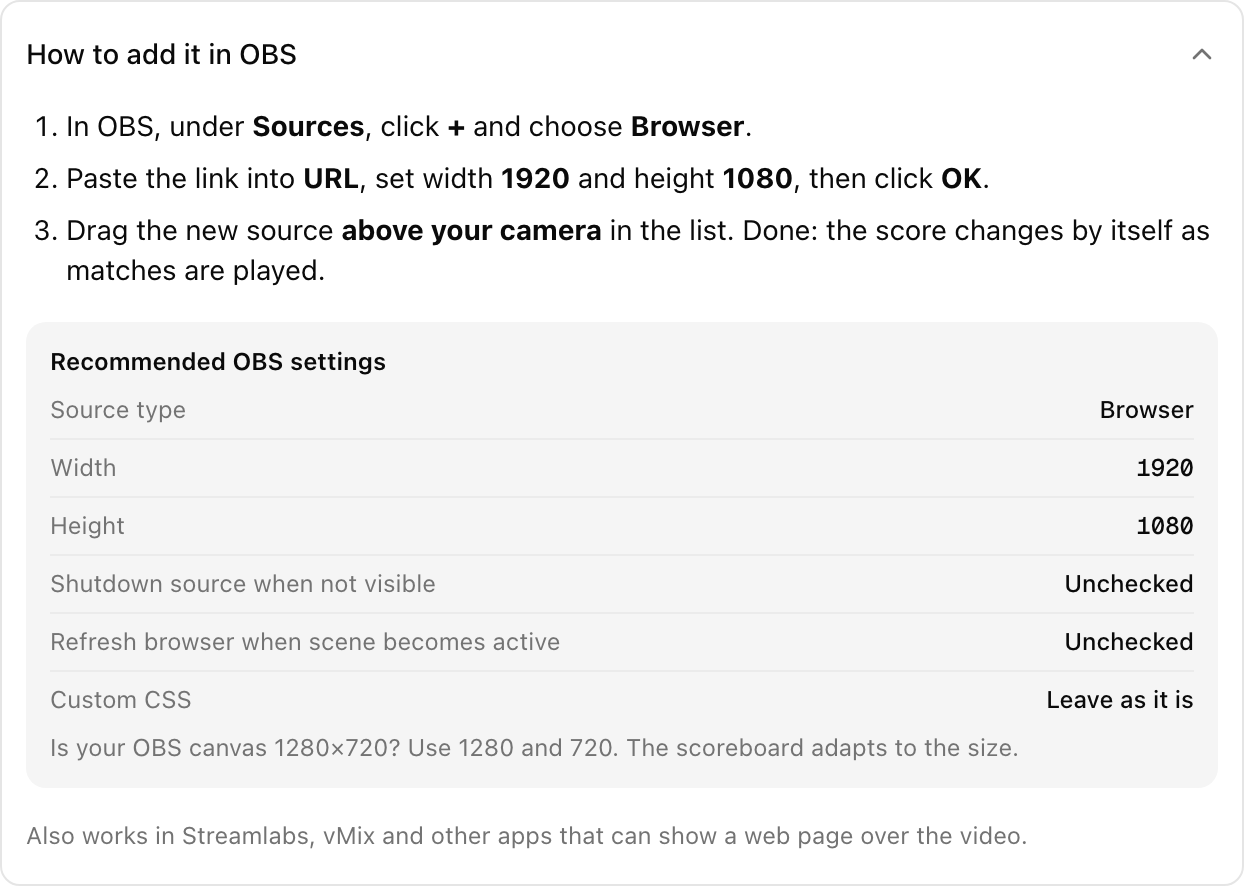
Do not move or resize the source. It covers the whole picture and is see-through. Only the scoreboard is visible. Leave Shutdown source when not visible and Refresh browser when scene becomes active unchecked. Leave Custom CSS as it is. Is your OBS canvas 1280×720? Use 1280 and 720 instead.
Change the look
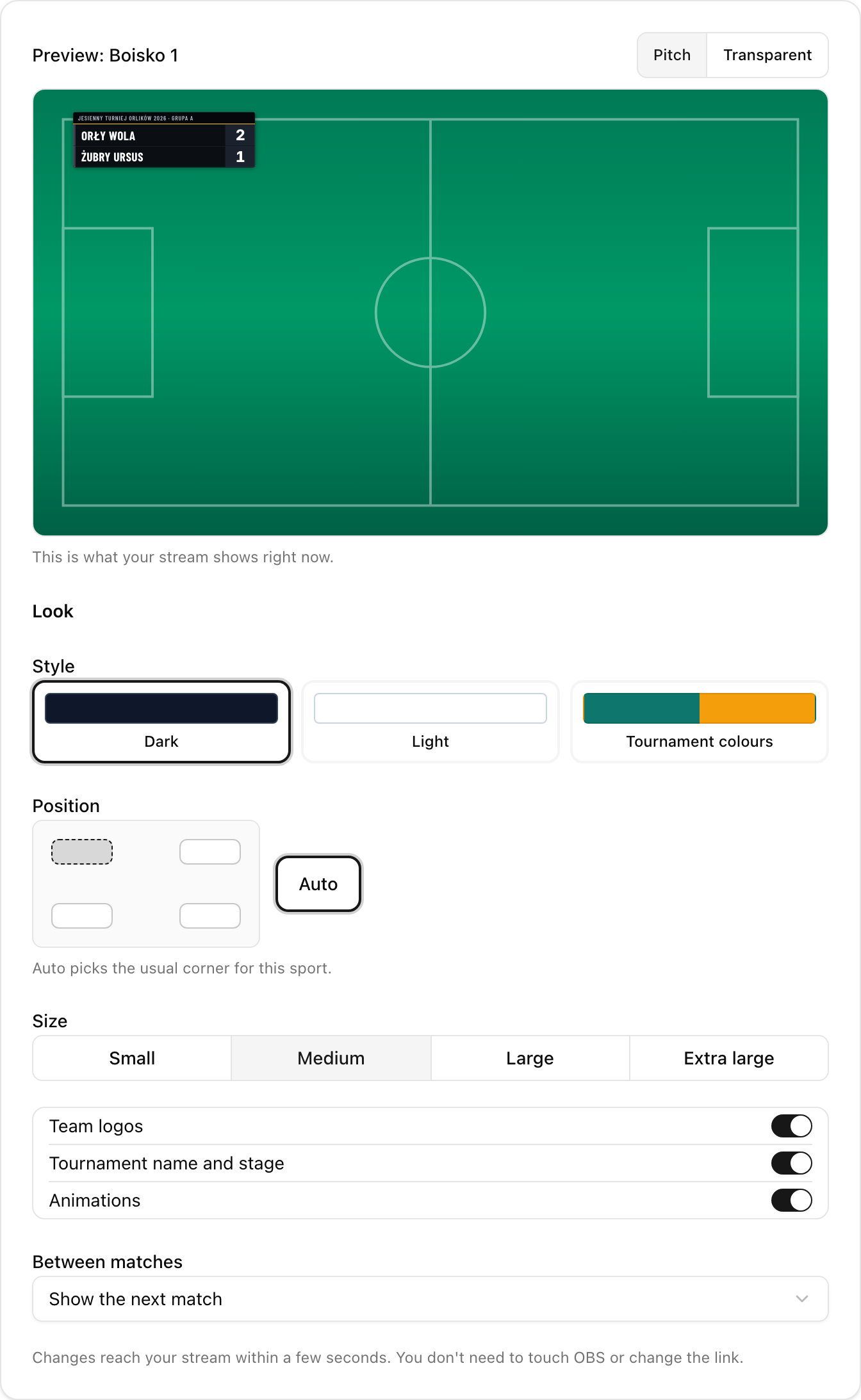
Change the look in LiveCup, not in OBS. In the same card, under Look, you can set:
Style: Dark, Light or Tournament colours.
Position: one of the four corners, or Auto. Auto uses the top left corner, or the bottom left for set sports and darts.
Size: Small, Medium, Large or Extra large.
Team logos, Tournament name and stage and Animations: on or off.
Between matches: Show the next match or Show nothing.
Changes save by themselves and reach the stream within a few seconds. The preview above shows what your stream shows right now.
What the scoreboard shows during the day
A match is live: its score.
The match ends: the final result stays for about one minute.
After that: the next match on that pitch, or nothing. You choose this in Between matches.
Two matches live on one pitch? The card shows a warning. The scoreboard keeps the first one from the schedule. Finish the match that has already ended.
Pick the match yourself
Open the match.
Click Show on stream scoreboard.
The scoreboard of that pitch now shows this match. If the match has no pitch, the Whole tournament link shows it. It goes back to automatic when the match ends. To go back sooner, click Back to automatic on the match or in the card.
Events
Open your event, click Settings, then Integration. You get one link for each event pitch and one for Whole event. They work the same way. A pitch link follows that pitch across all tournaments of the event.
Private tournaments and new links
The link works without logging in and without the join code. That is how OBS can open it. Anyone who has the link can see the score, so send it only to the person who runs the stream.
Did the link get out? In the card, open More options (the three dots) and click Create new links.
The old links stop working right away. Paste the new link into OBS, or the stream loses the scoreboard.
What each sport shows
Football and other goal sports: team names and score.
Futsal, basketball, rugby: also the period and the clock you run in LiveCup.
Volleyball and other set sports: sets won and points in the current set.
Padel and tennis: sets, games and points, with a dot for who serves.
Darts: legs, remaining score and who throws.
If something is wrong
Black or white background, or you see the LiveCup website. You pasted the wrong address. Use the link from the card. It contains
/overlay/. If you changed Custom CSS in OBS, remove the source and add it again.The scoreboard is tiny or cut off. Width and height are still 800 and 600. Set 1920 and 1080.
Nothing is visible. Check the card: Nothing on the stream right now means no match is live. Also check that the source is above your camera in OBS, that the tournament still has a paid plan or credit, and that nobody created new links.
The score does not change. The match must be started and the score entered in LiveCup. Check the internet on the streaming computer. The scoreboard reconnects by itself.
Still stuck? In OBS, open the source properties and click Refresh cache of current page.
For a big screen in the hall instead of a stream, see TV display.