Make the TV screen look like your event. Add your logo and name, choose colours, and show your sponsors.
Add your logo and name
Your own logo and brand name need a paid plan. On the free plan the TV screen shows the LiveCup.app brand.
Open your tournament and click Settings.
Click Presentation.
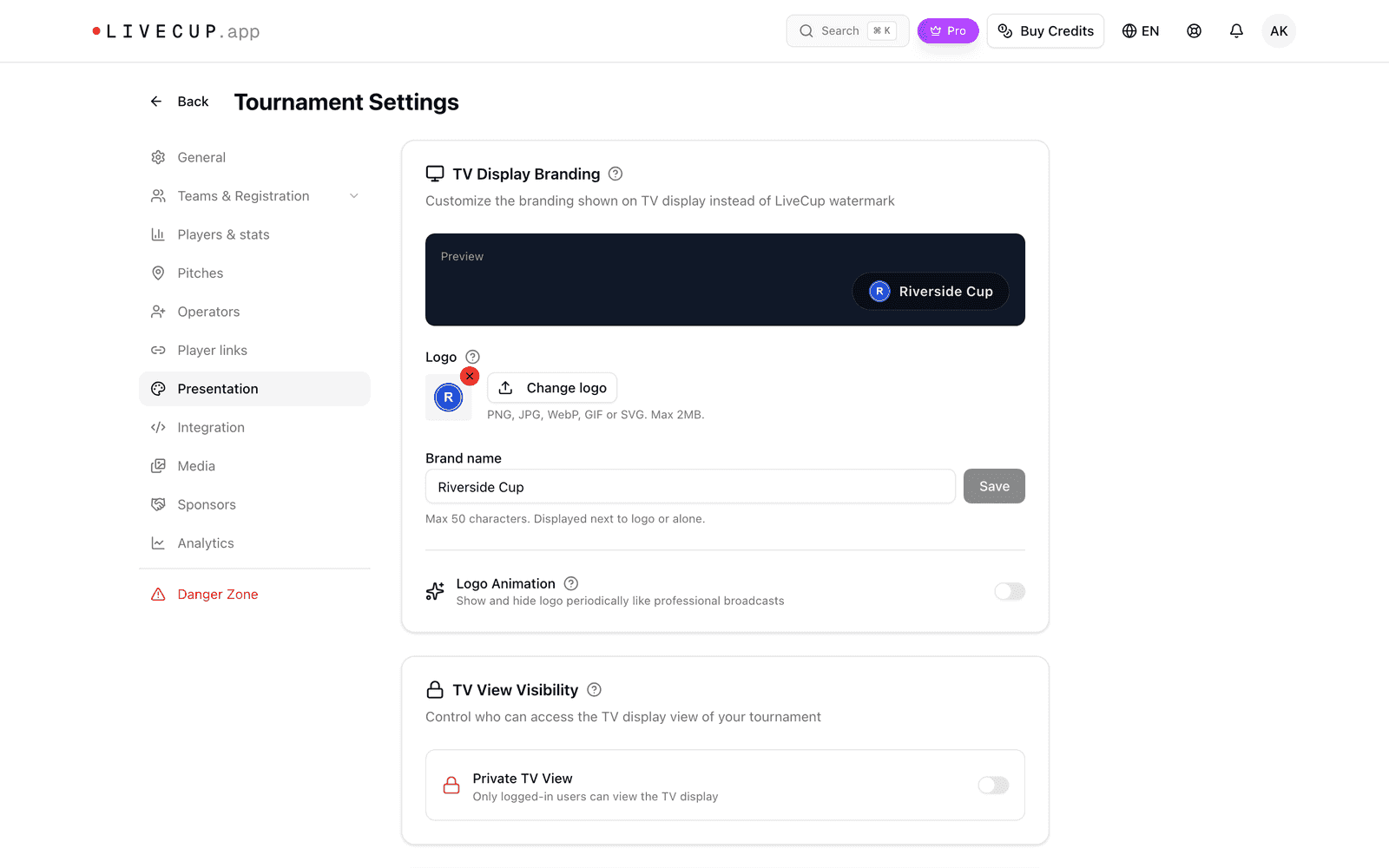
In TV Display Branding, click Upload logo. Use PNG, JPG, WebP, GIF or SVG, max 2MB. The logo is saved at once.
Type your name in Brand name (max 50 characters) and click Save.
The Preview shows how it looks.
Choose TV colours
On the same Presentation page, find TV Display Template.
Pick Arena.
Under TV colours, set Primary colour and Secondary colour.
Click Save template.
The colours change the Arena view only. If a colour is hard to read on the black TV background, LiveCup.app tells you to pick a lighter one. Click Back to default to undo.
Custom TV colours need a PRO plan. Most other templates need a premium tournament. Arena is free.
Add sponsors
Sponsors need a paid plan or a tournament credit.
Click Settings, then Sponsors.
Click Add Sponsor.
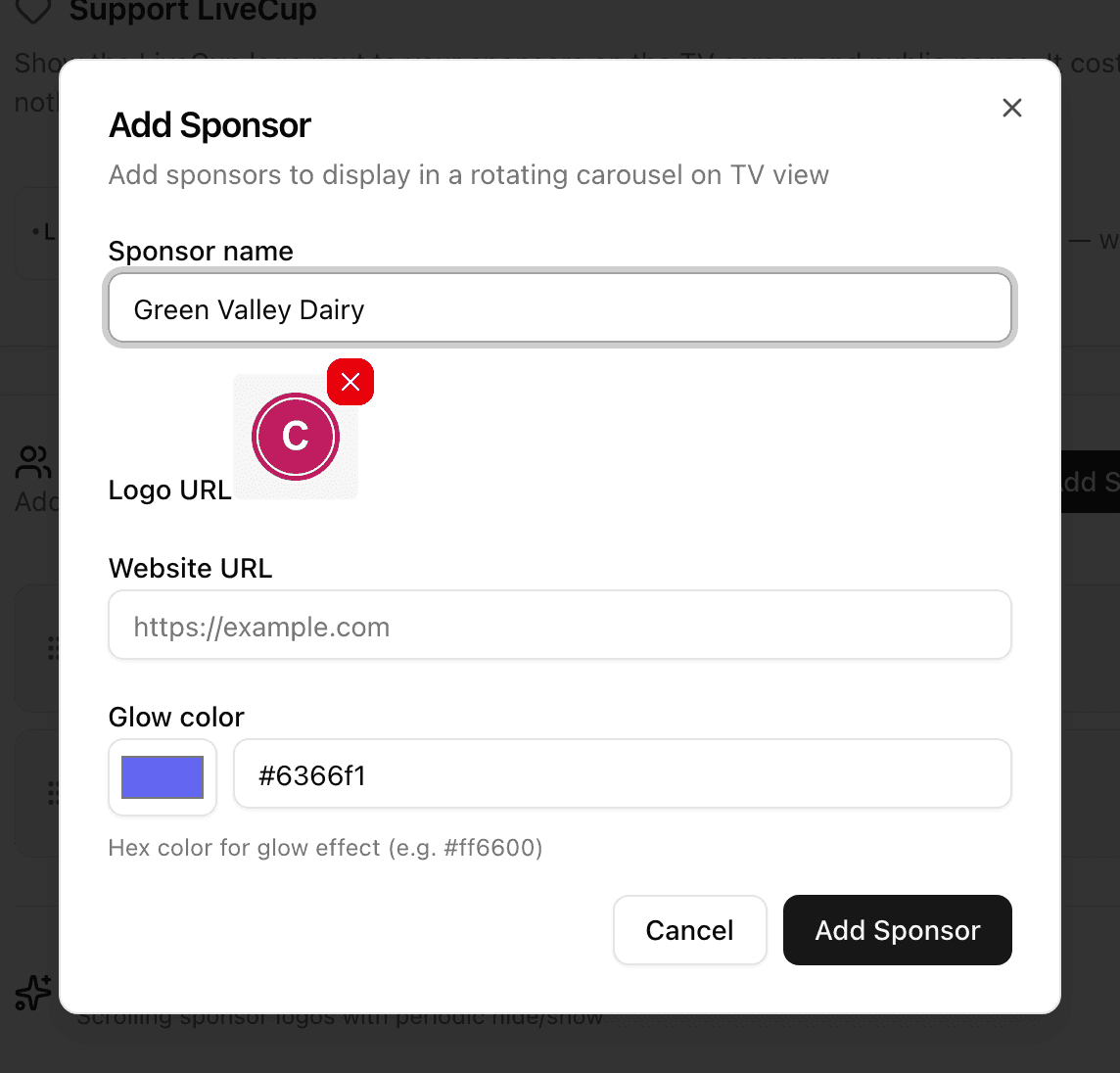
Type the Sponsor name.
Click Upload logo and pick the image.
Optional: add the Website URL and a Glow color.
Click Add Sponsor.
Sponsor logos rotate on your TV screen. Under Ticker Animation you can choose how they appear and hide.
To change or remove a sponsor, point at it in the list and use the pencil or the bin.
Show LiveCup.app too
The Support LiveCup card has a switch, Show LiveCup as a sponsor. It is on by default on the Free plan and off by default on paid plans. You can change it at any time.