My Teams is your own list of teams. You save a team once. Then you pick it from the list in any tournament. Only you can see this list.
Add a team to My Teams
On your dashboard, click My Teams.
Click Add team.
Type the Team name. You can also add a logo, choose Sports (optional) and fill in Manager contact (optional).
Click Save.
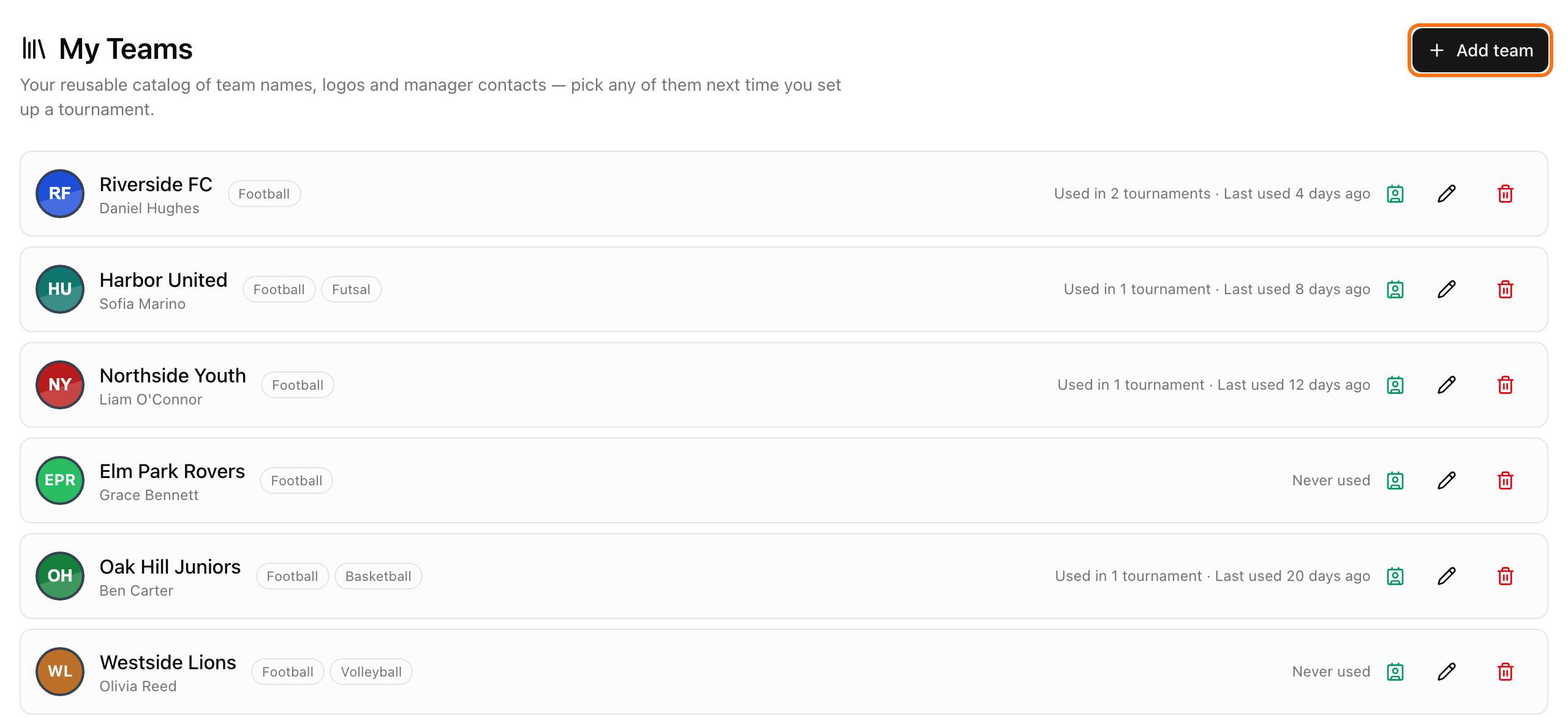
To change a team, click the pencil. To add players, open the team and go to Roster. To delete a team, click the bin. Tournaments that already use the team keep their own copy.
Use saved teams in a tournament
Open your tournament and find the Teams card.
Click Choose from My Teams.
Tick the teams you want. The list shows teams for the sport of your tournament. Click Show all sports to see every team.
Click Add 3 teams (the number matches how many teams you ticked).
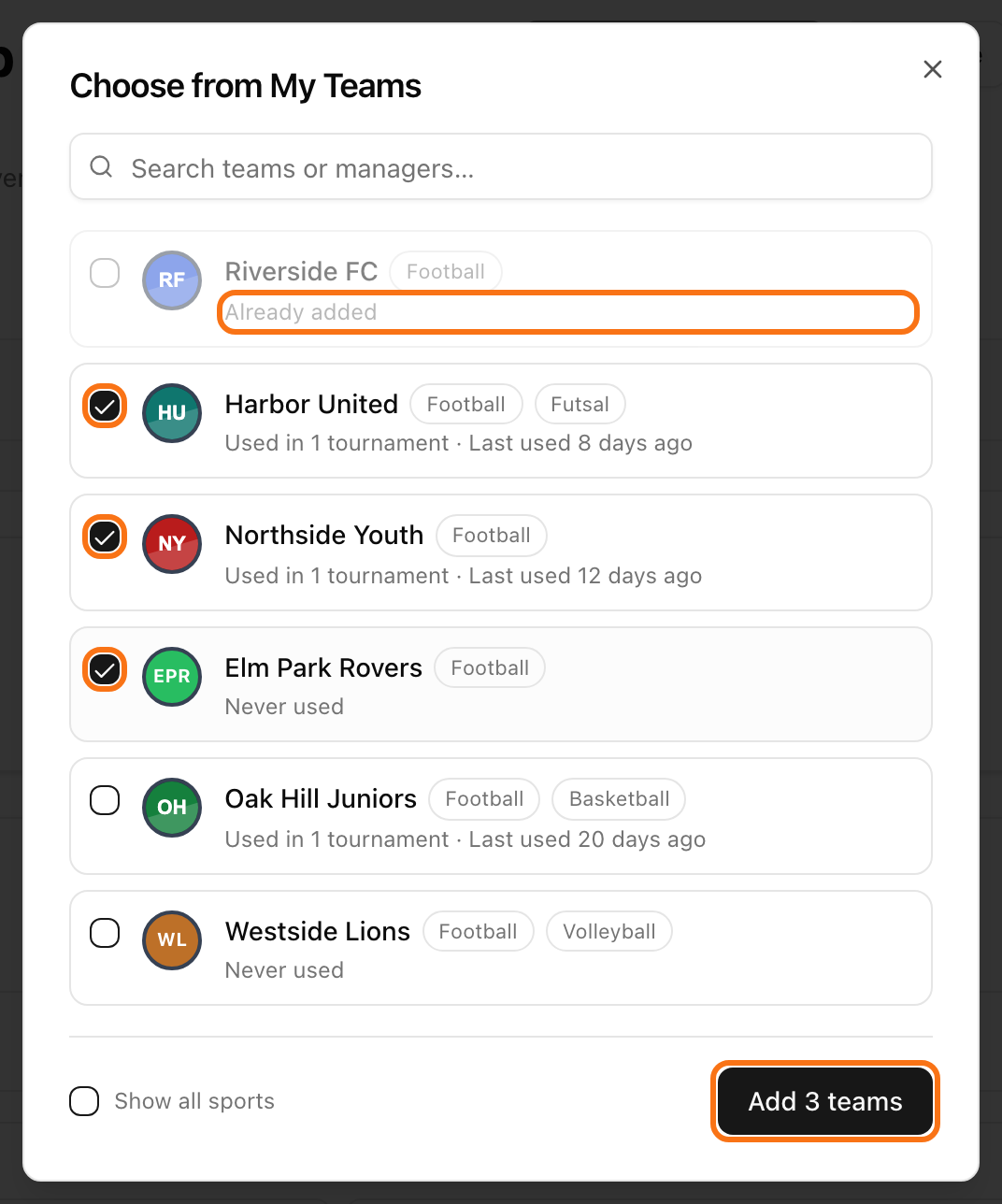
A team that is already in the tournament shows Already added. If the tournament has a team limit, you can tick only as many teams as fit. The tournament gets its own copy: name, logo, contact and, if rosters are on, the players. See team rosters.
The Choose from My Teams button shows up only after you saved at least one team.
Save teams from a tournament
Open Settings, then Teams & Registration. In the Teams card, click the Save to My Teams icon next to a team that has a manager contact. Teams that came from your list show From My Teams.
When you end a tournament, LiveCup.app asks Save these teams to My Teams? Tick the teams and click Save teams. Or click Skip. The window lists only teams with a manager contact that are not saved yet.
Keep contacts up to date
In the Teams card, open the contact of a team that shows From My Teams.
Change the details.
Click Update in My Teams too.
If rosters are on, tick Also update the roster in My teams to send the players back as well.
Contacts are private. Only you and your tournament admins can see them.