Teams can sign up by themselves with a link or a QR code. You can also add teams by hand.
Share the join link
Open your tournament. You are in the operator panel.
Find the card with your teams. Under Let teams join themselves, click Copy link or Show QR.
Send the link, or print or show the QR code.

If you see Self-registration is off, click Enable self-registration.
Teams can sign up only before the tournament starts.
Add a team yourself
Under Add a team, click Add team manually.
Type the name in Team name.
Click Add.
Close registration
When you have enough teams, click Close registration at the bottom of the teams card. The link and QR code stop working. You can still add teams by hand. Click Reopen registration to open it again.
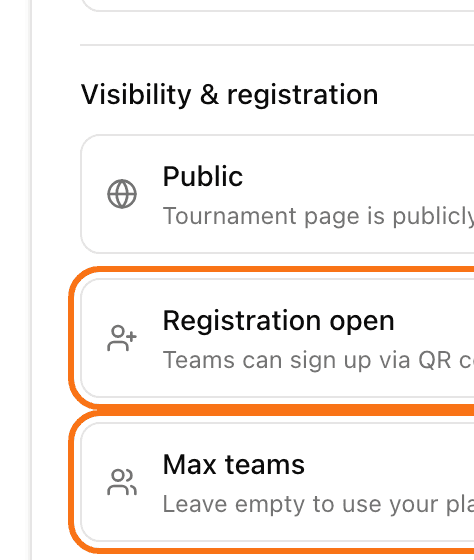
You can also do this in Settings, then General. Under Visibility & registration, switch Registration open off and click Save changes.
Set a team limit
Click Settings, then General.
Under Visibility & registration, type a number in Max teams. Leave it empty to use your plan limit.
Click Save changes.
Other options
Open Settings, then Teams & Registration.
Registration Codes: teams must type a code to join. Choose One shared code or Single-use codes, then click Save.
Entry fee: switch on This tournament requires an entry fee. You then mark each team as paid or not paid. It only records paid or not paid, with no amounts.
Waitlist: switch on Enable waitlist. When the tournament is full, new sign-ups wait. Freed spots go to the next person, automatically if Promote automatically is on. Read more in how to use a waitlist.
Pair registration: in padel, tennis and other doubles sports, players can sign up as a pair. See how to let players sign up as pairs.
Registration Codes and Entry fee need a paid plan or a tournament credit. Waitlist needs a PRO or BUSINESS plan. An Event Pass does not unlock it.